
- Filters/Actions For Post
- Spectra Patterns
- Contact Form 7: Checkbox / Radio / Acceptance Control
- Getting Started With Spectra
- WP – Search
- Create Contact Forms
- Import Single Pages, Templates, & Block Patterns
- Assets API For Third-Party Plugins
- Copy & Paste Style
- Load Google Fonts Locally
- Troubleshooting: Missing Icons
- Contact Form 7: Multiple Column Fields
- Unable To Style Contact Form 7
- Tab Index For Multiple Gravity Forms
- Manually Install Spectra Via FTP
- Enable/Disable Design Library Button
- Update Folder File Permissions
- Resolving Container Layout Conflicts
- Database Update Instructions (Below 2.0.0)
- Using Heading Block
- Buttons
- Post Grid
- Content Timeline
- Social Share
- Google Map
- Add Testimonials
- Info Box
- Section
- Team
- Icon List
- Price List
- Post Masonry
- Post Carousel
- Post Timeline
- Call To Action
- Advanced Columns
- Blockquote
- Marketing Button
- Table Of Contents
- How-to Schema
- FAQ’s: Schema/Accordion
- Inline Notice
- Exclude Heading From TOC
- Review Schema
- Lottie
- Taxonomy List
- Tabs Block
- Block Display Conditions
- Star Rating
- Masonry Image Gallery
- Wireframe Blocks
- Copy & Paste Style
- Container Flex Property
- Default Content Width
- Heading Block
- Image Block
- Buttons Block
- Container Block
- Responsive Conditions
- Taxonomy Styling Options
- Block Presets
- Image Gallery
- Counter Block
- Modal Block
- Registration Form Block
- Dynamic Content Extension
- Slider Block
- Pagel Level Custom CSS
- Countdown Pro
- Slider Custom Navigation
- Loop Builder
- Animations
- Login Form Block
- Global Block Style Extension
- Create Popups
- Grid Builder
- Using Dynamic Content in FSE Templates
- Pixabay Image Search Feature
- Getting Started with Instagram
- Advanced Loop Builder
- Transparent / Sticky Header
- Change Site Logo
- Change Global Styles
- Disable Title on Posts & Pages
- Transparent / Sticky Header For Single Page / Post
- Change Header & Footer Patterns
- Custom / Google Fonts
- Reset Global Default Styling
- Manually Install Spectra One Via FTP
- Enable / Disable Header & Footer On Specific Pages / Posts
Post Grid
The Post Grid block provides stunning options to showcase CPT anywhere on the page. It provides taxonomy controls to choose any registered public taxonomy.
It also offers predefined controls for every part of the post like Featured Image, Excerpt, author, etc.
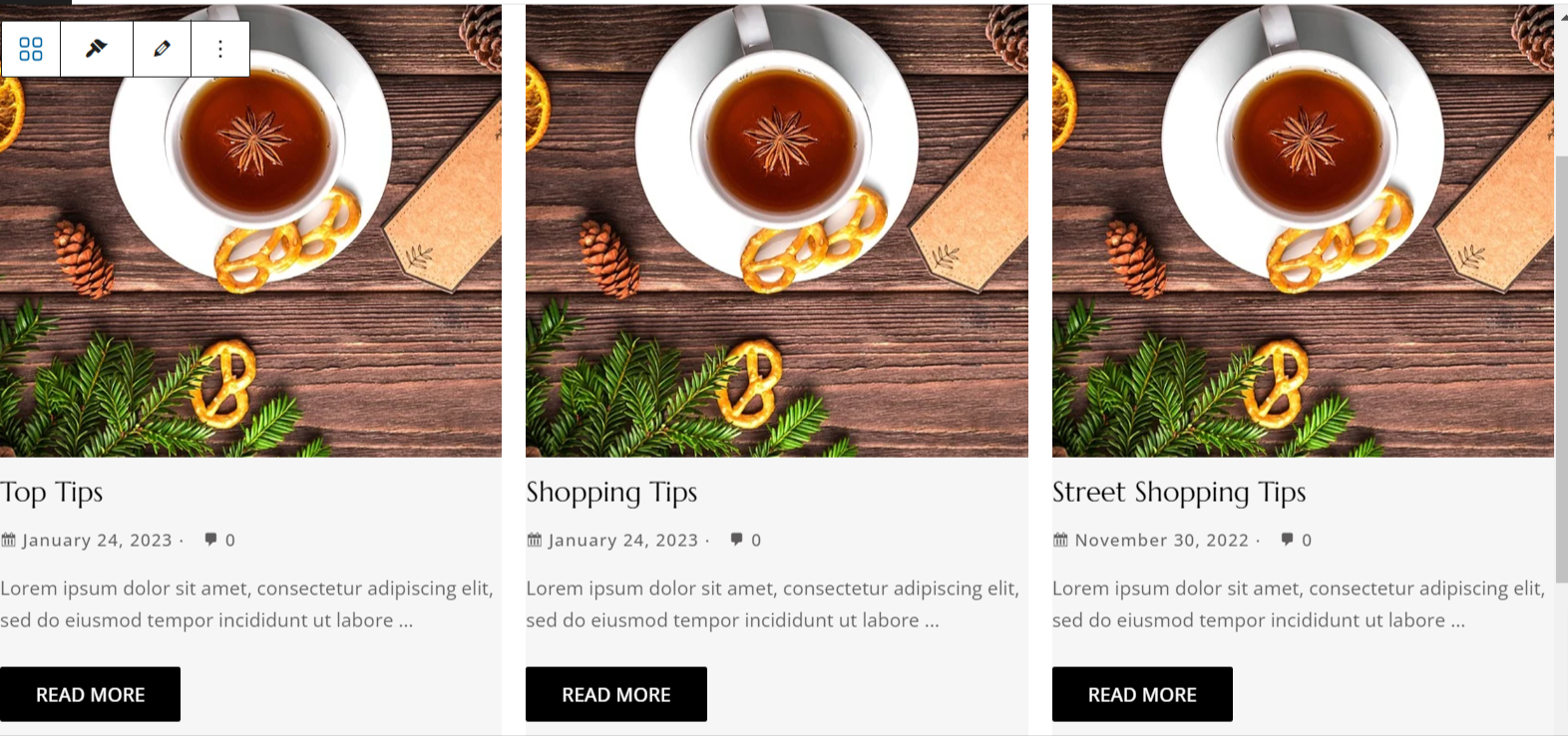
Here are some of it’s key features:
- Option to Choose Post type (posts, pages, products, steps, custom layouts) to display
- Taxonomy controls for any registered public taxonomy
- Order posts by title, date, random or menu order
- Featured image position
- Decide the number of items per page
- Enable post pagination
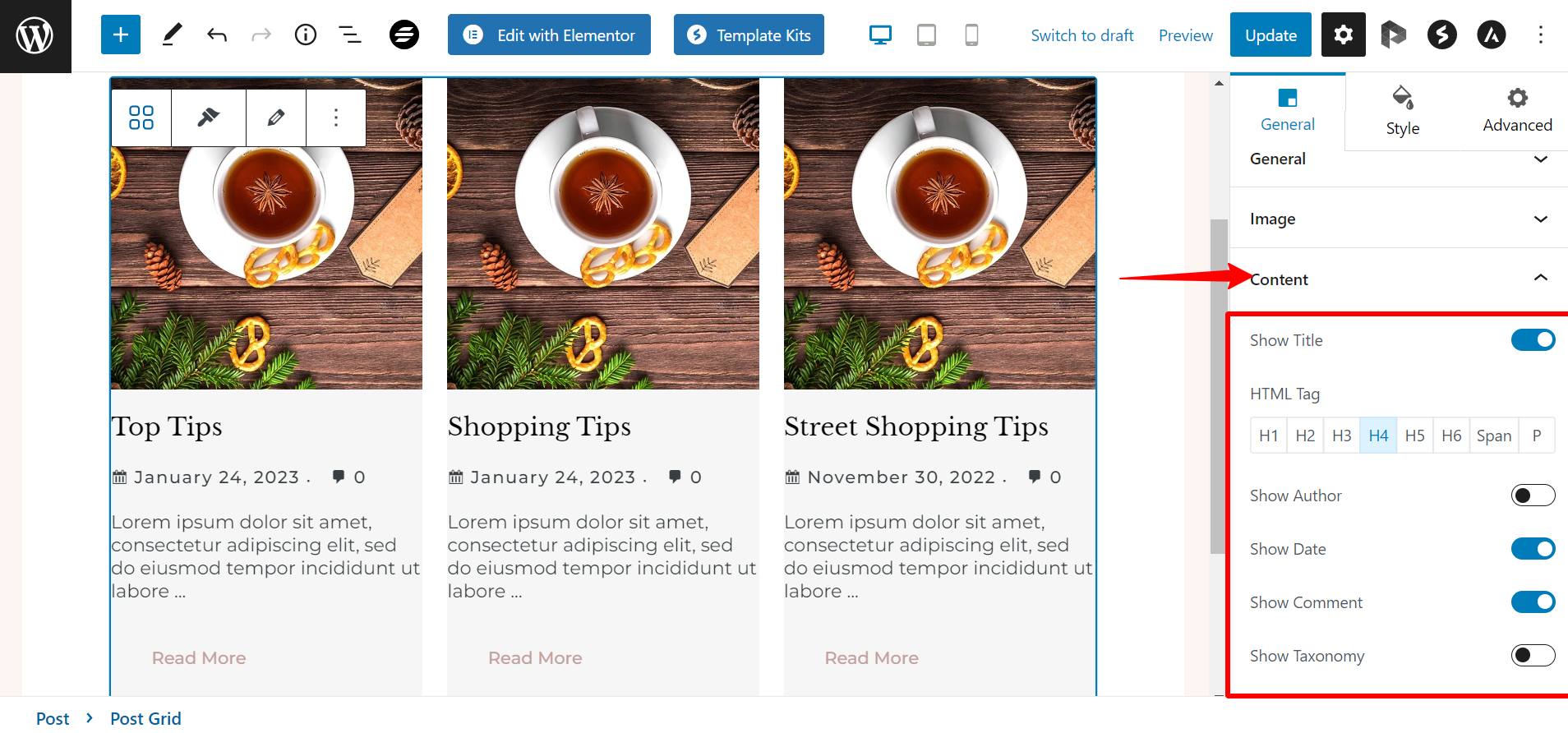
- Show/Hide post meta like Author, Date, Comment, Excerpt, Read More Link
- Color option for each part of the blog
- Spacing options for post grid
- Post Rearrange Option [New]
Choose Post Type and Set Taxonomy Controls
Under the General tab, the Post Type option allows choosing all available post types – posts, pages, products, steps, and custom layouts.
Taxonomy controls allow choosing posts according to any registered public taxonomy — including categories, tags, and custom taxonomies (e.g. those created with ACF or registered in code). Select the desired taxonomy from the dropdown to filter and display posts accordingly.
For custom taxonomies to appear in the Taxonomy dropdown, they must be set to Public and have Show in REST API enabled. If using ACF, both options are available in the taxonomy’s settings.
Note: the editor preview may display default categories only — the correct custom taxonomy terms will render properly on the frontend.
Note: For Custom Post Types make sure the show_in_rest parameter is set to true. For both, custom post type and custom taxonomies.
Order by option allows ordering posts according to date, alphabetically dependent on the title, random, or menu order.

Decide Posts Per Page
Under the General tab, you get an option to select Posts Per Page. Further, you can enable pagination and display a bunch of posts with every view.
You can easily customize the design of the pagination.
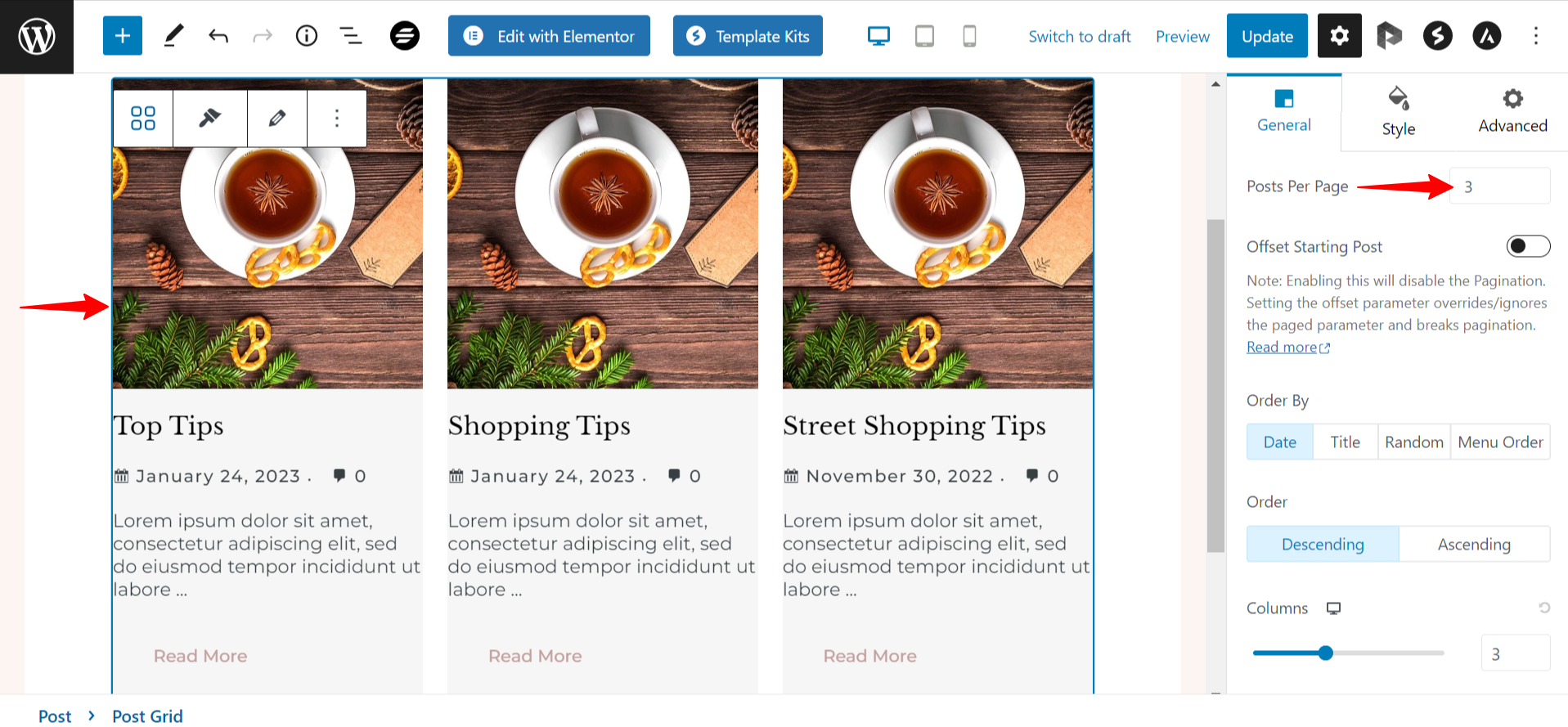
Note: You need to manage the count of Posts Per Page and Page Limit. Let’s say you have 12 posts and count of Posts Per Page is 4. Then the maximum Page Limit can be 3.
Show or Hide the Post Meta
Under the Content tab, the options are available to hide post meta settings like Author, Date, Comment, Excerpt, Meta Icon, Read More Link.
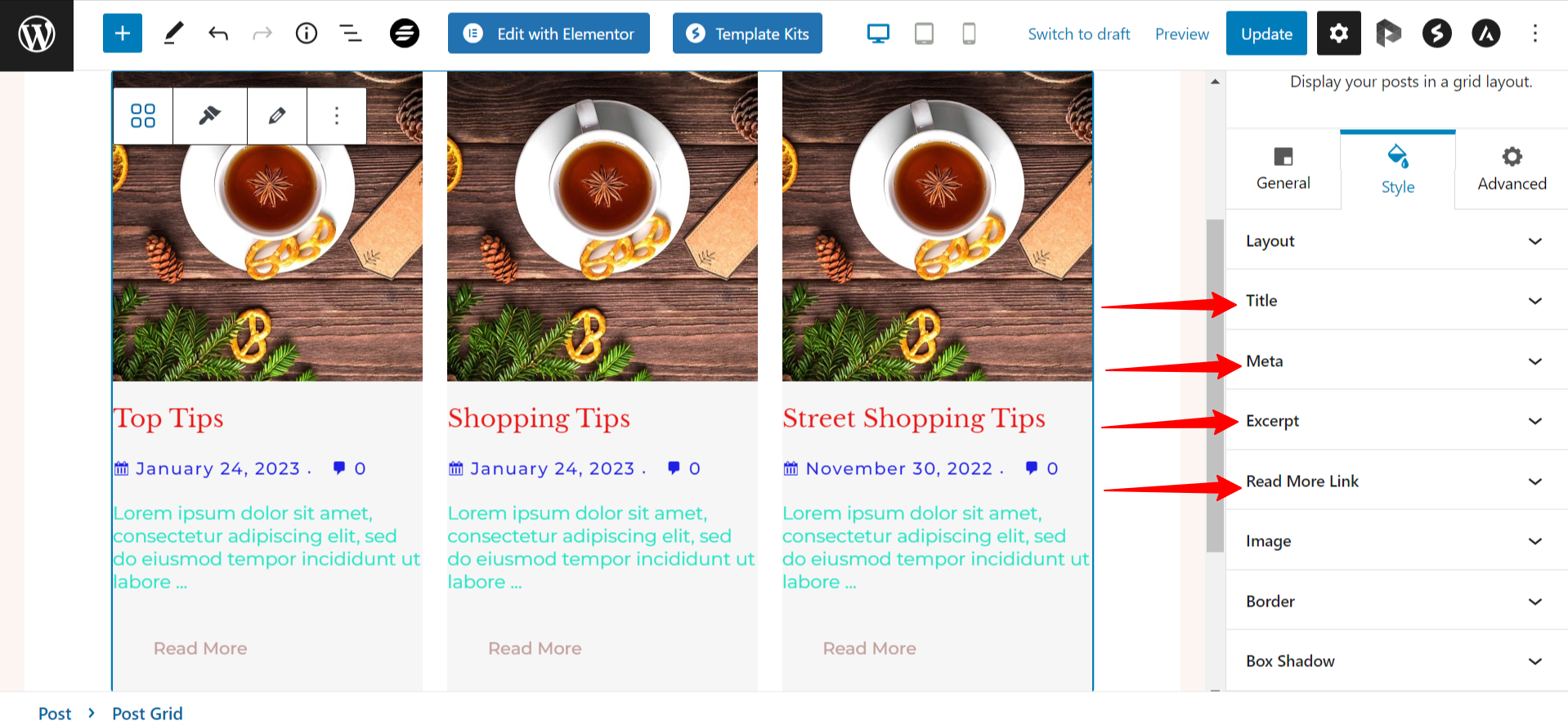
Color Options For Each Post Part
Under the Colors tab, the options are available to change color for each part of the post.
Spacing Options for Post Grid
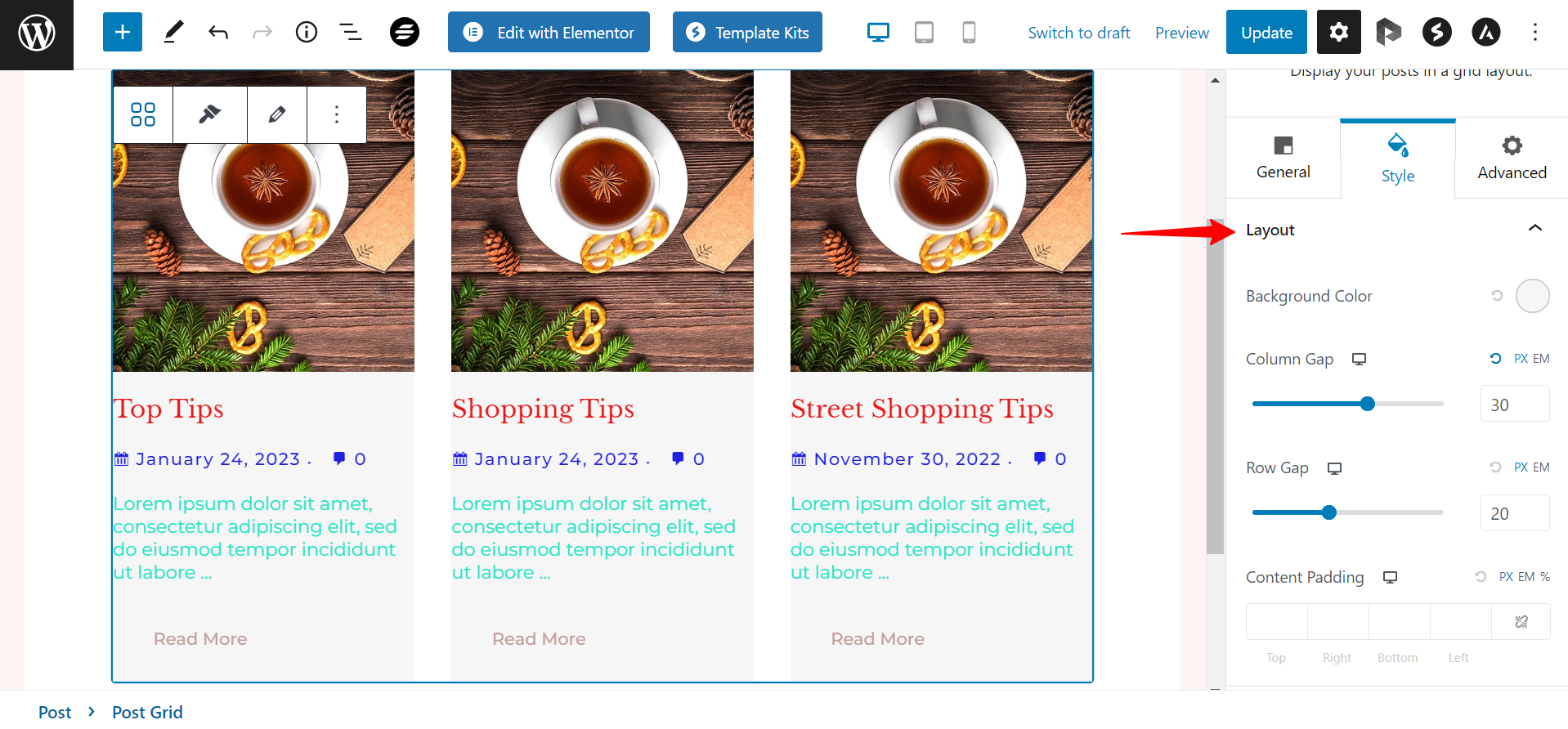
Under the Layout tab, you can control spacing for every part of the blog.
Post Rearrange Options
Note:
The Spectra version 1.20.0 – introduces – Post Rearrange functionality which will also add edit layout option to the Post Grid, Post Masonry, and Post Carousel blocks too.
Key Points —
- Added Edit mode to rearrange Post default layout in Post Grid, Post Masonry, and Post Carousel block.
- Preview Mode – where you can check the rearranged layout
- You can Save, Cancel and also Reset the block layout
Steps to Rearrange the Post Grid layout
Step 1: Ensure you are on the Spectra version 1.20.0 and above.
Step 2: Now, on hovering over the Post Grid options you will notice an pencil or edit icon. This will open a Preview mode that will help change the post grid layout for the posts.
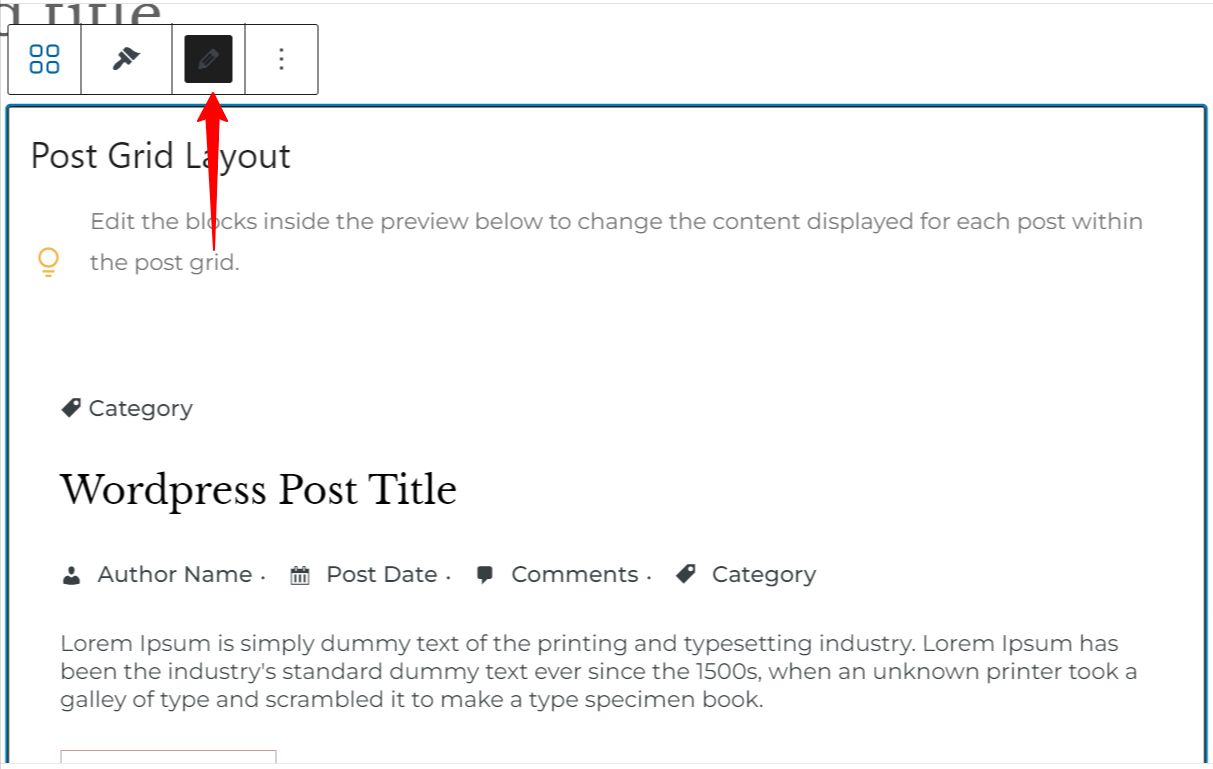
Step 3: Furthermore, you will find options by clicking on the Product Image, Post Title, Meta, etc and drag option/Move Up-Down button using which you can rearrange the layout.
Step 4: Once the layout is final, you can save the changes it will reflect. If you are unsure about the changes you can simply cancel.
Or if you want to go back to the initial styling of the Post Grid you can click on the Reset Layout option beside the Save and Cancel option.
That’s it. We hope this guide was helpful. For any further assistance, please reach out to us.
We don't respond to the article feedback, we use it to improve our support content.