
- Filters/Actions For Post
- Spectra Patterns
- Contact Form 7: Checkbox / Radio / Acceptance Control
- Getting Started With Spectra
- WP – Search
- Create Contact Forms
- Import Single Pages, Templates, & Block Patterns
- Assets API For Third-Party Plugins
- Copy & Paste Style
- Load Google Fonts Locally
- Troubleshooting: Missing Icons
- Contact Form 7: Multiple Column Fields
- Unable To Style Contact Form 7
- Tab Index For Multiple Gravity Forms
- Manually Install Spectra Via FTP
- Enable/Disable Design Library Button
- Update Folder File Permissions
- Resolving Container Layout Conflicts
- Database Update Instructions (Below 2.0.0)
- Transparent / Sticky Header
- Change Site Logo
- Change Global Styles
- Disable Title on Posts & Pages
- Transparent / Sticky Header For Single Page / Post
- Change Header & Footer Patterns
- Custom / Google Fonts
- Reset Global Default Styling
- Manually Install Spectra One Via FTP
- Enable / Disable Header & Footer On Specific Pages / Posts
Spectra Blocks – Copy and Paste Style
Spectra’s block editor lets you build beautiful websites. But what if you want to apply the same styling to several blocks? Spectra’s “Copy and Paste Styles” feature comes to the rescue.
This handy tool lets you copy the styling from one block and paste it onto another, helping you keep a consistent look and feel across your website.
What is Copy and Paste Styles?
Imagine you’ve spent time customizing a block on your page with just the right colors, spacing, and text size. With Copy and Paste Styles, you don’t have to recreate that styling by hand on every other block.
You can copy the style from your first block and paste it onto another block of the same type. This keeps your design consistent and saves you from repeating the same settings over and over.
How Does Copy and Paste Styles Work?
Using Copy and Paste Styles is a straightforward process:
- Style your first block: Design your block with the colors, spacing, text size, and border settings you want.
- Copy the style: Select the block you want to copy from and open the block options menu (the three dots in the toolbar). Click “Copy styles.” This copies the styling information for that block.
- Paste the style: Go to the block where you want to apply the style. Open the block options menu and click “Paste styles.” The copied style is applied to the block.
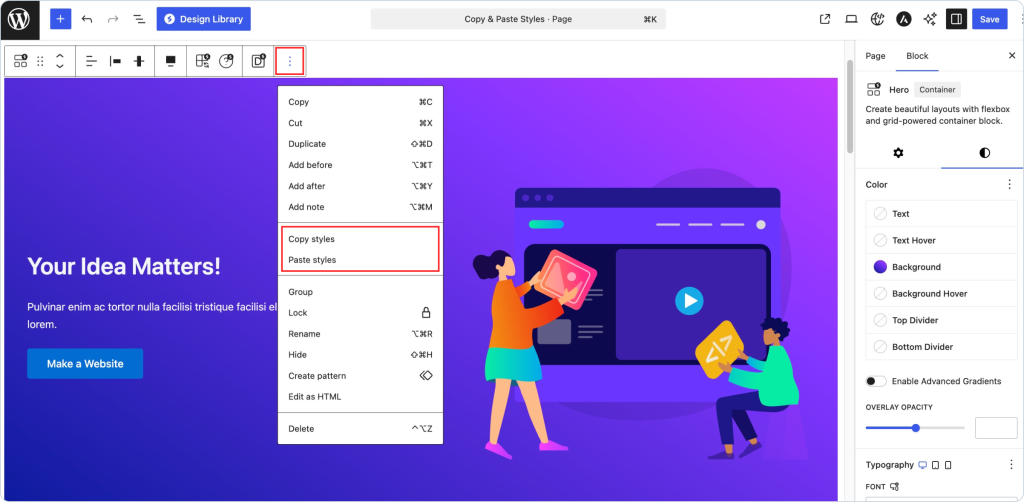
What Gets Copied
Copy and Paste Styles works with the style controls provided by WordPress core, so the most common styling carries over instantly when you paste.
The styles that copy across are:
- Text color
- Background color
- Padding and margin
- Block spacing
- Text size
- Border color
For any styling set through Spectra’s own controls, you can apply those directly on the target block to complete the look. And since the feature works between blocks of the same type, copying from one Container to another Container (or one Button to another Button) keeps your design consistent with just a couple of clicks.
We don't respond to the article feedback, we use it to improve our support content.