
- Container
- Buttons
- List
- Modal
- Slider
- Animations
- Icons
- Tabs
- Text Block
- Countdown
- Loop Builder
- Image Mask
- Dynamic Content
- Accordion
- Google Maps
- Separator
- Popup Builder
- Counter Block
- Login Block
- Register Block
- SVG Animator
- Block Positioning
- Post Block
- Spectra Header
- Motion Effects
- Responsive Conditions
- Display Conditions
- Spectra Global Styles
- Responsive Controls in Spectra Blocks
- Filters/Actions For Post
- Spectra Patterns
- Contact Form 7: Checkbox / Radio / Acceptance Control
- Getting Started With Spectra
- WP – Search
- Create Contact Forms
- Import Single Pages, Templates, & Block Patterns
- Assets API For Third-Party Plugins
- Copy & Paste Style
- Load Google Fonts Locally
- Troubleshooting: Missing Icons
- Contact Form 7: Multiple Column Fields
- Unable To Style Contact Form 7
- Tab Index For Multiple Gravity Forms
- Manually Install Spectra Via FTP
- Enable/Disable Design Library Button
- Update Folder File Permissions
- Resolving Container Layout Conflicts
- Database Update Instructions (Below 2.0.0)
- Transparent / Sticky Header
- Change Site Logo
- Change Global Styles
- Disable Title on Posts & Pages
- Transparent / Sticky Header For Single Page / Post
- Change Header & Footer Patterns
- Custom / Google Fonts
- Reset Global Default Styling
- Manually Install Spectra One Via FTP
- Enable / Disable Header & Footer On Specific Pages / Posts
Display Conditions
Introduction
Display Conditions let you control whether a block appears based on who is viewing it and when. You can hide a block by user state, user role, browser, operating system, or day of the week. When a condition hides a block, the block is completely removed from the page output, so it isn’t just visually hidden, it’s never sent to the browser at all. For example, you can hide a members area block from logged out visitors, or hide a banner on specific days.
How to Use Display Conditions
- Select the block you want to control.
- In the settings sidebar, open the Block tab and find the Display Conditions panel.
- Set the conditions for when the block should be hidden.
- Save or publish the page to apply your changes.
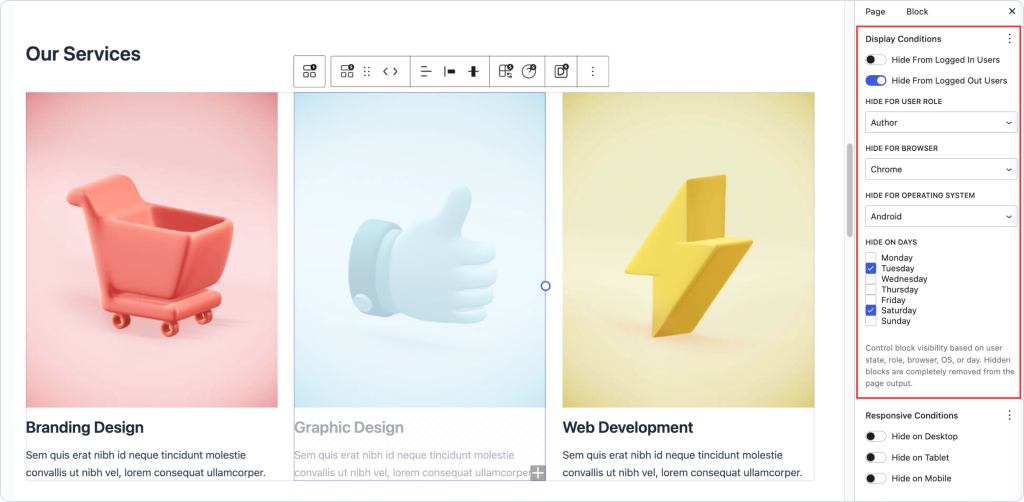
The Conditions
Each condition hides the block when it’s met. Leave a condition unset to ignore it.
- Hide From Logged In Users: Turn this on to hide the block from anyone who is logged in.
- Hide From Logged Out Users: Turn this on to hide the block from visitors who are not logged in.
- Hide For User Role: Hide the block from a specific role, such as Subscriber, Customer, Editor, or Administrator. The roles you can choose depend on your site.
- Hide For Browser: Hide the block for a specific browser, such as Chrome, Firefox, Safari, Edge, or Opera.
- Hide For Operating System: Hide the block for a specific operating system, such as Windows, macOS, Linux, iOS, or Android.
- Hide On Days: Check the days of the week the block should be hidden on.
Good to Know
- Hidden blocks are completely removed from the page output. They’re not just hidden with CSS, so they don’t reach the visitor’s browser at all.
- These conditions are checked for each visitor when the page loads, so they won’t take effect while you’re editing. The block always shows in the editor, so check the live page to see the result.
A Few Tips
- To make a block visible only to members, turn on Hide From Logged Out Users so it shows only once someone signs in.
- Day conditions are handy for time limited content, like hiding a weekday notice on Saturday and Sunday.
- Since the block always appears in the editor, use a private or incognito window, or a different account, to confirm how each condition behaves on the live site.
Disabling Display Conditions for Specific Post Types
If you want to turn Display Conditions off for certain post types, add a filter to your child theme’s functions.php file. We recommend using a child theme so your changes aren’t lost when the theme updates.
To turn Display Conditions off everywhere:
php
add_filter( 'enable_block_condition', '__return_false' );To turn it off for a specific post type, such as Pages:
php
add_filter( 'enable_block_condition', function ( $enabled ) {
    if ( isset( $_REQUEST['post_type'] ) && 'page' === $_REQUEST['post_type'] ) {
        return false;
    }
    return $enabled;
} );
Frequently Asked Questions
What can I hide a block based on?
User state (logged in or logged out), user role, browser, operating system, and day of the week.
Are hidden blocks just visually hidden?
No. When a condition hides a block, it’s completely removed from the page output, so it never reaches the visitor’s browser.
Why doesn’t the block hide while I’m editing?
The conditions are evaluated for each visitor when the page loads, not in the editor. The block always shows while editing, so confirm the result on the live page.
Can I make a block appear only to logged in users?
Yes. Turn on Hide From Logged Out Users, and the block will only show to people who are signed in.
We don't respond to the article feedback, we use it to improve our support content.