
- Container
- Buttons
- List
- Modal
- Slider
- Animations
- Icons
- Tabs
- Text Block
- Countdown
- Loop Builder
- Image Mask
- Dynamic Content
- Accordion
- Google Maps
- Separator
- Popup Builder
- Counter Block
- Login Block
- Register Block
- SVG Animator
- Block Positioning
- Post Block
- Spectra Header
- Motion Effects
- Responsive Conditions
- Display Conditions
- Spectra Global Styles
- Responsive Controls in Spectra Blocks
- Filters/Actions For Post
- Spectra Patterns
- Contact Form 7: Checkbox / Radio / Acceptance Control
- Getting Started With Spectra
- WP – Search
- Create Contact Forms
- Import Single Pages, Templates, & Block Patterns
- Assets API For Third-Party Plugins
- Copy & Paste Style
- Load Google Fonts Locally
- Troubleshooting: Missing Icons
- Contact Form 7: Multiple Column Fields
- Unable To Style Contact Form 7
- Tab Index For Multiple Gravity Forms
- Manually Install Spectra Via FTP
- Enable/Disable Design Library Button
- Update Folder File Permissions
- Resolving Container Layout Conflicts
- Database Update Instructions (Below 2.0.0)
- Transparent / Sticky Header
- Change Site Logo
- Change Global Styles
- Disable Title on Posts & Pages
- Transparent / Sticky Header For Single Page / Post
- Change Header & Footer Patterns
- Custom / Google Fonts
- Reset Global Default Styling
- Manually Install Spectra One Via FTP
- Enable / Disable Header & Footer On Specific Pages / Posts
Container
The Container block is the foundation of every layout you build with Spectra Blocks. It is where everything else lives, whether that is a hero section with a video background, a row of feature cards, a centered column of text, or a multi row grid. If you have used the standard Group block in WordPress, the Container does the same job and adds quite a bit more, including background media, hover styles, shape dividers, sticky behaviour, and per device controls.
Once you add a Container, you can decide how its content flows, how it looks, and how it behaves on different screen sizes, all from the block settings sidebar. The sections below walk you through adding the block, picking a starting layout, and every setting.
How to Add the Container Block
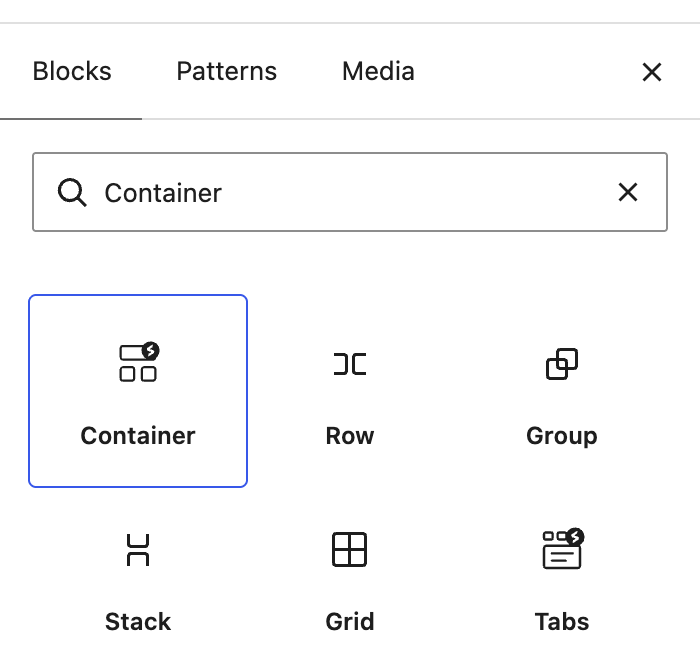
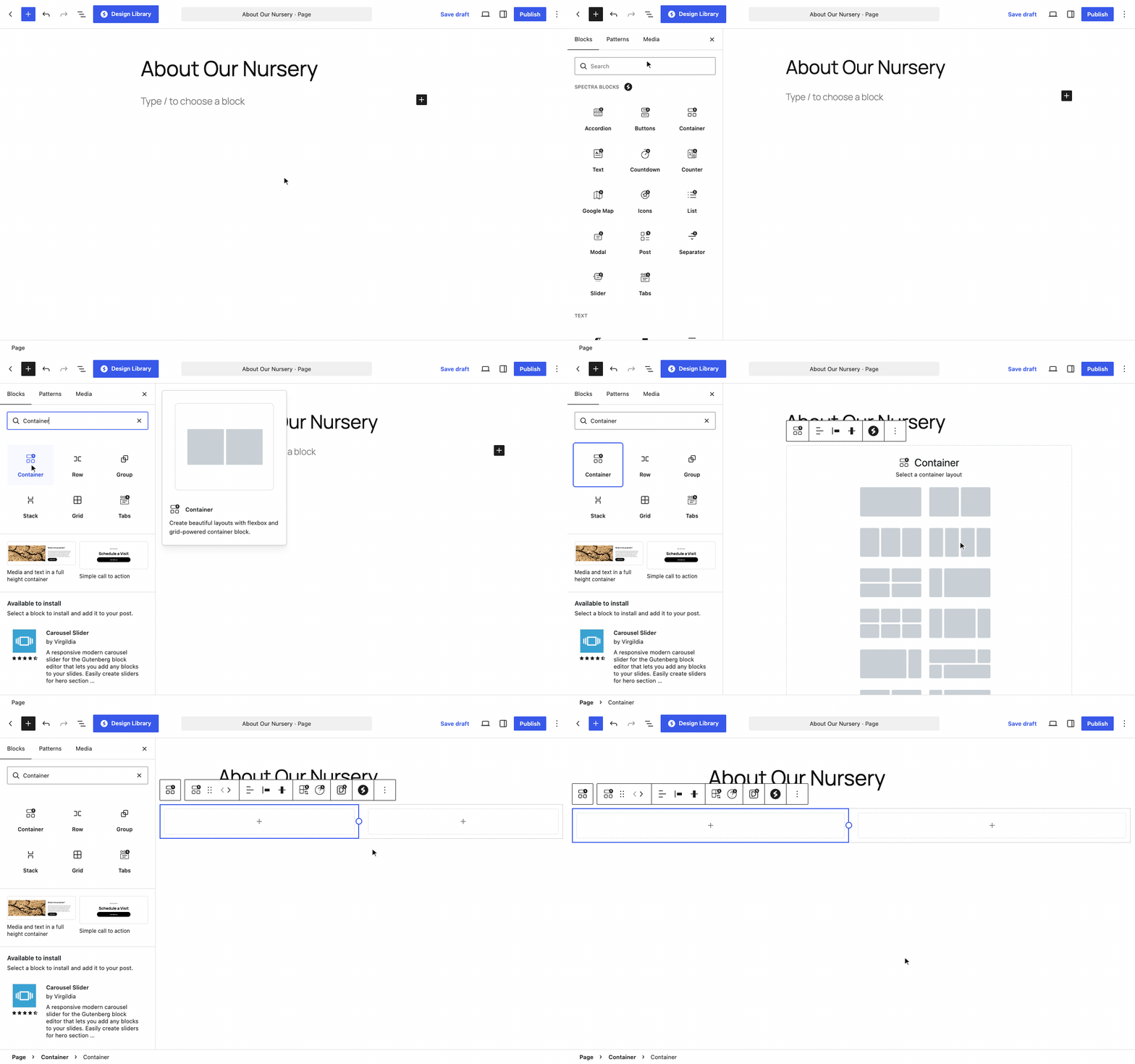
You can add a Container the same way you add any other block. Open the page or post you want to edit, click the plus icon in the top toolbar to open the block inserter, and search for “Container”. Click the result and the block is added to your page.
The moment the block lands on your page, you will see a layout picker rather than an empty container. Pick a layout and the Container fills in the columns for you.
Choosing a Starting Layout
The layout picker offers twelve pre built layouts, so you can skip manual setup and jump straight into a familiar structure.
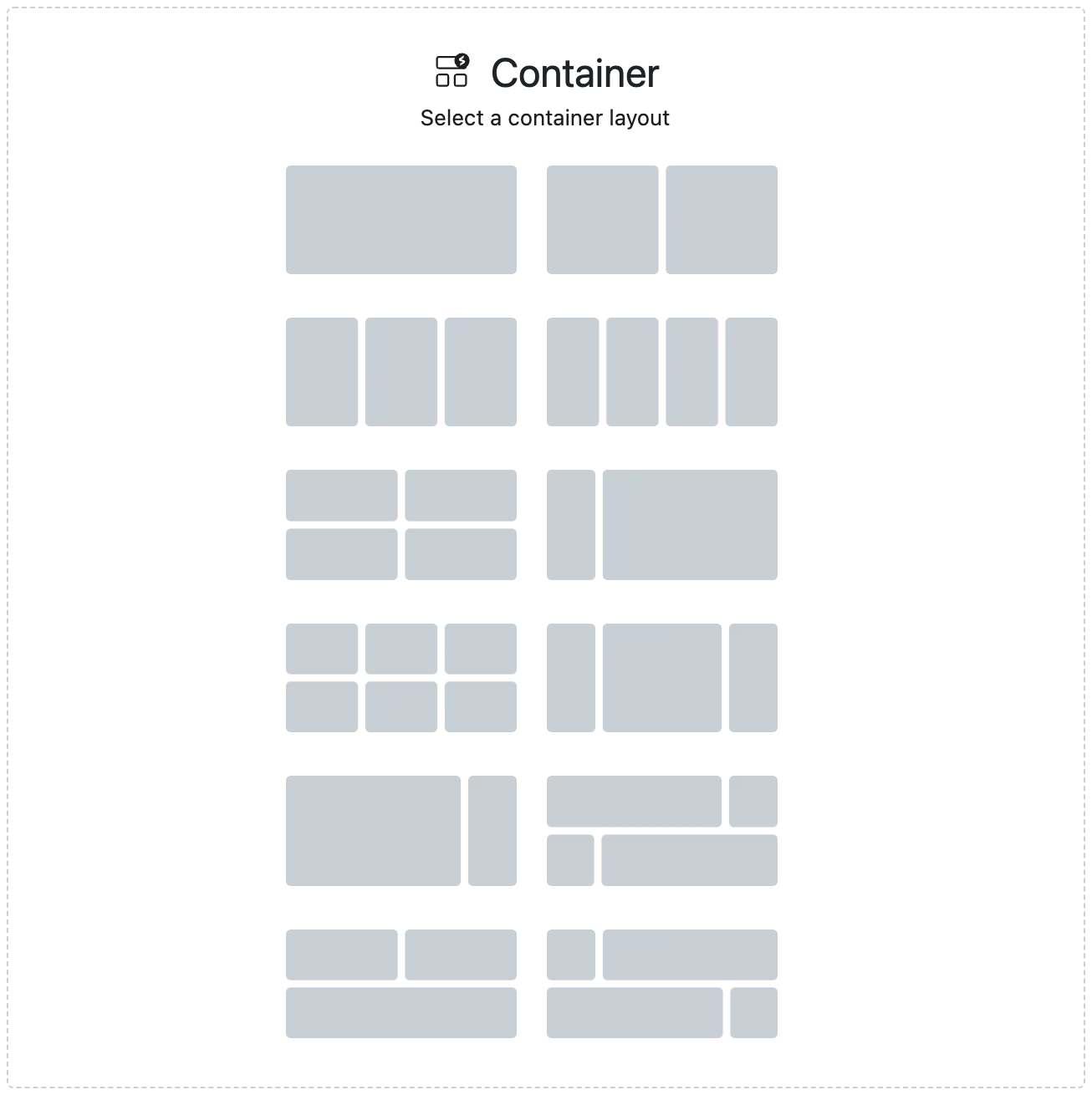
The simpler options cover the most common page sections:
- Single column for a plain, empty Container you build up yourself
- Two equal columns for content side by side
- Three equal columns for features or services
- Four equal columns for cards or testimonials
If you need more structure, the remaining options combine columns and rows:
- Two columns across two rows for a simple grid of four areas
- Three columns across two rows for a grid of six areas
- 25/75 split for a narrow sidebar next to a wide content area
- 75/25 split for the reverse arrangement
- 25/50/25 for three columns that emphasise the middle one
- 50/50 plus a full width row for two columns with a footer row underneath
- Alternating splits such as 75/25 stacked above 25/75 for magazine style sections
Every multi column layout is built with the Grid layout type, and each column is itself a Container with its own settings. Whichever option you pick, the choice is not permanent. The Change Layout button in the block toolbar reopens the picker at any time.
The Recommended Way to Build a Section
Most pages are a stack of full width sections, each holding some content or a row of columns. Building every section the same way keeps your layout consistent and easy to change later.
Recommended setup:
Set every top level Container to the Constrained layout and leave its Content width empty.
For two, three, or four columns, put a second Container inside it with the Grid layout, and set the number of columns for each device, for example 3 on desktop, 2 on tablet, and 1 on mobile.
This setup has a few real advantages:
- One place to change your width. The inner Container reads the global width from your theme, so changing it later updates every section at once, rather than each Container keeping its own value.
- Support for your theme’s page layouts, such as Normal and Narrow in Astra. On a Narrow page, the same sections fit Astra’s narrower width on their own.
- Columns that stack on smaller screens. A Grid Container can show a different number of columns on each device, and moving a section from two to three or four columns is a single setting.
The global width comes from your theme. In Astra, it is Container Width under Appearance > Customize > Global > Container, and you can switch a single page to Normal or Narrow under Astra Settings > Container > Container Layout. In a block theme, it is the content width under Appearance > Editor > Styles > Layout.
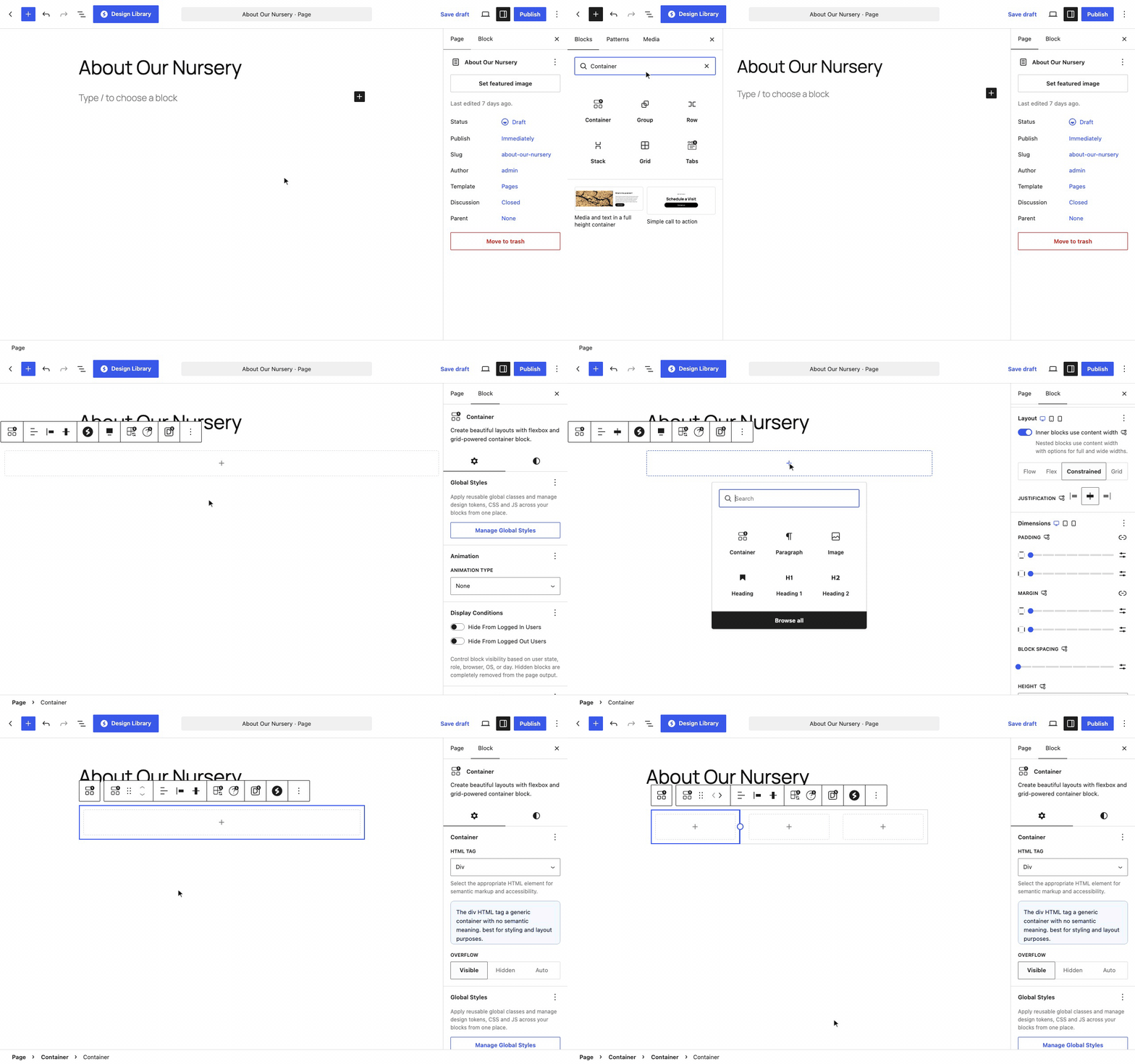
To build a section this way:
- Add a Container and pick the single column layout.
- In the Styles tab, open the Layout panel, choose Constrained, and leave Content width empty.
- Click inside it and add another Container for your content. For columns, keep that inner Container selected, click Change Layout in the block toolbar, and pick a column layout. The column layouts already use Grid.
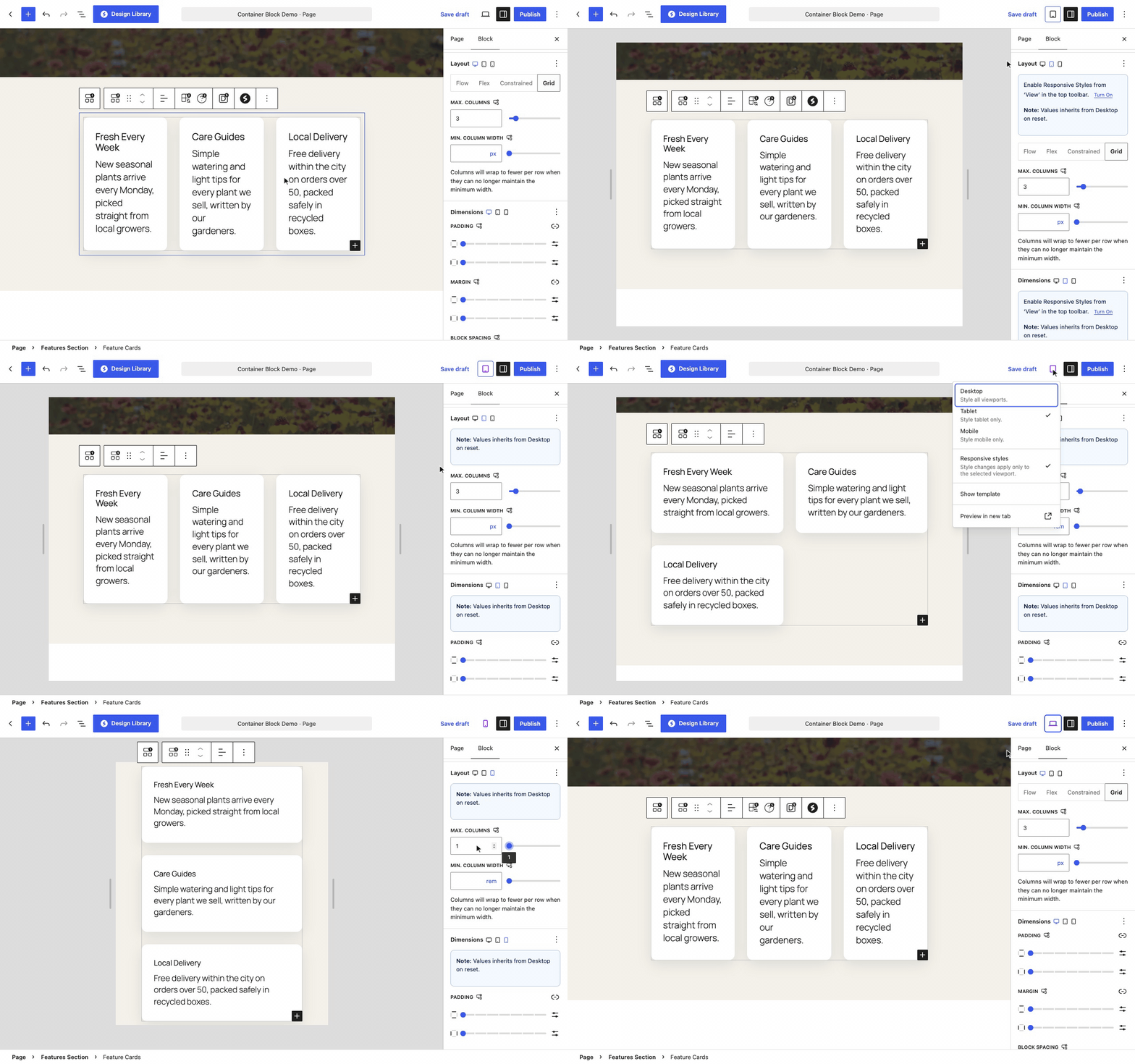
- Switch on Responsive styles, choose Tablet and then Mobile, and lower the number of columns in the Layout panel for each one. Responsive Controls in Spectra Blocks walks through this step by step.
- Add your content inside the inner Container or its columns.
Here is the whole process, from an empty page to a Constrained section holding a three column Grid:
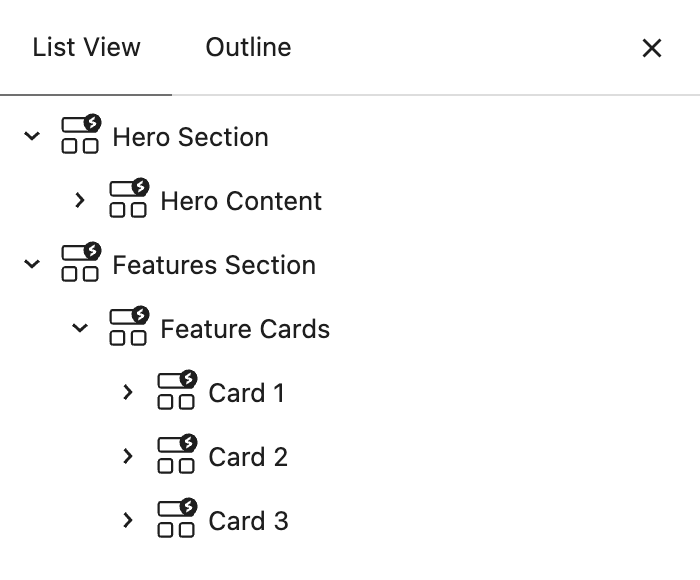
Here is how that structure looks in List View, with a hero section and a row of three feature cards:
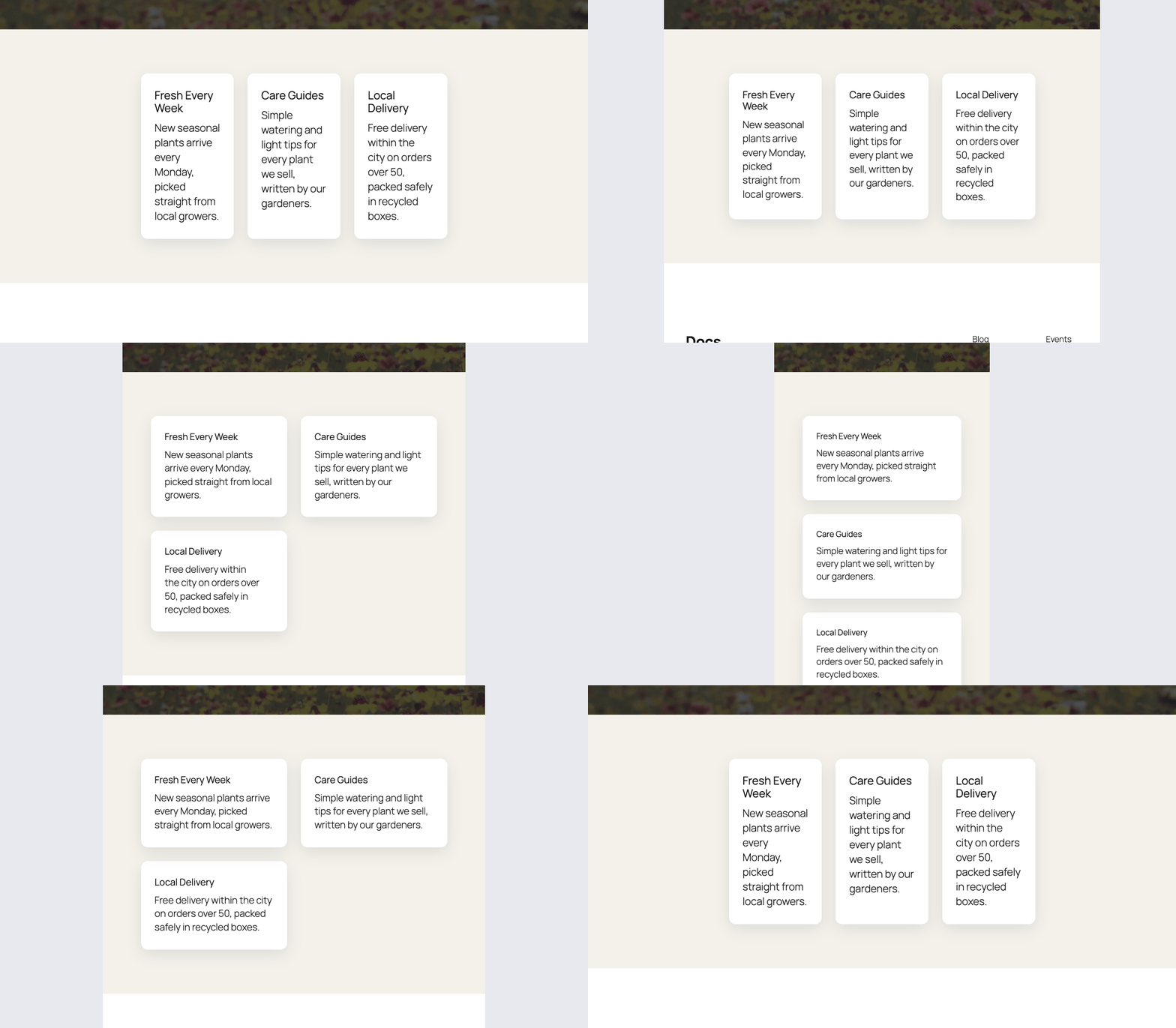
On the live site, the same section moves from three columns to two and then one as the screen gets smaller:
Avoid typing a fixed Width or Max W on the inner Containers, and use Grid rather than a horizontal Flex row for columns. A Flex row keeps its items side by side on every screen unless wrapping is on, while Grid lets you set the columns for each device.
How the Settings Are Organised
With the Container selected, the sidebar normally shows two tabs. The Settings tab (gear icon) holds structural and behavioural options such as the HTML tag, animation, and visibility rules. The Styles tab (half circle icon) holds everything visual, including typography, colors, backgrounds, layout, and dimensions.
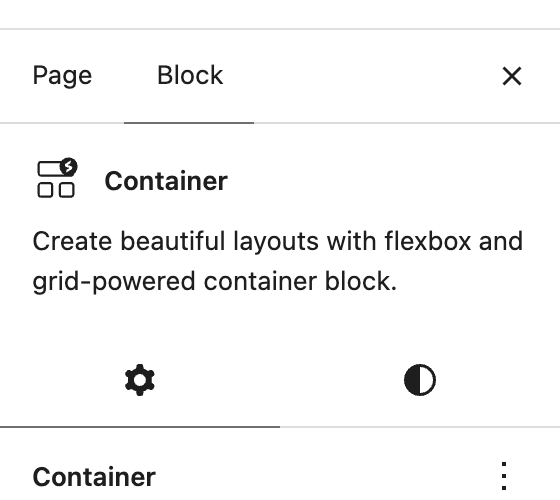
The sidebar looks different while the WordPress Responsive styles option is switched on. Both tabs disappear and you only see the style panels that can hold a different value per device. We explain this in the Responsive Behaviour section below, so if your Settings tab ever seems to be missing, that is the reason.
What the Settings Tab Controls
Container
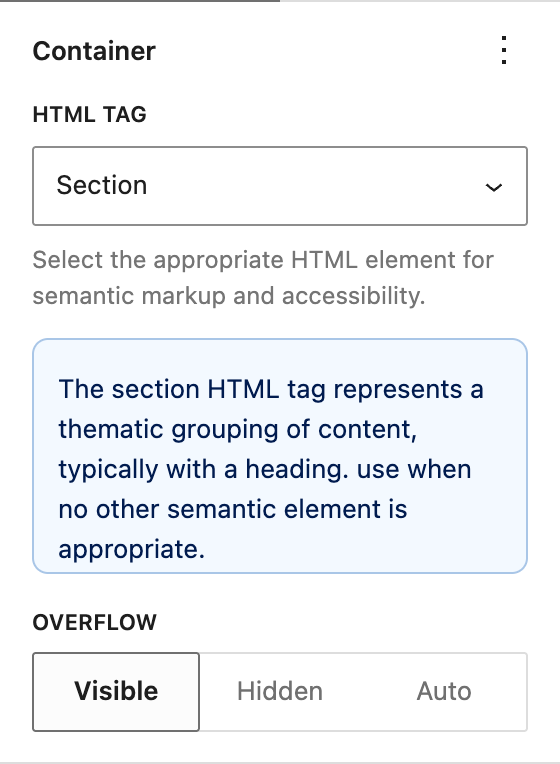
The HTML Tag setting decides which HTML element wraps your container in the final output. By default this is a div, which is right most of the time, and an information notice below the dropdown explains what the selected tag means. The dropdown covers a wide range of tags:
- Structural tags such as header, footer, main, section, article, aside, and nav for named page regions, which helps SEO and accessibility
- Content tags such as figure, figcaption, hgroup, dialog, and address
- Link to make the whole Container clickable, covered in its own section below
- List, form, and table tags such as ul, ol, li, form, fieldset, details, summary, and the table family for advanced markup needs
The Overflow setting decides what happens when the content inside is bigger than the Container:
- Visible lets the content spill out beyond the Container’s edges
- Hidden cuts off anything that does not fit
- Auto adds a scrollbar only when needed
Making the Container a Link
To turn the whole Container into a clickable area, set the HTML Tag to Link. An Add Link button then appears in the block toolbar. Click it, enter or search for a URL, and press Enter. To change how the link behaves, click the pencil icon on the link preview and open the Advanced section for these options:
- Open in a new tab to keep the current page open
- Mark as nofollow to tell search engines not to follow the link
- Mark as noreferer to hide the referring page from the destination
- Mark as noopener for extra security on links that open a new tab
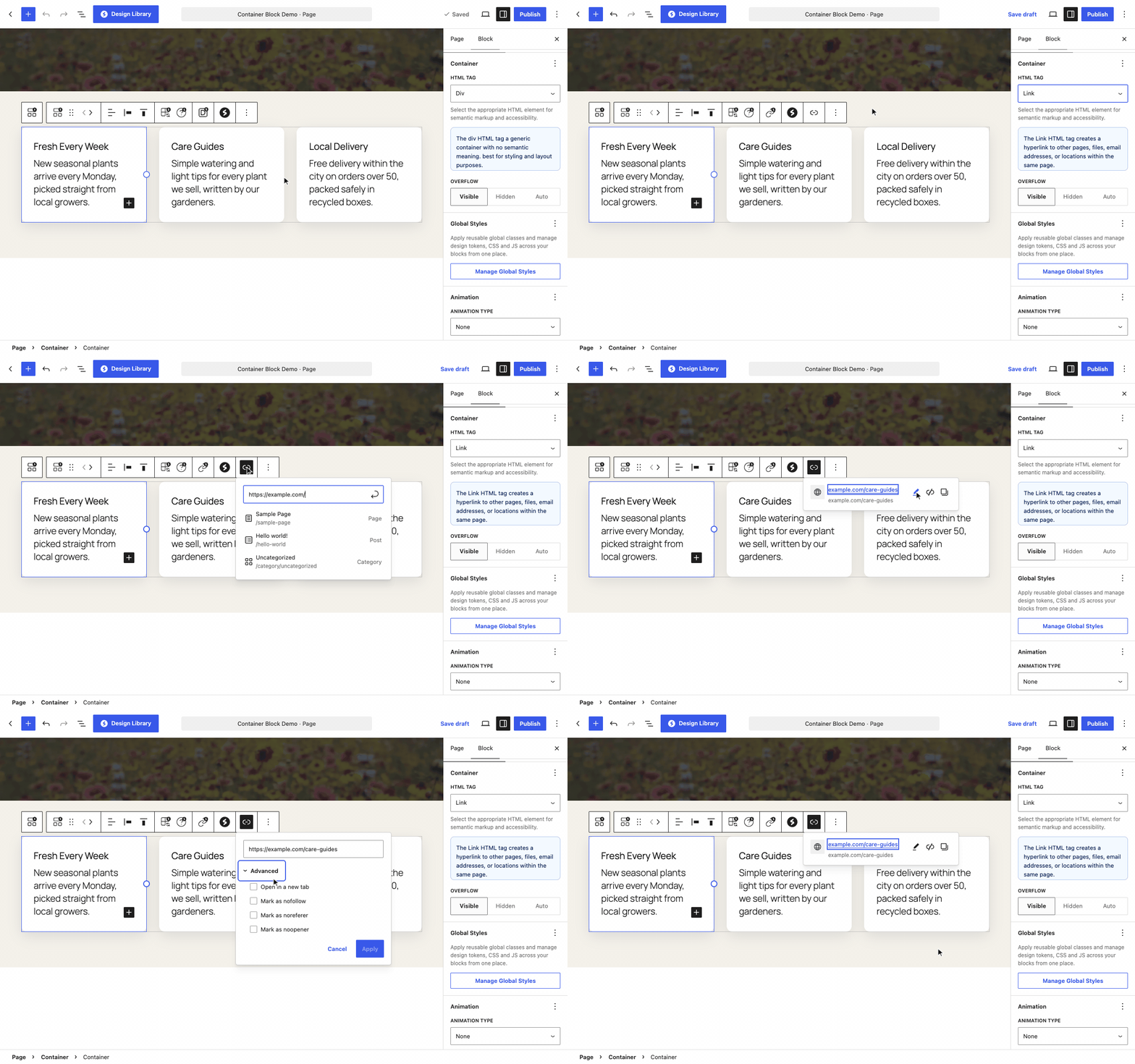
Once the link is set, the entire Container becomes clickable on the front end. Pair it with the hover settings in the Color panel so visitors get visual feedback when they move over it.
Animation
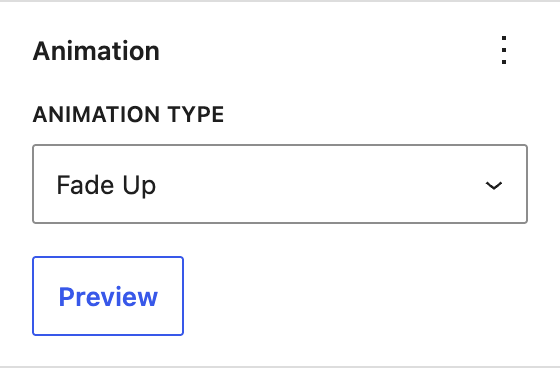
The Animation panel lets the Container animate into view as the visitor scrolls down the page. Pick a style from the Animation Type dropdown, which offers over twenty options grouped into families:
- Fade plus fade up, down, left, and right
- Slide up, down, left, and right
- Flip up, down, left, and right
- Zoom In and Zoom Out each with directional variants
A Preview button plays the animation in the editor so you can check it without leaving the page. With Spectra Blocks Pro you also get timing controls: animation duration, delay, easing, and a Play Repeatedly on Scroll toggle.
Here is how Fade Up looks on the live site, with each card starting slightly after the one before it:
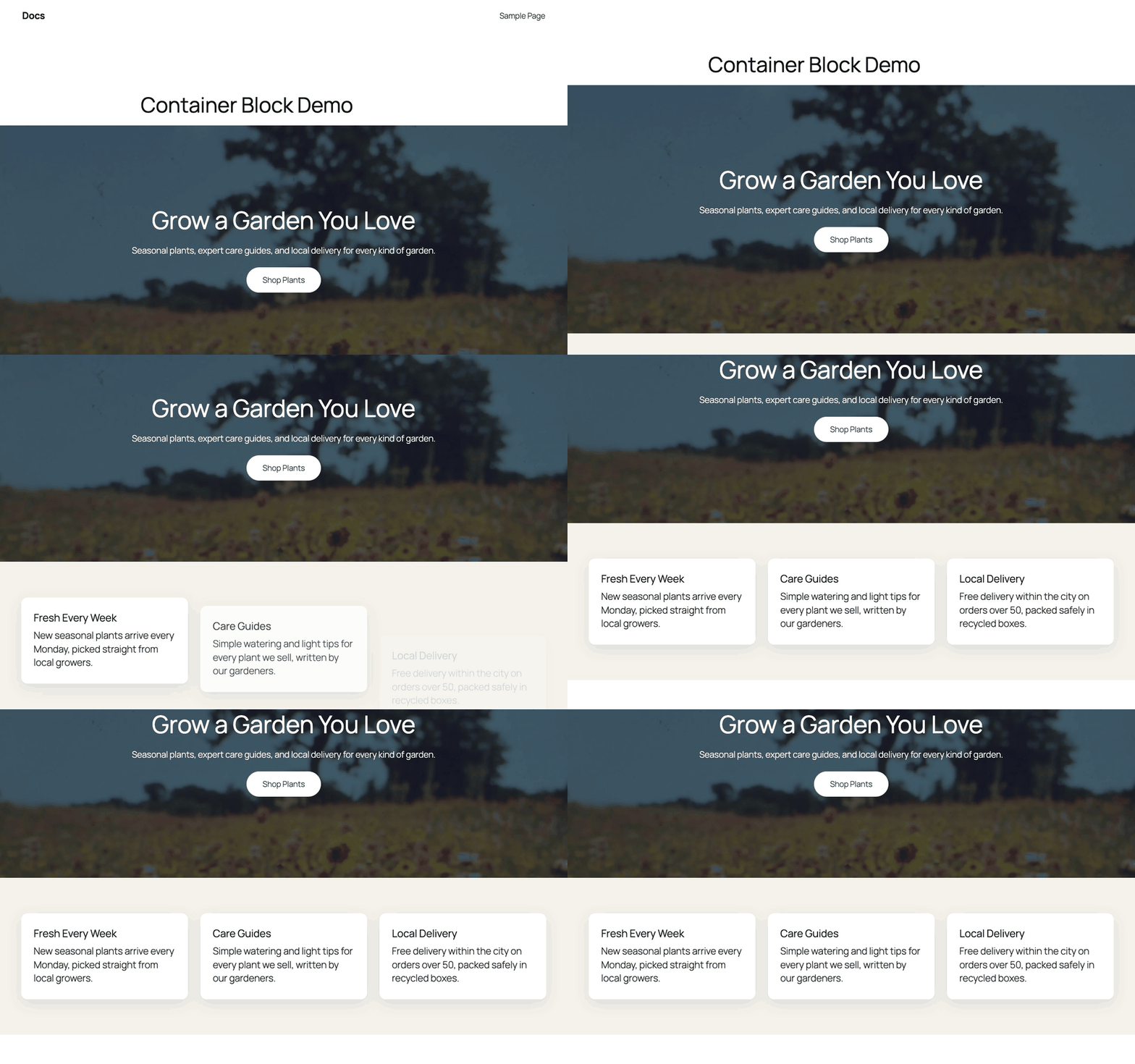
We recommend keeping animations subtle so they support the page rather than slow the reader down. Visitors who turn on Reduce motion in their device’s accessibility settings see the content right away, without the animation.
Display Conditions
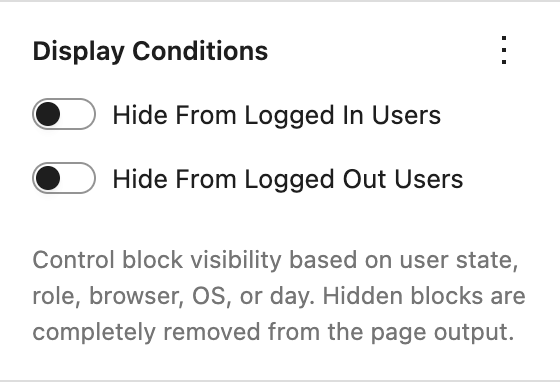
This panel hides the Container based on who is looking at the page. Hidden blocks are removed from the page output entirely. The two logged in and logged out toggles show by default, and you can add the rest from the panel’s options menu (the three dots next to the panel title). You can hide the block:
- From logged in users or from logged out users
- For a specific user role such as subscriber or editor
- For a specific browser or operating system
- On certain days of the week
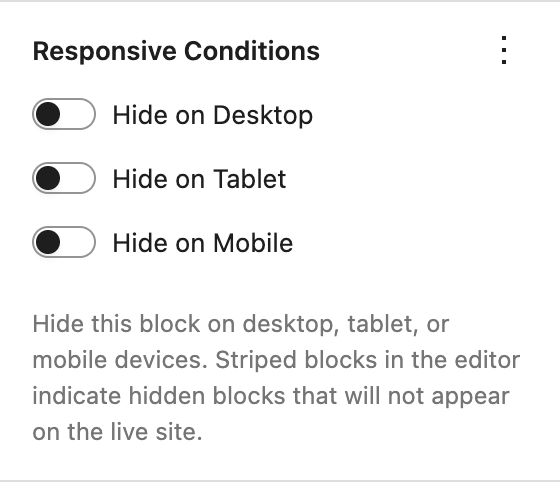
Responsive Conditions
These three toggles hide the Container on desktop, tablet, or mobile. Hidden blocks show a striped pattern in the editor so you always know they are there.
Sticky
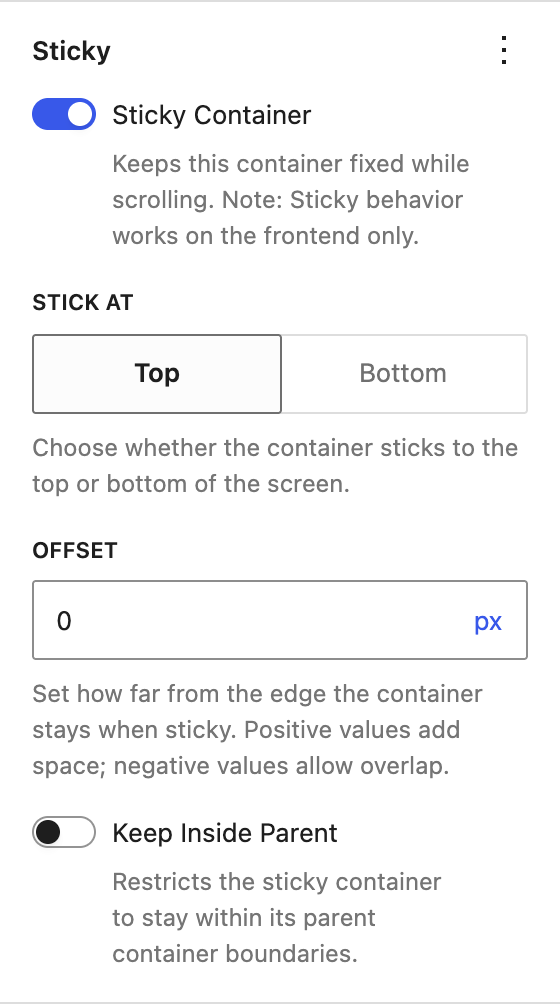
The Sticky panel is exclusive to the Container block. Turn on Sticky Container and the block stays fixed on screen while the visitor scrolls, which is ideal for headers, floating calls to action, or sidebar content. You can choose whether it sticks to the top or bottom of the screen and add an offset distance from that edge.
For a Container nested inside another one and set to stick at the top, a Keep Inside Parent toggle also appears. It stops the Container sticking once its parent section scrolls past. On a top level Container you can add the same option from the panel’s options menu. Sticky behaviour applies on the live site only, not inside the editor.
Z-Index
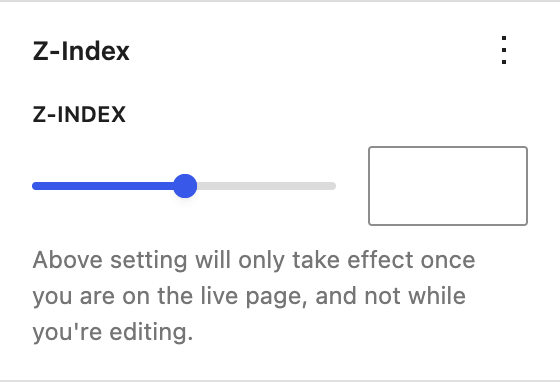
Z-Index controls which element sits on top when blocks overlap, for example a sticky header passing over page content. Higher numbers stay on top. Like Sticky, the effect is visible on the live site rather than in the editor.
Advanced
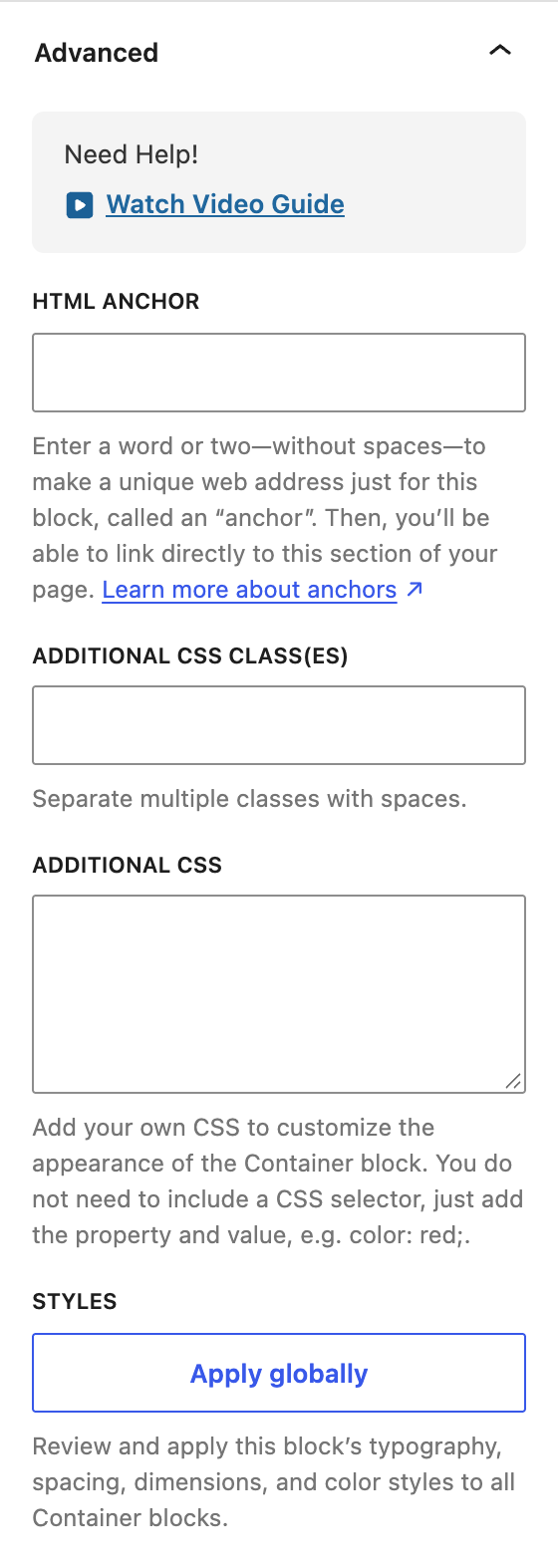
The Advanced panel holds the usual WordPress options: an HTML anchor for linking directly to this section, additional CSS classes, and an Additional CSS box where you can add your own CSS properties for just this block. The Apply globally button at the bottom can apply this block’s styling to all Container blocks on the site.
What the Styles Tab Controls
Typography
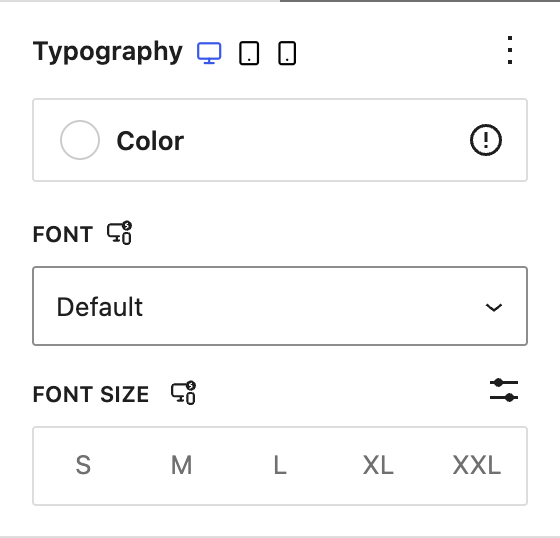
Typography sets the default text appearance for everything placed inside the Container, so you can set it once instead of styling every child block. The panel shows the text Color, Font, and Font Size by default, and the panel’s options menu adds more controls, including appearance (weight and style), line height, letter spacing, letter case, and decoration. Font and size values can differ per device.
Color
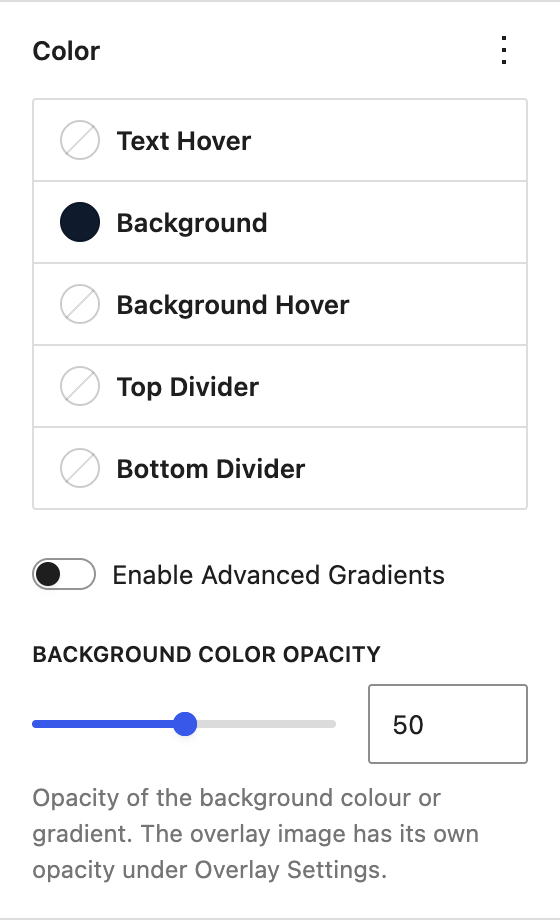
The Color panel handles background colors and hover states:
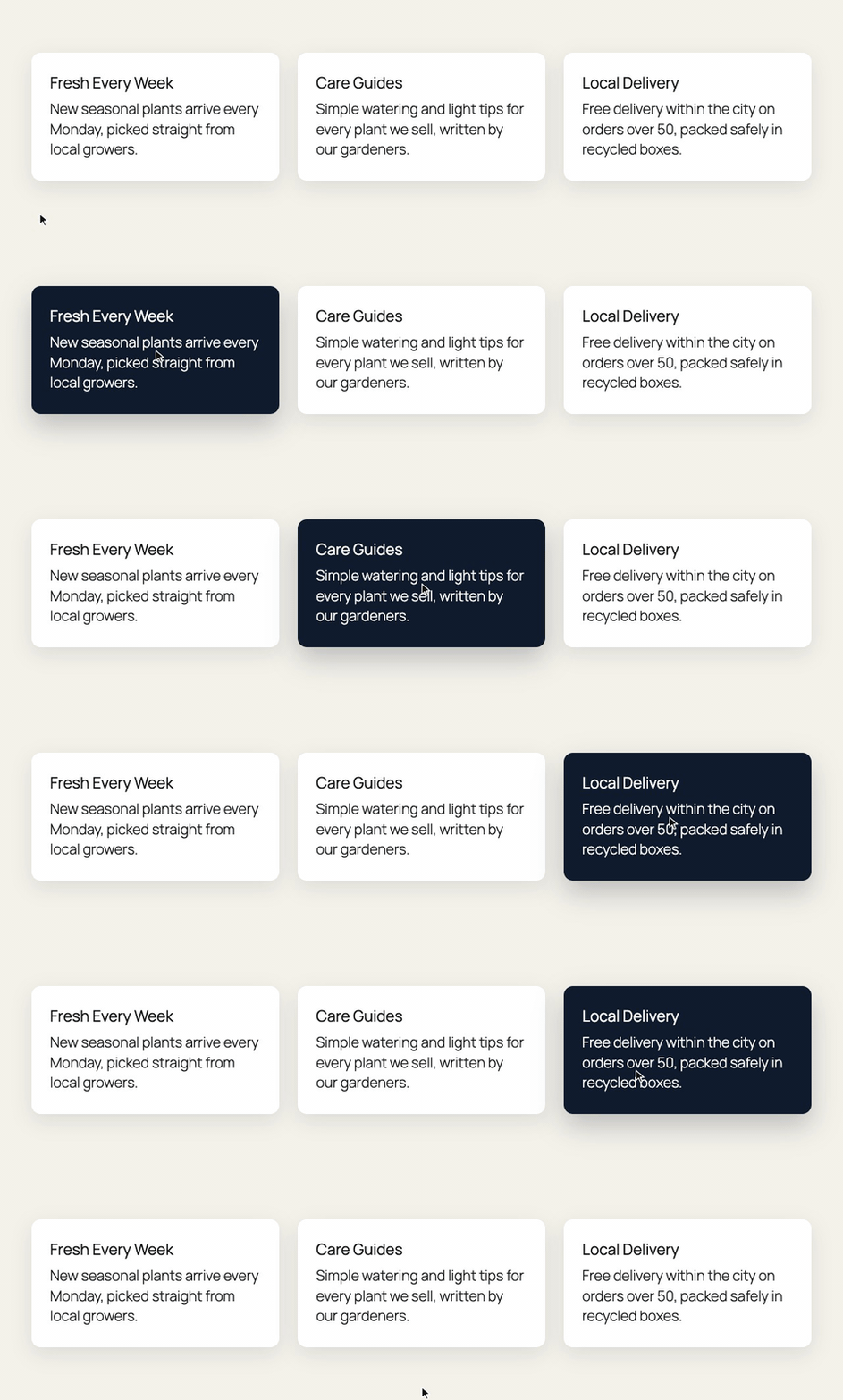
- Text Hover changes the text color when a visitor hovers over the Container, which works well when the Container is a link
- Background sets a solid color or a gradient behind the content
- Background Hover changes that background on hover
- Top Divider and Bottom Divider color the shape dividers described further down
- Enable Advanced Gradients adds two color gradients with precise angle and color stop controls that override the basic background
- Background Color Opacity controls how see through the background color or gradient is, which is how you turn it into a tint over a background image
Here is Background Hover and Text Hover at work on the live site, together with a hover shadow from the Box Shadow panel:
Background
The Background panel holds everything that sits behind your content: the background media, an optional overlay image, and the shape dividers.
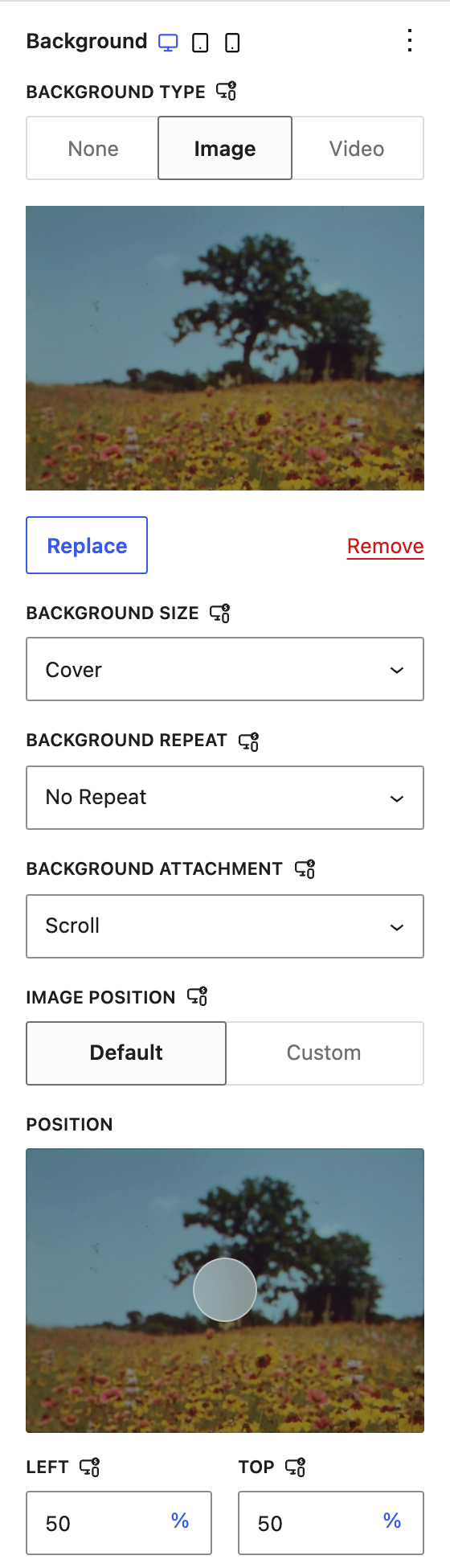
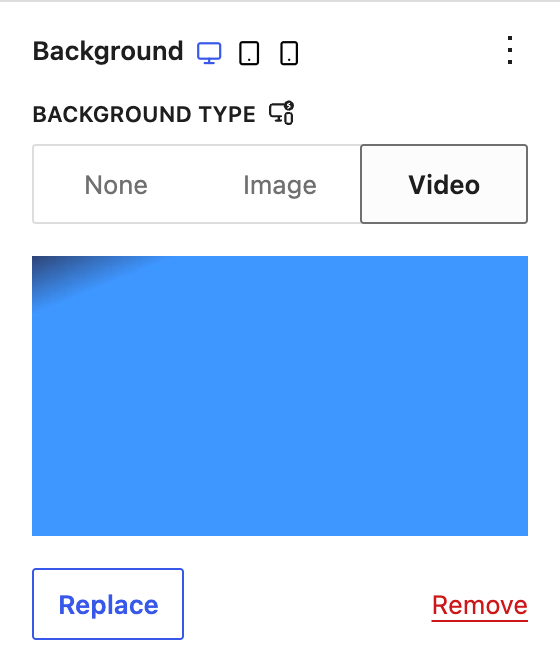
Start by picking a Background Type:
- None leaves the background empty
- Image lets you pick a picture from the Media Library
- Video lets you use a video file for a moving background
For images, you get controls for size (Cover, Contain, Auto, or a custom width), repeat, attachment (scroll with the page or stay fixed), and position, either with a focal point picker or exact left and top values. We recommend WebP files where possible since they are smaller and load faster.
Background videos play automatically, loop, and are muted by the block, since browsers only allow silent autoplay. MP4 gives the widest browser support, and keeping the file small, ideally under 10 MB, keeps the page fast.
To keep text readable on top of a busy image or video, set a Background color or gradient in the Color panel and lower its Background Color Opacity. The color then acts as a tint over the media.
Overlay Settings
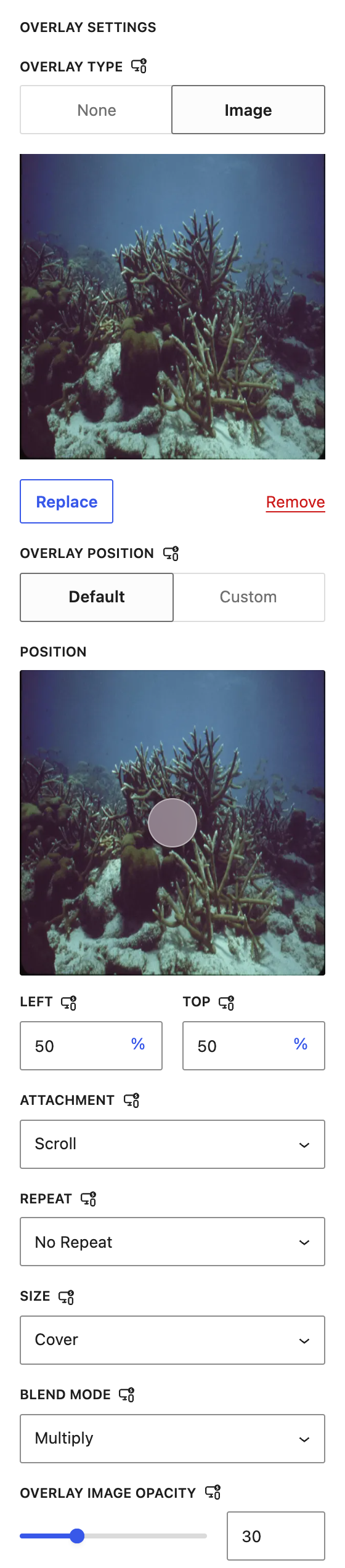
Beyond the color tint, you can layer a second image on top of the background, useful for texture patterns, watermarks, or decorative graphics. Set the Overlay Type to Image and you get the same position, attachment, repeat, and size controls as the background, plus two extras:
- Blend Mode mixes the overlay with the background using effects such as multiply, screen, and darken
- Overlay Image Opacity fades the overlay image from 0 to 100
The overlay image options are hidden when the background type is Video.
Shape Dividers
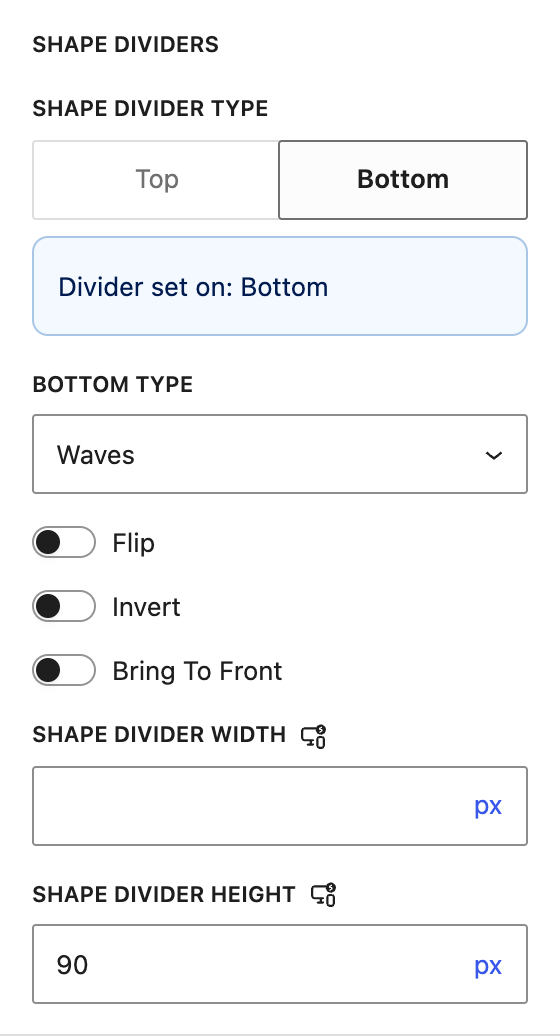
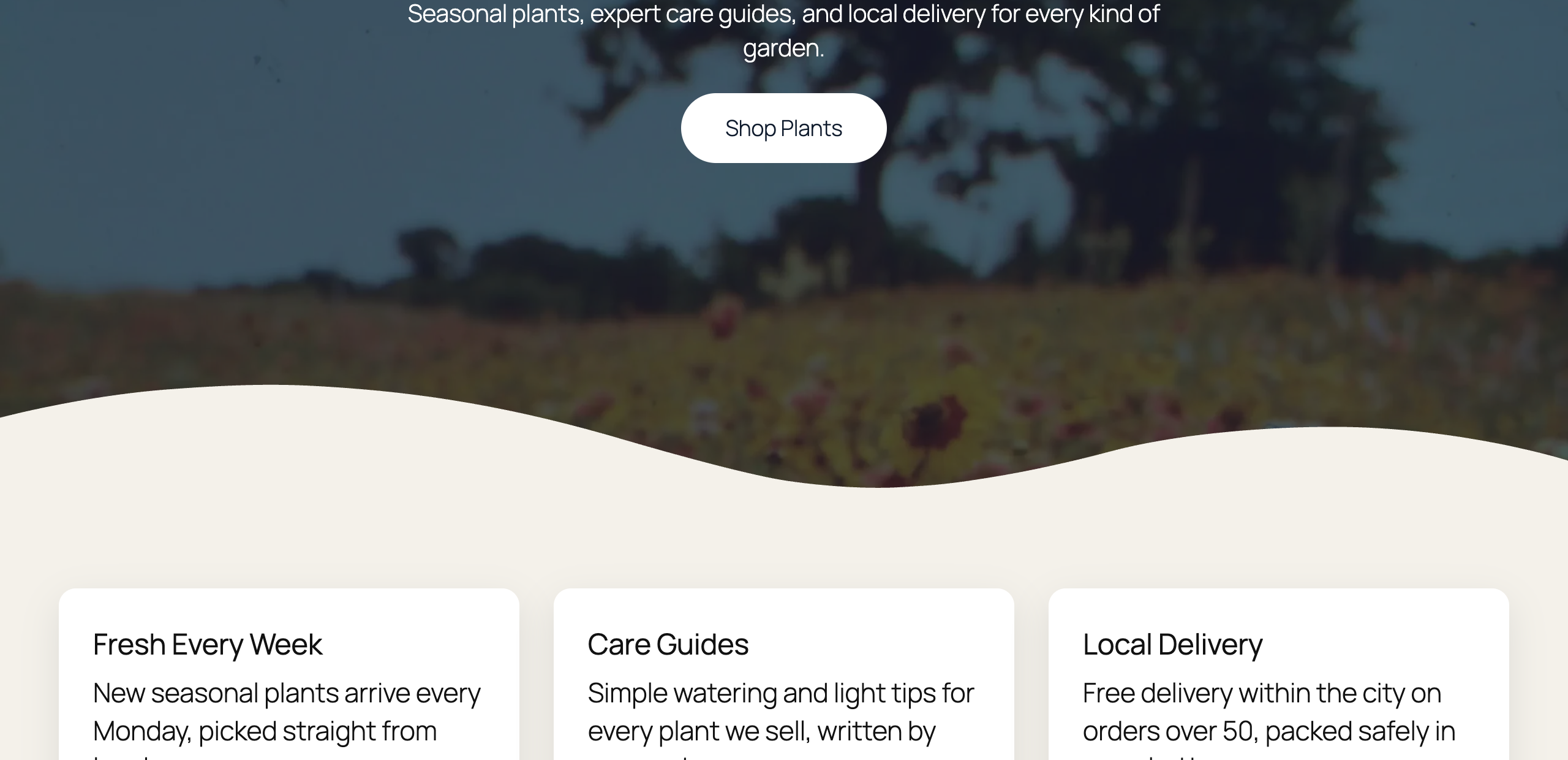
Shape dividers add a decorative shape to the top or bottom edge of the Container, a popular way to break up flat section boundaries. Choose Top or Bottom, then pick from twenty shapes including Tilt, Waves, Mountains, Curve, Triangle, Drops, Clouds, ZigZag, Pyramids, Arrow, and Book. A small notice shows which edges already have a divider set.
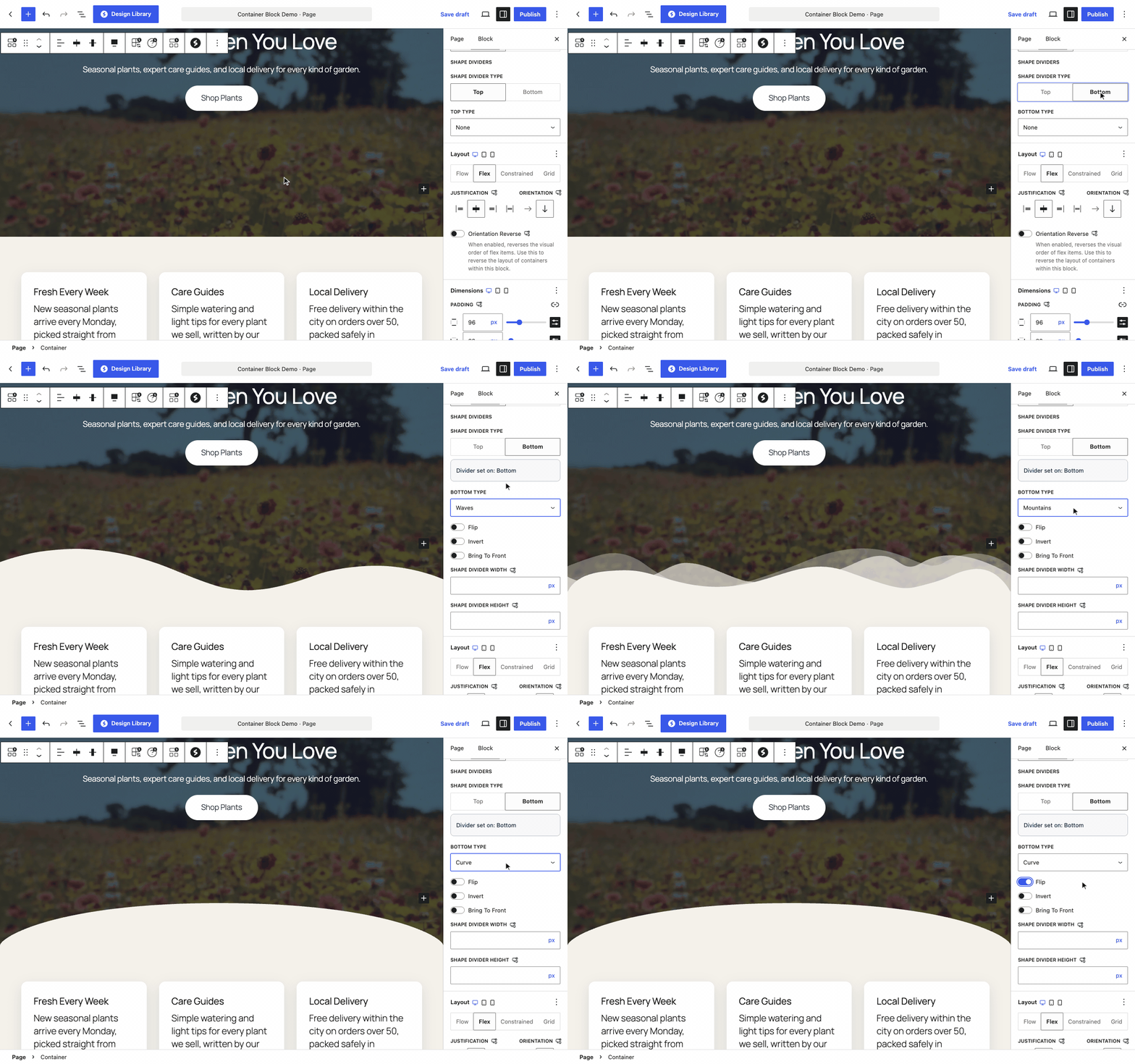
Once a shape is selected you can fine tune it:
- Flip mirrors the shape horizontally
- Invert flips the filled and empty areas of the shape
- Bring To Front places the shape above the Container’s content
- Shape Divider Width and Height stretch the shape, and both can differ per device
The divider colors are set in the Color panel through the Top Divider and Bottom Divider options. Matching the divider color to the next section’s background gives you a smooth transition like this one:
Layout
The Layout panel decides how the blocks inside the Container are arranged. There are four layout types, and the one you pick shapes which controls appear.
Flow is the simplest. Content stacks from top to bottom in the order you add it, like a normal document. There is nothing to configure beyond an optional content width toggle.
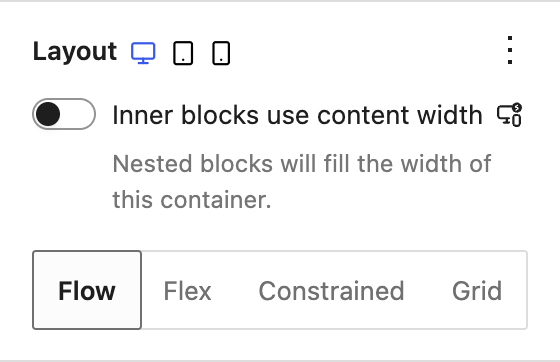
Flex is for side by side content, centered items, and even spacing. Orientation switches between a horizontal row and a vertical stack, and Justification positions the items. A vertical stack also shows an Alignment option, and for a row you can add Alignment from the Layout panel’s options menu (the three dots). Allow to Wrap to Multiple Lines lets items break onto new lines when space runs out, and the space between items comes from Block Spacing in the Dimensions panel.
Flex also brings the Orientation Reverse toggle. It flips the visual order of the items inside without you moving any blocks. Since it can be set per device, it is handy for image and text rows that should swap order on mobile.
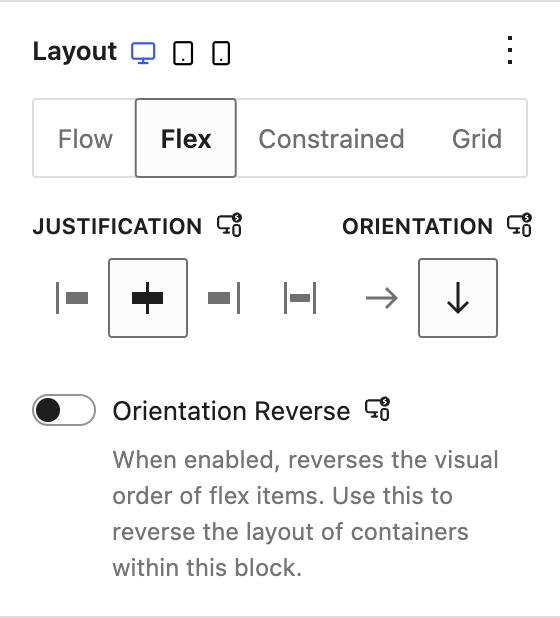
Constrained keeps content centered and stops it stretching edge to edge on large screens, using your theme’s content width. This is the layout we recommend for every top level Container. Blocks inside can still opt out with wide or full width alignment, and turning off Inner blocks use content width lets them fill the whole Container instead.
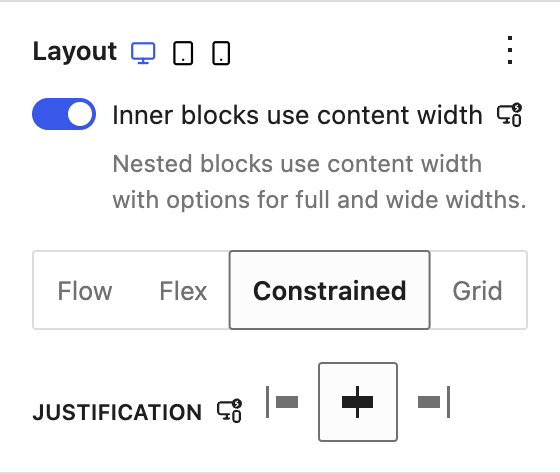
The Layout panel’s options menu (the three dots) adds two more fields for Constrained:
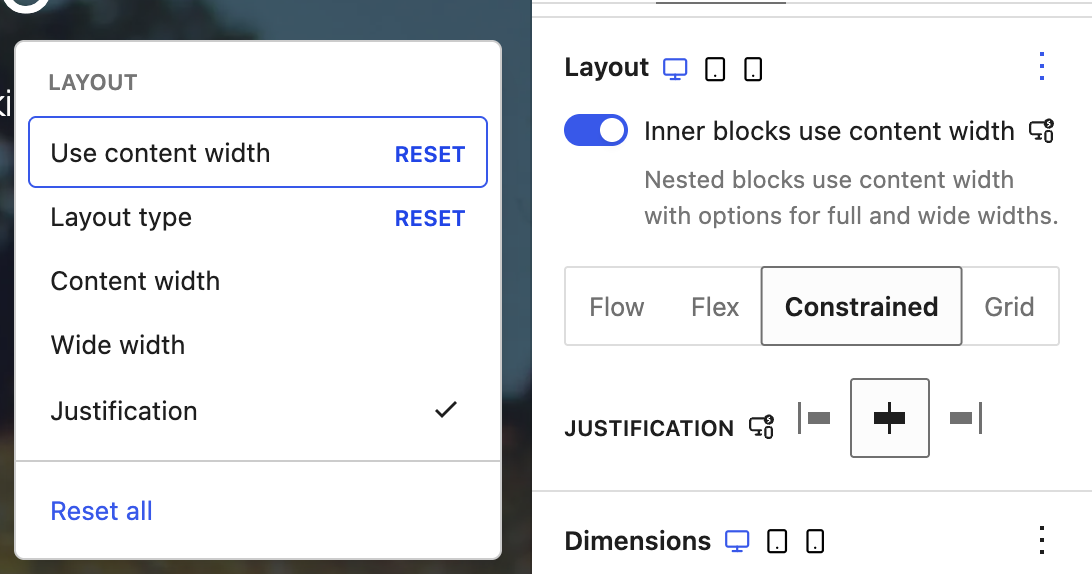
- Content width sets a custom width for the content inside this Container only, instead of the theme’s width
- Wide width sets the width used by inner blocks aligned to wide
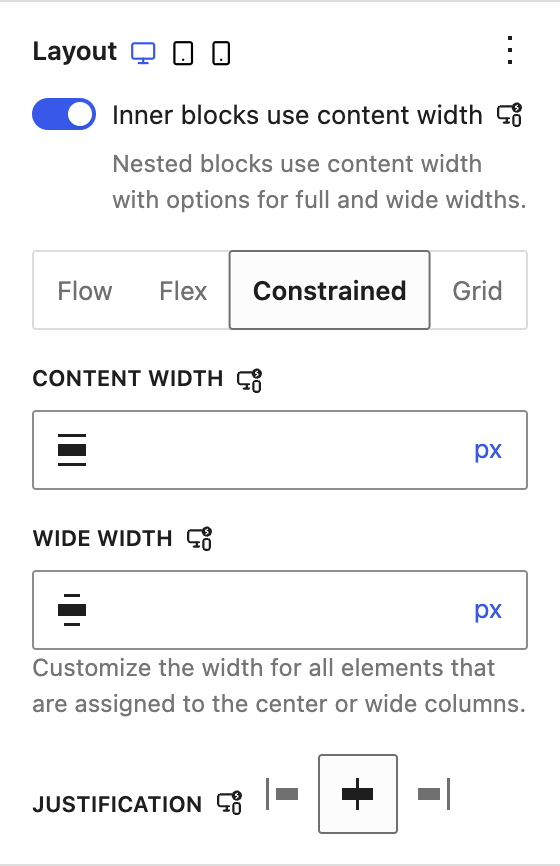
Leave both empty if you want the Container to keep following your theme’s width. A value typed here stays on this Container even when you change the theme’s width later.
Grid gives you columns with precise placement. Set the maximum number of columns, or set a minimum column width and let the grid decide how many fit, wrapping to fewer per row on small screens. Each block inside a grid gets its own Column Span and Row Span controls in its Dimensions panel, which is how the 25/75 style layouts are built. The Layout panel can hold a different value per device, so you can show 3 columns on desktop, 2 on tablet, and 1 on mobile.
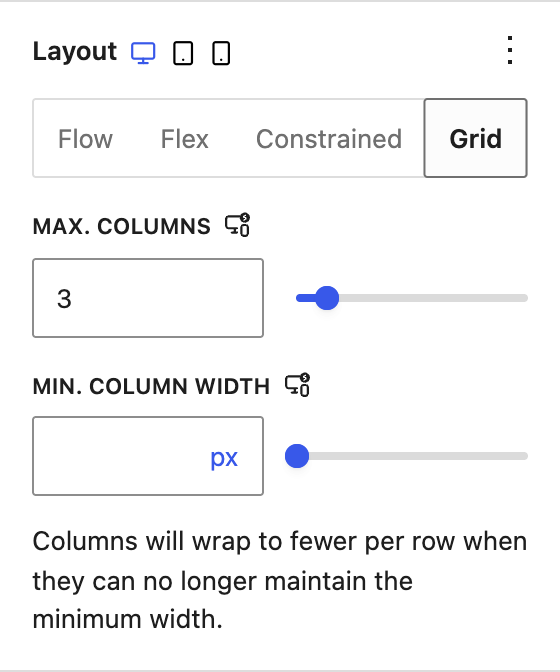
Here is a Grid set to 3 columns on desktop, 2 on tablet, and 1 on mobile with Responsive styles switched on:
The options menu for Grid also has Fill available space. When a row has fewer items than columns, it stretches the items to fill the row instead of leaving empty gaps.
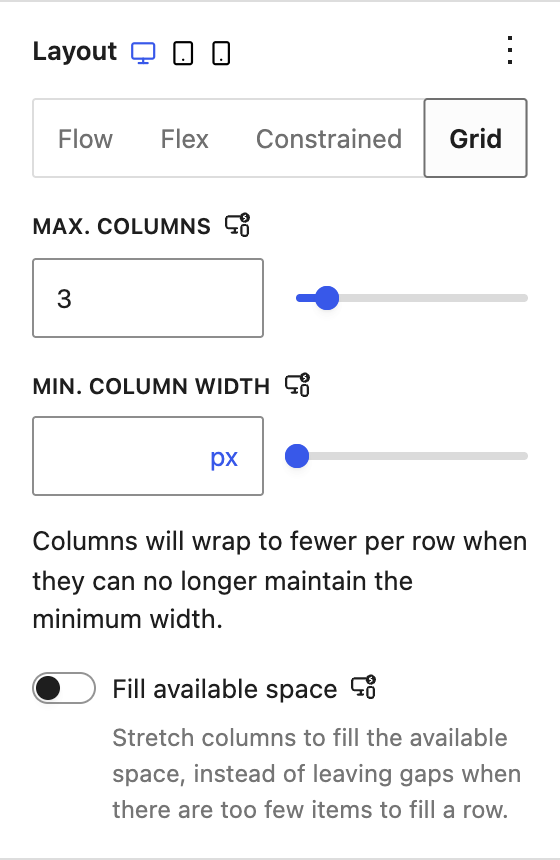
If you are ever unsure which layout to use, the Layout Help button in the block toolbar opens a short built in guide with examples.
Dimensions
Dimensions covers spacing and size. Padding and margin work like they do on any block, and Block Spacing sets the gap between the items inside. Below those sit the size fields, which accept px, %, em, rem, vw, and vh units.
A top level Container, one that is not inside another Container, always uses wide or full width alignment, so its width follows that alignment. For these you will see:
- Height to set an exact height
- Min Height to stop it shrinking below a limit
- Max Height to stop it growing beyond one
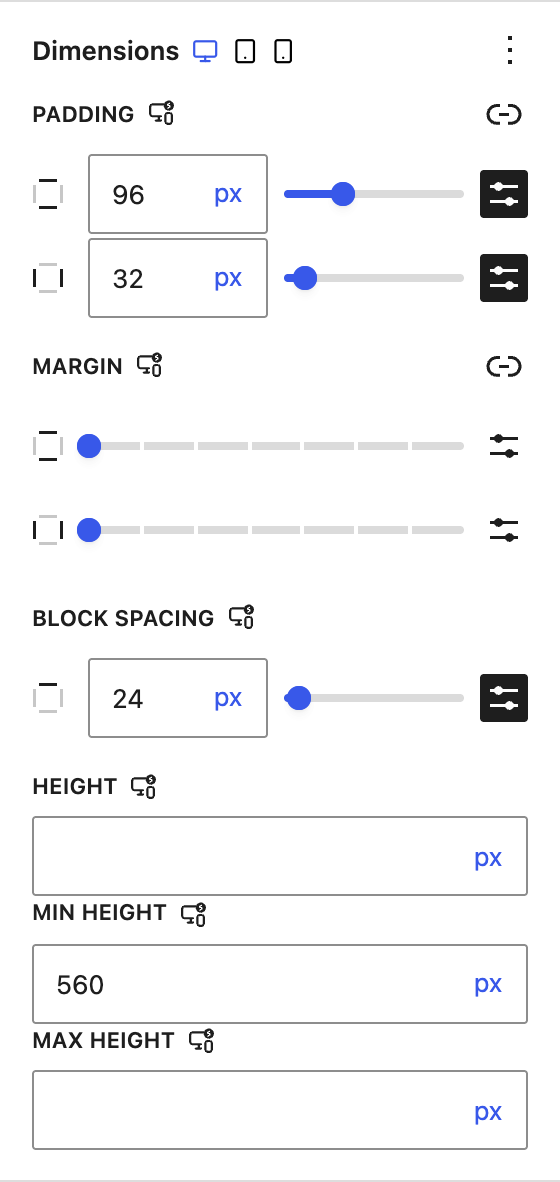
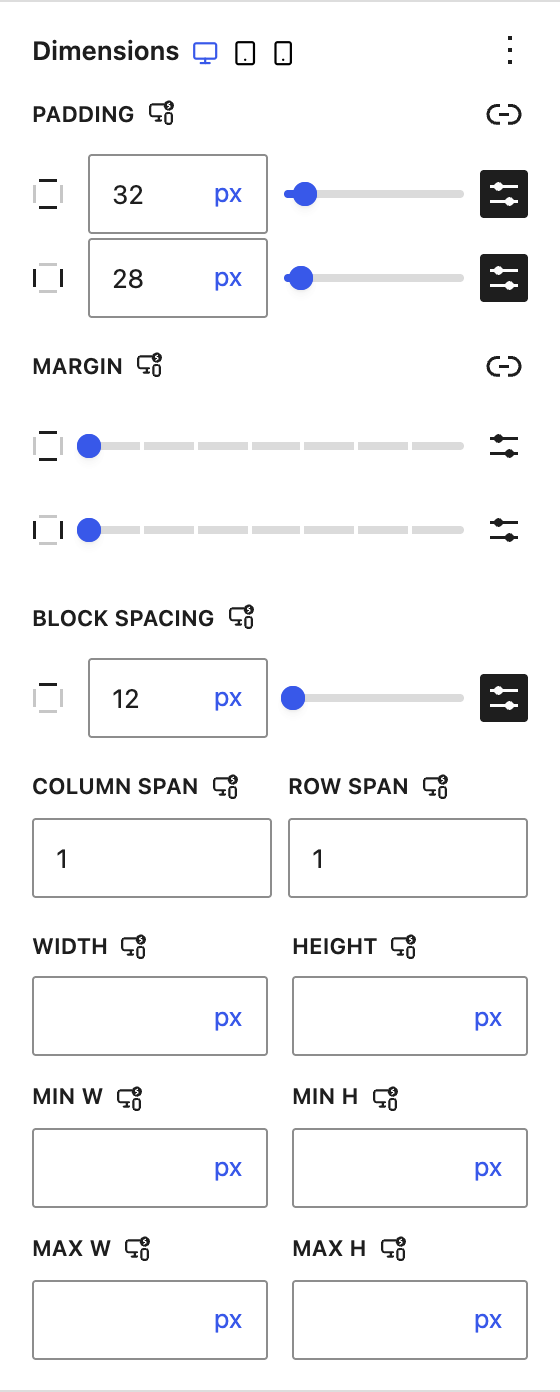
A Container nested inside another one shows the full set of size fields: Width, Height, Min W, Min H, Max W, and Max H. Inside a Grid parent it also shows Column Span and Row Span.
Border
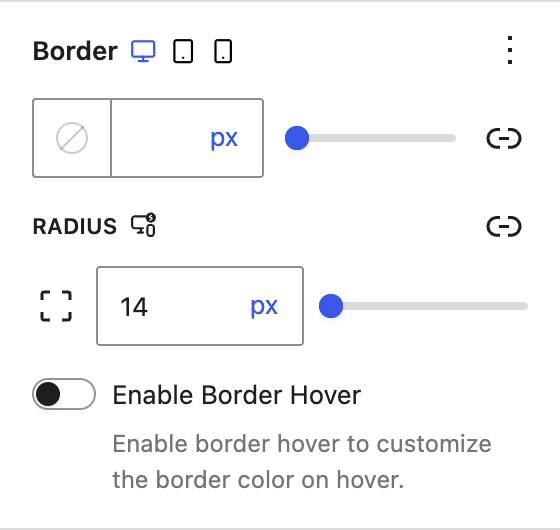
Borders give the Container an outline. You can set the width, style, and color together or per side, and round the corners together or per corner. Enable Border Hover adds a border color that appears only when a visitor hovers over the Container, using the same width and style as the normal border.
Box Shadow
The Box Shadow panel adds depth. A state switch at the top lets you set one shadow for the normal state and a different one for hover, each with its own color, X and Y position, blur, and spread. The Shadow Type option switches between an outer shadow and an inset shadow for a recessed look.
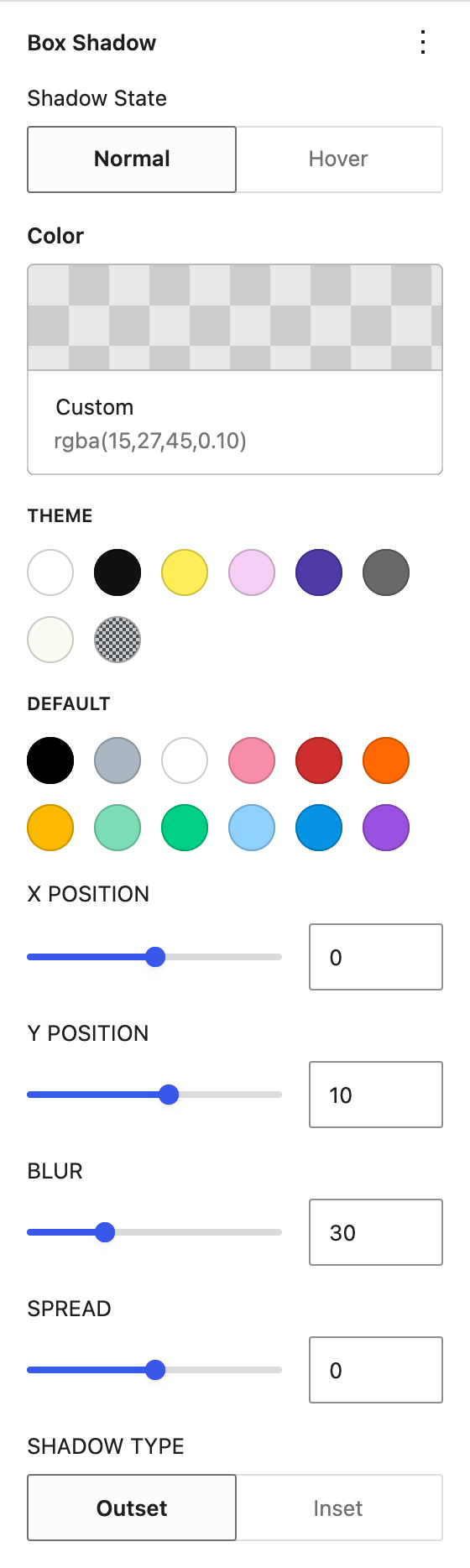
The shadow stays the same on every device, so this panel is hidden while Responsive styles is switched on.
Block Toolbar Options
The toolbar above a selected Container gives quick access to common actions:
- Align text sets the default text alignment for content inside
- Change items justification and vertical alignment position the inner blocks in Flex layouts
- Align switches a top level Container between wide and full width
- Change Layout reopens the layout variation picker
- Layout Help opens the built in guide to the four layout types
- Change HTML tag switches the wrapper element without opening the sidebar
- Add Link appears when the HTML tag is set to Link
- Block CSS & JS (the Spectra icon) opens a code editor for this block’s CSS and JavaScript in Spectra Blocks Pro
- Options menu holds the standard actions such as duplicate, copy styles, and delete

Responsive Behaviour
From WordPress 7.1, Spectra Blocks uses the responsive styles built into WordPress itself. You switch on Responsive styles from View in the top toolbar, pick Tablet or Mobile, and then any change you make applies to that device only. Tablet and mobile both start from the desktop value.
We cover the full workflow, the default breakpoints, and how values carry between devices in Responsive Controls in Spectra Blocks. If you want tablet and mobile to start at different widths, see Change the Responsive Breakpoints in Spectra Blocks.
A few points are specific to the Container:
- Per device settings include padding, margin, and block spacing, all the width and height fields, font and font size, borders, the layout options, the background type and image options, the overlay image options, shape divider sizes, the advanced gradient angle and color stops, and the Orientation Reverse toggle.
- Single value settings such as colors, hover styles, box shadow, and links stay the same on every device.
- Hidden panels appear while Responsive styles is on, because the sidebar only shows Typography, Color, Background, Layout, Dimensions, and Border. Switch it off to reach the Settings tab options or the Box Shadow panel.
- Switching back on is needed each time you reload the editor, because Responsive styles turns itself off again. Spectra shows a notice with a Turn On link at the top of its panels as a reminder.
Setting Default Spacing for Every Container
If your site uses a block theme, you can set the padding and margin for every Container in one place instead of block by block:
- Go to Appearance > Editor > Styles.
- Click Blocks, then Container.
- Set the padding and margin in the Dimensions panel.
- Open the States menu at the top, choose Tablet, and set the tablet values. Repeat for Mobile.
- Click Save.
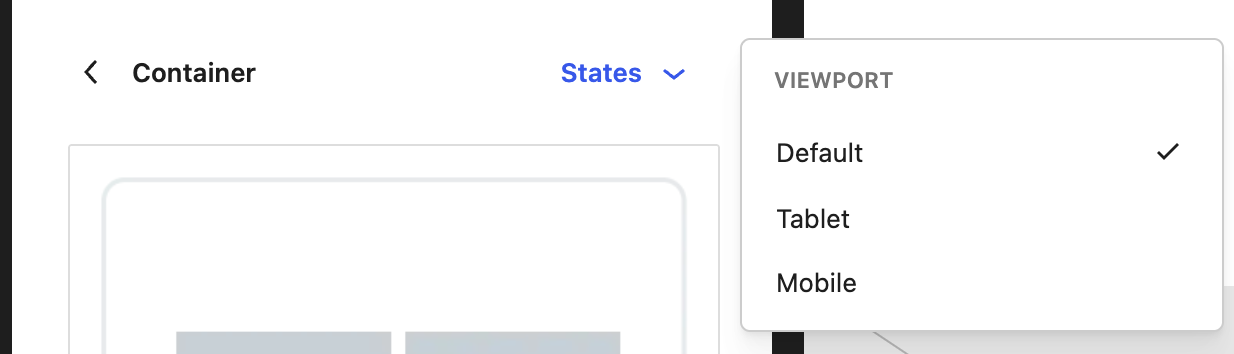
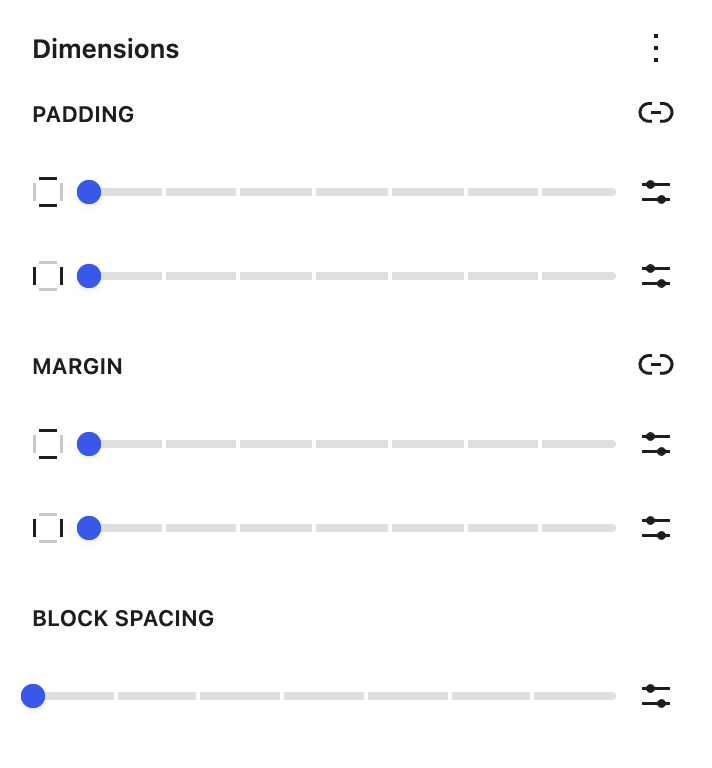
Every Container follows these defaults, including the ones already on your pages, and changing them later updates all of them. A Container where you changed the spacing by hand keeps its own values. On a classic theme such as Astra, build a section once and save it as a pattern to reuse the same spacing.
What Spectra Blocks Pro Adds
The Container block itself is fully free. With Spectra Blocks Pro active, a few extra options appear on it:
- Global Styles manages reusable style classes so one change updates every Container that shares the class
- Custom Position at the bottom of the Dimensions panel lets you place the block freely (absolute, fixed, or relative) and drag it on the canvas
- Motion Effects adds mouse effects and scroll effects that animate the block as the visitor interacts with the page
- Animation timing adds duration, delay, easing, and repeat on scroll for the entrance animations
- Dynamic Link and Dynamic Image pull the link URL or background image from post fields such as the featured image
- Block CSS & JS opens a code editor for per block custom CSS and JavaScript
Without Pro, you will still see a Global Styles panel in the Settings tab and the Block CSS & JS button in the toolbar. Both open a short preview of the Pro feature with an option to activate it.
Common Use Cases
Containers are flexible enough to power almost any section of a page:
- Hero sections built as a full width Container with an image or video background, a color tint, and centered text
- Content sections using a Constrained layout to keep paragraphs at a comfortable reading width
- Feature grids using a three or four column layout to showcase services or products
- Clickable cards built as a Link Container with background hover, border hover, and a hover shadow
- Sticky announcement bars using the Sticky panel with a top offset
Tips and Best Practices
A few small habits keep Container layouts clean and fast.
For design, we recommend:
- Constrained sections for every top level Container, so your whole site follows one width
- Consistent spacing by reusing the same padding values across similar sections
- Semantic HTML tags such as header, main, footer, and section so search engines and screen readers understand the page
- Checking every device in the preview menu before publishing, remembering that mobile falls back to desktop
For performance, we recommend:
- Optimised images compressed and served as WebP where possible
- Small background videos, ideally under 10 MB, so they load quickly on slower connections
- Shallow nesting of no more than two or three Container levels, which also keeps editing easier
Troubleshooting Common Issues
If changing your theme’s width has no effect on a section, that Container has its own width typed in. Clear Content width in its Layout panel and any Width or Max W values in Dimensions, so it follows the theme again.
If columns stay side by side on a phone, the section uses a horizontal Flex row or fixed column widths. Switch it to Grid and set 1 column for mobile.
If you changed a value while previewing Tablet or Mobile and the desktop layout changed too, Responsive styles was switched off. Undo the change, switch Responsive styles on from View in the top toolbar, and make the change again.
If the Settings tab or the Box Shadow panel seems to have disappeared, Responsive styles is switched on. Turn it off from the View menu and both come back.
If a background video is not playing on the front end, check that the file is a common MP4 and not too large. Some mobile browsers block autoplay video to save battery and data, so it is worth also setting a background image or color as a fallback for those visitors.
If a border radius is set but the background is not following the rounded corners, open the Container panel in the Settings tab and switch Overflow to Hidden. This clips the background to the rounded shape.
If content is spilling out of the Container, check the Overflow setting first, then look at whether a fixed Height or Max Height value is too small for the content. Using Min Height instead of Height usually solves it, since the Container can then grow with its content.
If nested Containers are not behaving as expected, check the parent’s layout type. A Grid parent controls where its children sit, so a child’s own alignment settings can look ignored. Keeping nesting shallow makes these situations much easier to untangle.
Frequently Asked Questions
What is the difference between the Container block and the Group block?
The Container does everything the Group block does and adds pre built layout variations, image and video backgrounds with overlays, hover colors, borders, and shadows, shape dividers, sticky positioning, min and max sizing, and the option to act as a link.
Can I nest Containers inside each other?
Yes. Every column in the pre built layouts is already a nested Container, and each one keeps its own settings. We recommend keeping nesting to two or three levels for easier editing.
Why can’t I find the Width field?
A top level Container always uses wide or full width alignment, so only the height fields show. Width, Min W, and Max W appear on Containers nested inside another Container.
How do I make a full height hero section?
Set Min Height to 100vh in the Dimensions panel. Min Height is safer than Height because the section can still grow if the content is taller than the screen.
Can I use the Container for the page header or footer?
Yes. Change the HTML Tag to header or footer in the Container panel. The markup then matches the role of the section, which helps SEO and accessibility.
Why is my background video not showing on mobile?
Many mobile browsers restrict autoplay video to save battery and data. The cleanest fix is to also set a background image or color so mobile visitors still see something meaningful behind the content.
How do I center content vertically inside a Container?
Use the Flex layout with a vertical orientation, give the Container a Min Height, and set the vertical alignment to center from the block toolbar. Justification then centers the content horizontally.
How do I make columns stack on mobile?
Use a Grid Container for the columns. Switch on Responsive styles, choose Mobile, and set the columns to 1 in the Layout panel.
System Requirements
The Container block ships with Spectra Blocks and needs:
- WordPress 6.6 or higher, with WordPress 7.1 or higher for the responsive styles described above
- PHP 8.1 or higher
- A modern browser with CSS Grid and Flexbox support, which covers every browser released in recent years
We hope this guide gave you a clear picture of what the Container block can do and how to use it. If anything is not covered here, our support team is happy to help. You can reach out from https://wpspectra.com/contact/ and we will get back to you as soon as we can.
We don't respond to the article feedback, we use it to improve our support content.