
- Filters/Actions For Post
- Spectra Patterns
- Contact Form 7: Checkbox / Radio / Acceptance Control
- Getting Started With Spectra
- WP – Search
- Create Contact Forms
- Import Single Pages, Templates, & Block Patterns
- Assets API For Third-Party Plugins
- Copy & Paste Style
- Load Google Fonts Locally
- Blocks Editor Spacing
- Translate Everything WPML
- Collapse Panels
- Site Visibility
- Spectra Actions: Clear Cache
- Quick Action Bar
- Custom Blocks
- Move Block Patterns
- Move Title Bar To Top
- Newsletter Forms
- Register High-Privileged Users
- User Roles Access To AI
- Whitelist Email Address
- Hide Core Blocks
- Regenerate Assets With Code
- Using ACF Repeater Field in Spectra
- How to Fix Stretched Spectra Images in WordPress 6.7
- How to Change Breakpoints in Spectra?
- Controlling Access to the Spectra Design Library Based on User Roles
- Multi-Column Form Block Using Utility Classes
- Preview Options (Desktop, Tablet & Mobile)
- Troubleshooting: Missing Icons
- Contact Form 7: Multiple Column Fields
- Unable To Style Contact Form 7
- Tab Index For Multiple Gravity Forms
- Manually Install Spectra Via FTP
- Enable/Disable Design Library Button
- Update Folder File Permissions
- Resolving Container Layout Conflicts
- Database Update Instructions (Below 2.0.0)
- Transparent / Sticky Header
- Change Site Logo
- Change Global Styles
- Disable Title on Posts & Pages
- Transparent / Sticky Header For Single Page / Post
- Change Header & Footer Patterns
- Custom / Google Fonts
- Reset Global Default Styling
- Manually Install Spectra One Via FTP
- Enable / Disable Header & Footer On Specific Pages / Posts
How to Load Google Fonts Locally
The performance of your WordPress site is one of the most important factors in ranking your site and we take it very seriously.
To increase the performance of your site, we have introduced a new feature in which you can load Google fonts locally and load only the ones that you need so your website doesn’t load the fonts that are not needed.
In this article, we will provide a clear explanation of how to use this new feature to boost your site’s performance.
What are Google Fonts
Let’s understand what Google fonts are and what they do.
Google Fonts is a collection of 1,364+ font families that you can use for free. It also has fun icons that are made really well, good for regular things you do and items you use.
Though the collection is huge, to maintain the uniformity of the typography throughout the website, we use only a few of them.
While these wide ranges of fonts give you a huge opportunity to make your site beautiful; however, at the same time, make the site load slower.
And, that’s where Spectra comes into the role. Spectra has given the flexibility to you to choose the font you would like to load on your website.
Thus, this new feature gives you the power to make your website look and work better, just the way you want it.
What Does “Loading Fonts Locally” Mean
When you access a website that uses Google Fonts, the fonts are usually fetched from Google’s servers.
This means that your website has to make requests to external servers to get those fonts, which can add delays and slow down the loading of your website.
“Loading Google Fonts locally” refers to the practice of hosting the required Google Fonts on your own server, so when someone visits your website, the fonts are directly served from your server instead of making requests to Google’s servers.
This process can significantly improve the speed at which your website loads because it reduces the need for external requests and potential delays.
By loading Google Fonts from your server (locally), you have more control over the loading process, leading to better website performance.
How to Choose Google Fonts that I Need
You can follow the steps below to choose the fonts you need:
- Navigate to the WordPress Dashboard and click on Spectra
- Choose Settings from the top navigation bar
- Click on Performance and enable the option “Allow Only Selected Fonts”.
- Click on the arrow to open the dropdown menu and select the fonts that you would like to use. You can choose as many fonts as you would like to use on your site.
- There is no need to save the settings as these are automatically saved
That’s it. You have successfully chosen the Google Fonts that you would like to use.
After you’ve chosen the fonts you want, the next step is to figure out how to load these Google fonts from your own website. Let’s get into the details of loading Google Fonts locally.
How to Load Google Fonts Locally
Loading Google Fonts locally not only increases the speed of your website but also enhances the overall performance of the site by avoiding all the extra unwanted fonts that are just sitting there.
Once you have chosen the fonts that you need, simply enable the option to load the fonts locally.
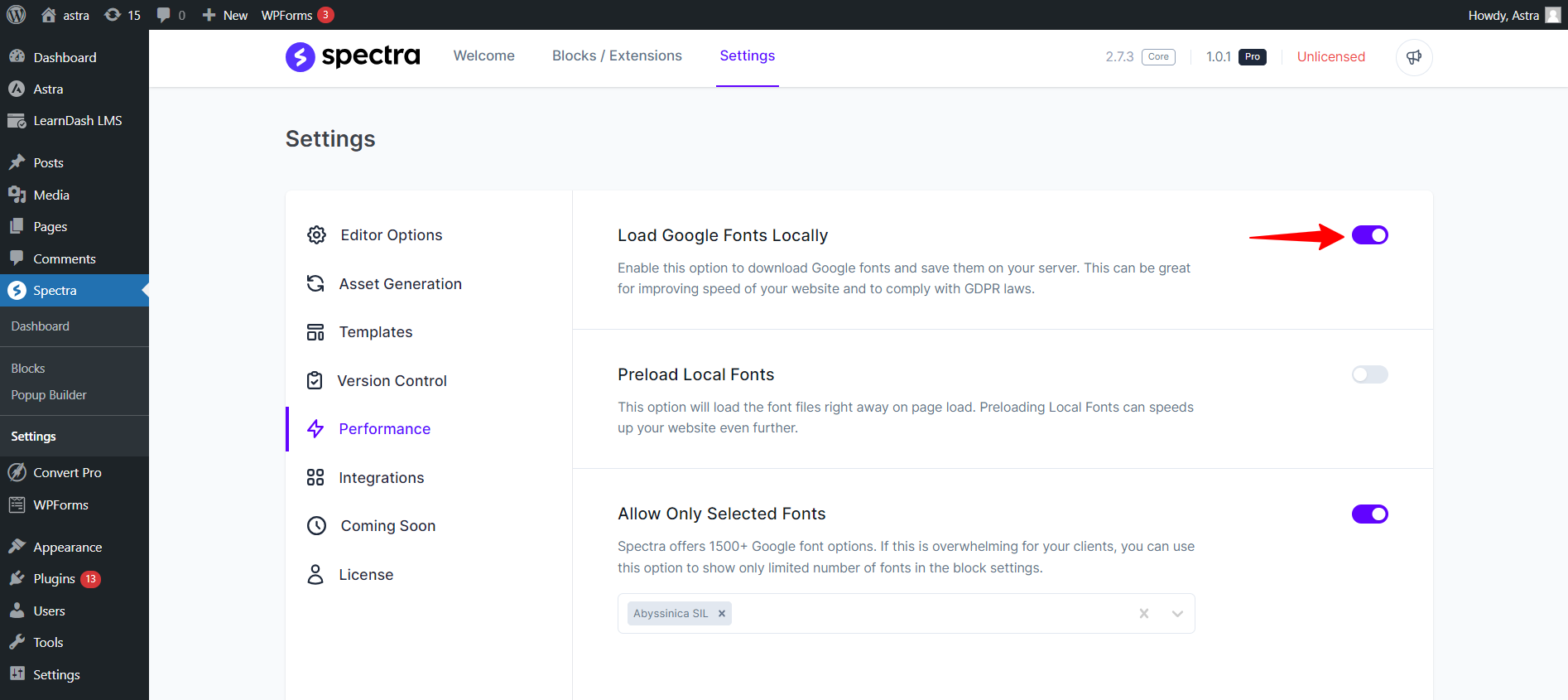
Once this option is enabled, Google fonts can load directly from your server (locally). It will simply download the Google fonts you specify and install them locally on your WordPress site.
Continuing on, preloading your local fonts also plays a significant role in increasing the speed of your website.
Let’s get into the details of preloading Google Fonts.
How to Pre-load the Google Fonts
To turn this feature on, simply navigate to the Settings tab of the Spectra dashboard and turn this feature on by using the toggle button.
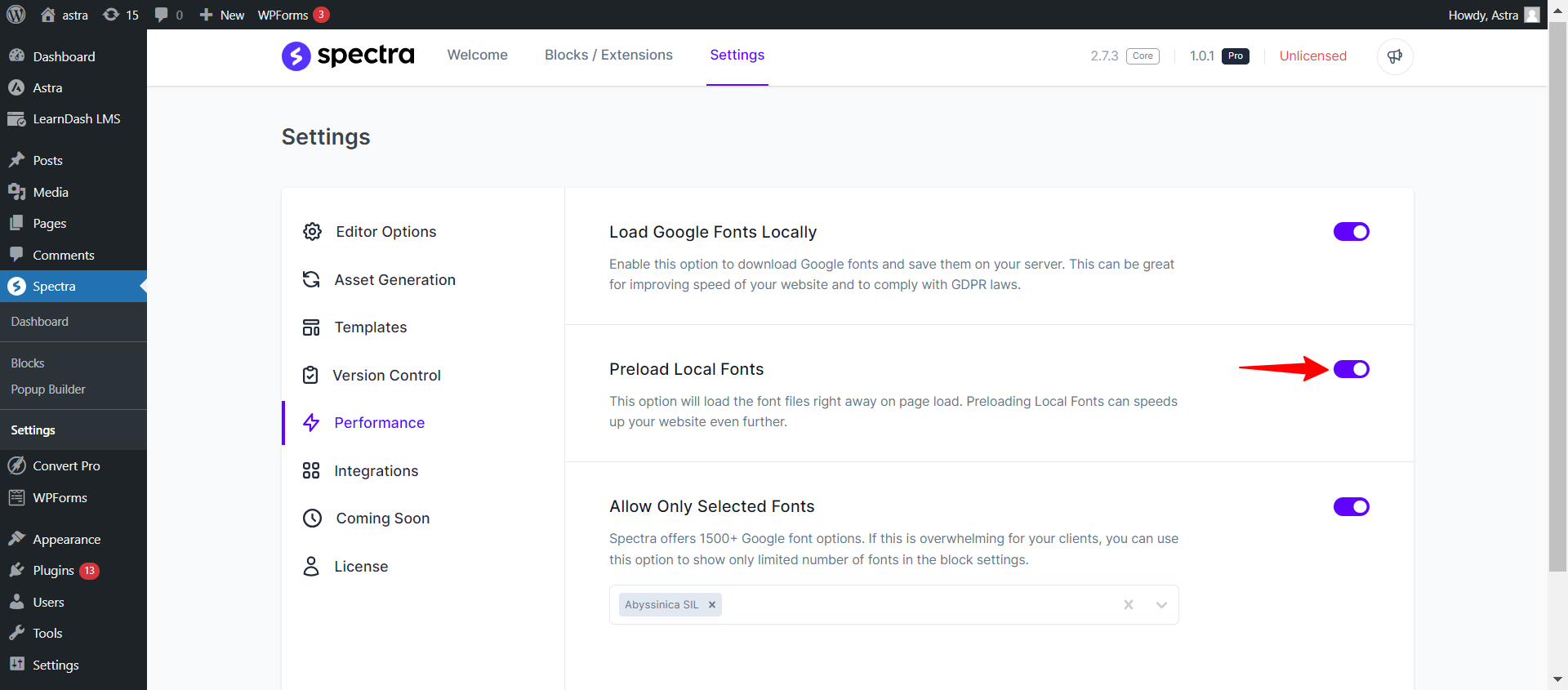
This will load the fonts of your choice as soon as the page loads, on the website visitor’s end.
Please note that this feature will not be usable unless you turn on the feature to load the Google fonts locally.
So that’s how you can load fonts locally on your site!
Hope this article was helpful!
We don't respond to the article feedback, we use it to improve our support content.