
- Filters/Actions For Post
- Spectra Patterns
- Contact Form 7: Checkbox / Radio / Acceptance Control
- Getting Started With Spectra
- WP – Search
- Create Contact Forms
- Import Single Pages, Templates, & Block Patterns
- Assets API For Third-Party Plugins
- Copy & Paste Style
- Load Google Fonts Locally
- Blocks Editor Spacing
- Translate Everything WPML
- Collapse Panels
- Site Visibility
- Spectra Actions: Clear Cache
- Quick Action Bar
- Custom Blocks
- Move Block Patterns
- Move Title Bar To Top
- Newsletter Forms
- Register High-Privileged Users
- User Roles Access To AI
- Whitelist Email Address
- Hide Core Blocks
- Regenerate Assets With Code
- Using ACF Repeater Field in Spectra
- How to Fix Stretched Spectra Images in WordPress 6.7
- How to Change Breakpoints in Spectra?
- Controlling Access to the Spectra Design Library Based on User Roles
- Multi-Column Form Block Using Utility Classes
- Preview Options (Desktop, Tablet & Mobile)
- Troubleshooting: Missing Icons
- Contact Form 7: Multiple Column Fields
- Unable To Style Contact Form 7
- Tab Index For Multiple Gravity Forms
- Manually Install Spectra Via FTP
- Enable/Disable Design Library Button
- Update Folder File Permissions
- Resolving Container Layout Conflicts
- Database Update Instructions (Below 2.0.0)
- Transparent / Sticky Header
- Change Site Logo
- Change Global Styles
- Disable Title on Posts & Pages
- Transparent / Sticky Header For Single Page / Post
- Change Header & Footer Patterns
- Custom / Google Fonts
- Reset Global Default Styling
- Manually Install Spectra One Via FTP
- Enable / Disable Header & Footer On Specific Pages / Posts
Move the Title Bar to Top
We’ve made an improvement to the Gutenberg editor to make creating content and designing a page even easier. The title bar, where you can edit your page’s title, has been moved to the top of the screen.
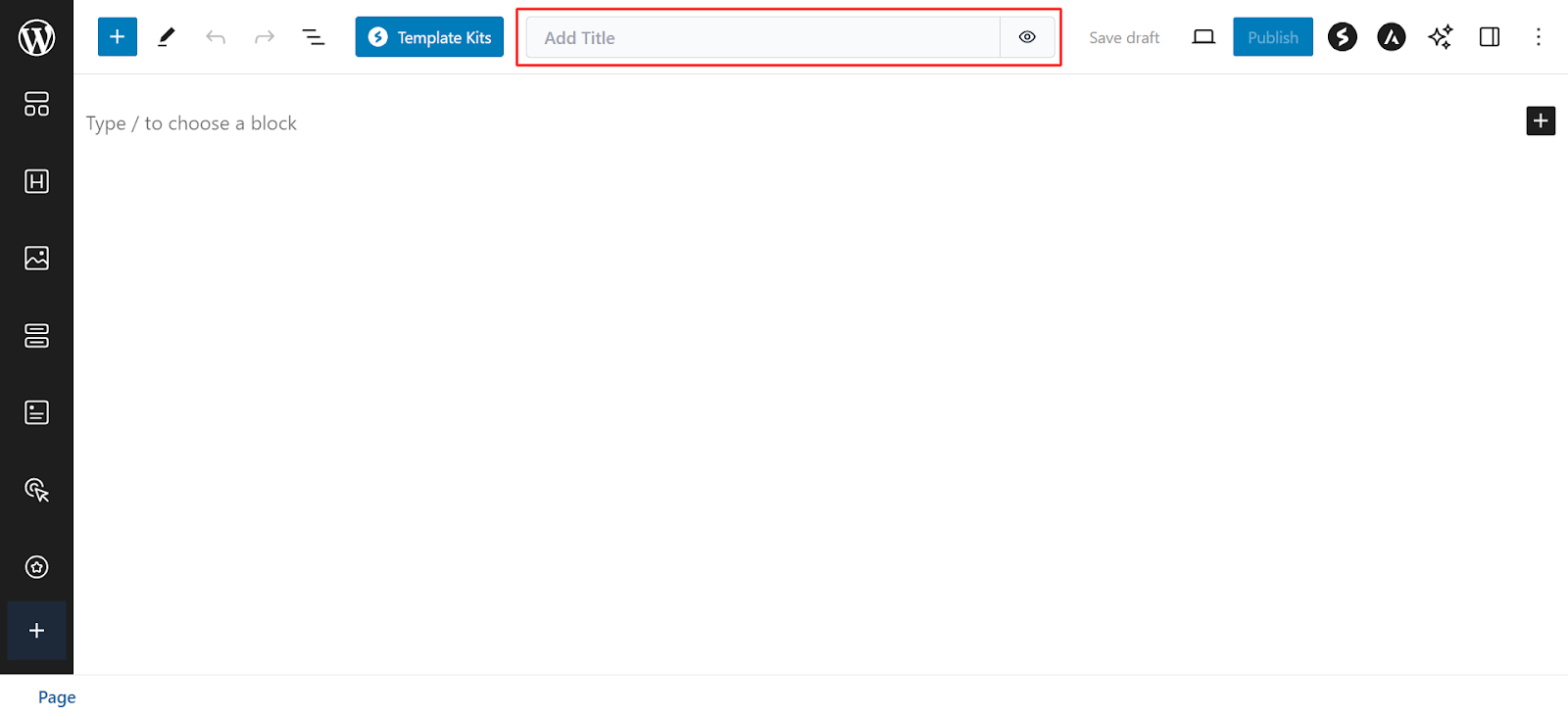
What are the Benefits of Relocating the Title Bar
Moving the title bar to the top enhances the editing space, making it cleaner and easier to navigate. This adjustment simplifies content creation by placing the title field in a more intuitive location, allowing for smoother workflow when adding or editing content.
How to Enable/Disable Moving the Title Area to the Top
You can follow the below steps to enable/disable moving title area to the top.
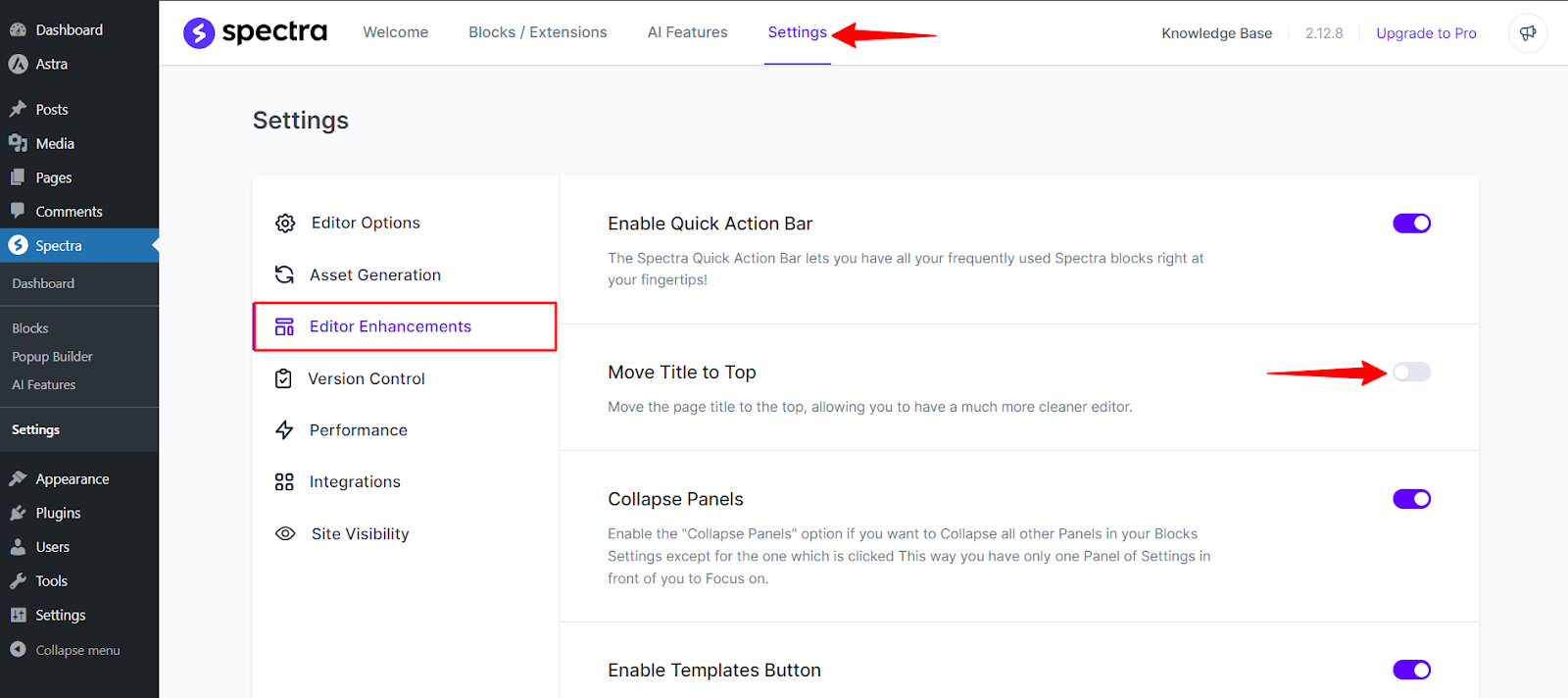
- Navigate to your WordPress dashboard and locate the Spectra settings.
- Within the Spectra settings, look for the “Editor Enhancements” section.
- Find the option labeled “Move Title to Top.” This controls the title bar’s position.
- Toggle the “Move Title to Top” option to On/ Off as per your preference.
- The changes will be saved automatically.
If you disable this option, the title bar will remain below the top bar area, as shown in the screenshot provided.
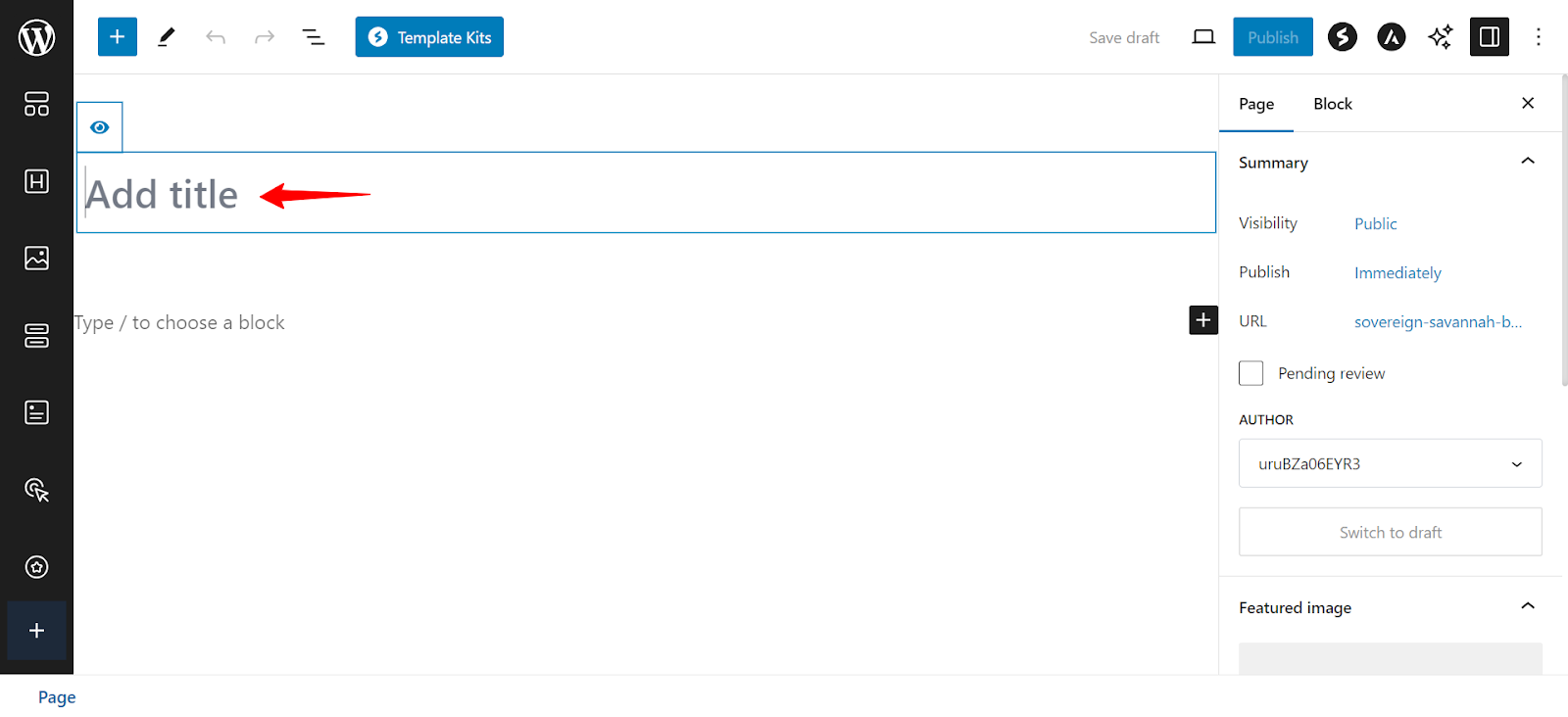
Spectra prioritizes user experience, and this option allows you to customize your editing experience within the Gutenberg editor.
You can choose the title bar position that keeps your editing process smooth and efficient.
We hope this document has been helpful. Please feel free to drop a comment if you have any questions.
We don't respond to the article feedback, we use it to improve our support content.