
- Filters/Actions For Post
- Spectra Patterns
- Contact Form 7: Checkbox / Radio / Acceptance Control
- Getting Started With Spectra
- WP – Search
- Create Contact Forms
- Import Single Pages, Templates, & Block Patterns
- Assets API For Third-Party Plugins
- Copy & Paste Style
- Load Google Fonts Locally
- Troubleshooting: Missing Icons
- Contact Form 7: Multiple Column Fields
- Unable To Style Contact Form 7
- Tab Index For Multiple Gravity Forms
- Manually Install Spectra Via FTP
- Enable/Disable Design Library Button
- Update Folder File Permissions
- Resolving Container Layout Conflicts
- Database Update Instructions (Below 2.0.0)
- Transparent / Sticky Header
- Change Site Logo
- Change Global Styles
- Disable Title on Posts & Pages
- Transparent / Sticky Header For Single Page / Post
- Change Header & Footer Patterns
- Custom / Google Fonts
- Reset Global Default Styling
- Manually Install Spectra One Via FTP
- Enable / Disable Header & Footer On Specific Pages / Posts
Tab Index – for multiple Gravity Forms
Tab Index is useful whe you have multiple Gravity Forms on the same page.
Quite often we’ve seen that, while filling a form, if we press the tab key, the cursor moves to the next form field. This happens as Gravity Form assumes its default tab index values and it smotthly land us to the next form filed.
When you use multiple forms on one page you might have faced issue while pressing tab key. From last field of first form, when we press tab key we expect cursor to move to first field on next form. But sometimes cursor do not move to correct field.
You can avoid this by changing the tab index values on your forms so that they work as expected.
How to change the tab index value of a Gravity Form?
Open the General tab of the Gravity Form Styler block. Enable Using Multiple Gravity Forms option. Enter a tab index value in the given field as shown in the screenshot below.
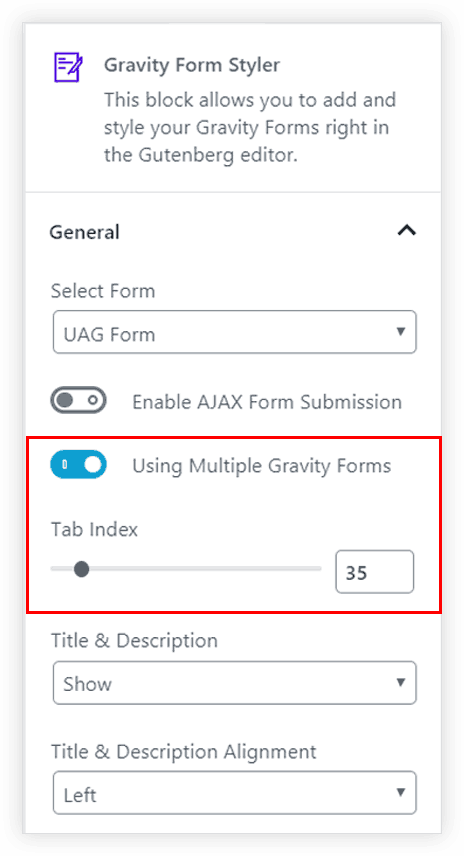
Note: The tab index value should be greater than the total number of fields in your previous form.
For example – If form-1 has 5 fields and its tab index is set to 30. Then tab index for next form, say form-2 should be 30+5= 35. So that when you press tab from last field of form-1, the cursor will move to first field of form-2.
To know more about the Gravity Form tab index, you can refer to the article here.
We don't respond to the article feedback, we use it to improve our support content.