
- Filters/Actions For Post
- Spectra Patterns
- Contact Form 7: Checkbox / Radio / Acceptance Control
- Getting Started With Spectra
- WP – Search
- Create Contact Forms
- Import Single Pages, Templates, & Block Patterns
- Assets API For Third-Party Plugins
- Copy & Paste Style
- Load Google Fonts Locally
- Troubleshooting: Missing Icons
- Contact Form 7: Multiple Column Fields
- Unable To Style Contact Form 7
- Tab Index For Multiple Gravity Forms
- Manually Install Spectra Via FTP
- Enable/Disable Design Library Button
- Update Folder File Permissions
- Resolving Container Layout Conflicts
- Database Update Instructions (Below 2.0.0)
- Transparent / Sticky Header
- Change Site Logo
- Change Global Styles
- Disable Title on Posts & Pages
- Transparent / Sticky Header For Single Page / Post
- Change Header & Footer Patterns
- Custom / Google Fonts
- Reset Global Default Styling
- Manually Install Spectra One Via FTP
- Enable / Disable Header & Footer On Specific Pages / Posts
Troubleshooting – Icons missing from the blocks
Are icons missing from your site after updating the Spectra to version 1.8.1? Don\’t worry, this can be fixed quickly.
Reason for the missing icons
Spectra version 1.8.1 holds a powerful update that uses SVG icons over Font Icons. See the benefits of using SVG in the related blog post.
This update replaces Spectra\’s previous Font Icon library with SVG icon library. So if you have used icons from the Spectra blocks earlier, that will disappear.
How to display icons again?
You will have to fetch the SVG icons at the place of previously used font icons. To do this follow the steps –
Step 1: Edit the page on which icons are missing.
Step 2: Click on Update. You don\’t need to change any setting just save(update) the page again.
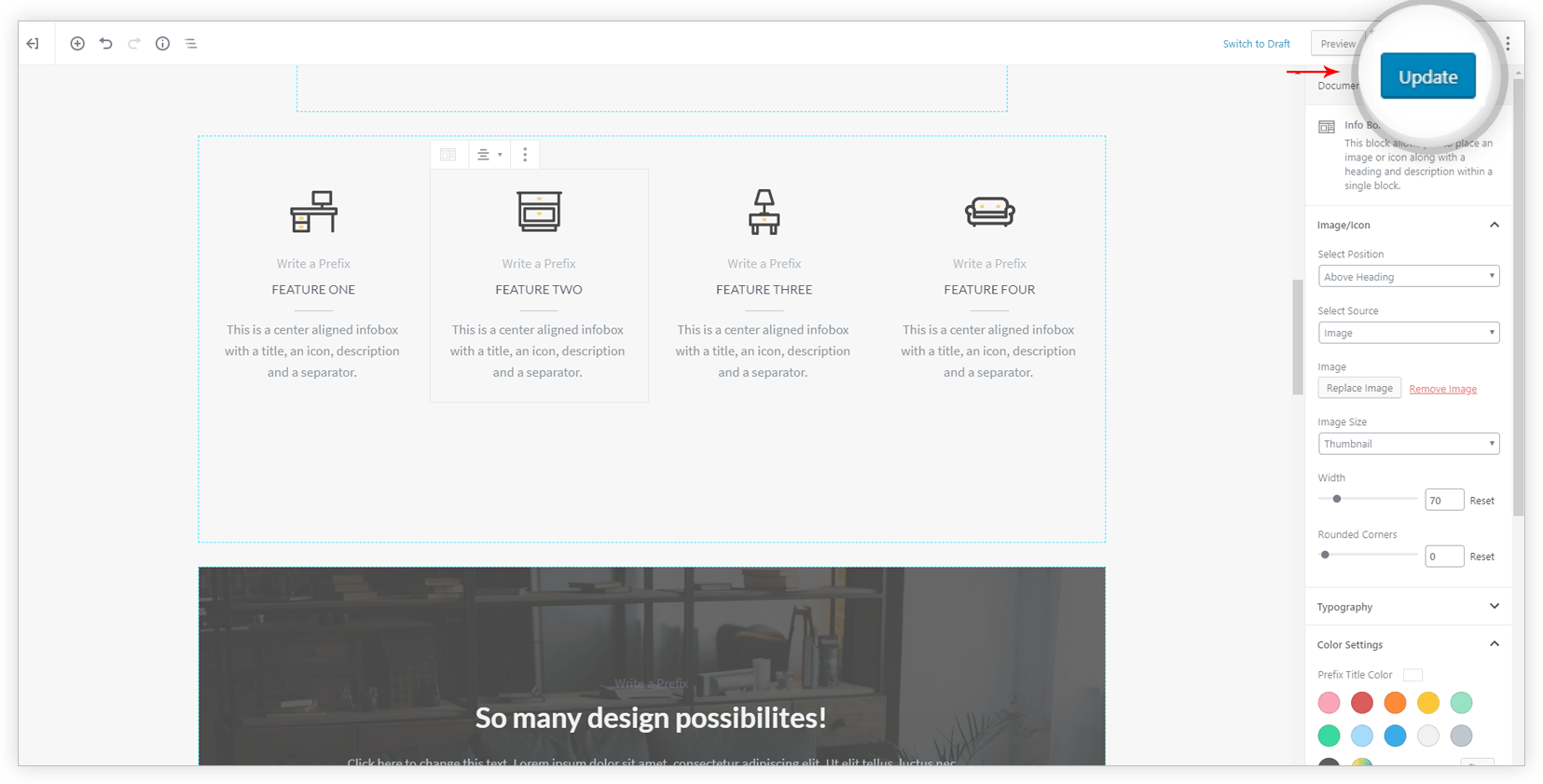
This will fetch the SVG icons and will display them on the page.
We don't respond to the article feedback, we use it to improve our support content.