
- Container
- Buttons
- List
- Modal
- Slider
- Animations
- Icons
- Tabs
- Text Block
- Countdown
- Loop Builder
- Image Mask
- Dynamic Content
- Accordion
- Google Maps
- Separator
- Popup Builder
- Counter Block
- Login Block
- Register Block
- SVG Animator
- Block Positioning
- Post Block
- Spectra Header
- Motion Effects
- Responsive Conditions
- Display Conditions
- Spectra Global Styles
- Responsive Controls in Spectra Blocks
- Filters/Actions For Post
- Spectra Patterns
- Contact Form 7: Checkbox / Radio / Acceptance Control
- Getting Started With Spectra
- WP – Search
- Create Contact Forms
- Import Single Pages, Templates, & Block Patterns
- Assets API For Third-Party Plugins
- Copy & Paste Style
- Load Google Fonts Locally
- Troubleshooting: Missing Icons
- Contact Form 7: Multiple Column Fields
- Unable To Style Contact Form 7
- Tab Index For Multiple Gravity Forms
- Manually Install Spectra Via FTP
- Enable/Disable Design Library Button
- Update Folder File Permissions
- Resolving Container Layout Conflicts
- Database Update Instructions (Below 2.0.0)
- Transparent / Sticky Header
- Change Site Logo
- Change Global Styles
- Disable Title on Posts & Pages
- Transparent / Sticky Header For Single Page / Post
- Change Header & Footer Patterns
- Custom / Google Fonts
- Reset Global Default Styling
- Manually Install Spectra One Via FTP
- Enable / Disable Header & Footer On Specific Pages / Posts
Responsive Conditions
Introduction
Responsive Conditions let you show or hide a block depending on the device someone is using. Spectra blocks are already responsive, so most layout differences are handled by the responsive controls in a block’s own settings. Responsive Conditions are for the times you want a block to not appear at all on a given screen. For example, a decorative background animation that adds polish on desktop can be hidden on mobile, where it would only clutter a small screen and slow the page down.
How to Use Responsive Conditions
- Select the block you want to control.
- In the settings sidebar, open the Block tab and find the Responsive Conditions panel.
- Turn on Hide on Desktop, Hide on Tablet, or Hide on Mobile for the devices where the block should not appear.
- Save or publish the page to apply your changes.
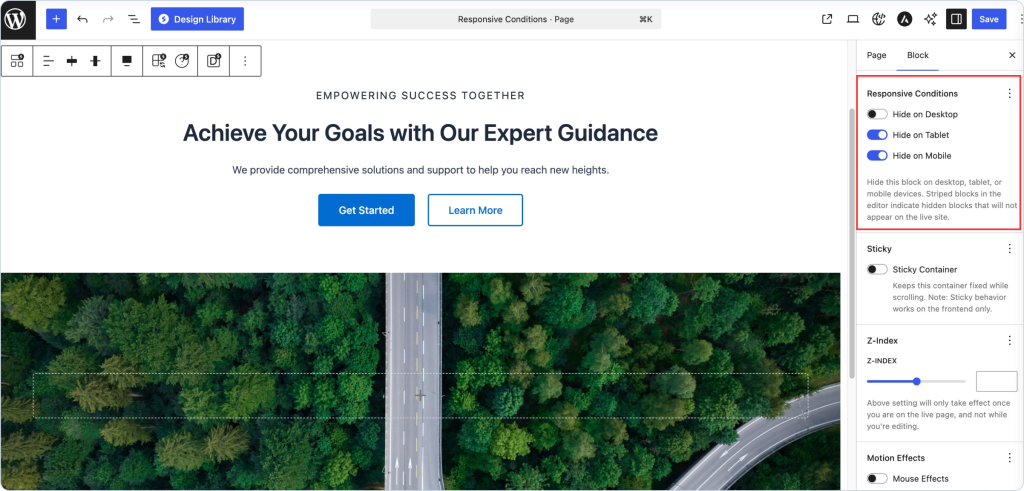
Choosing Where the Block Appears
Responsive Conditions gives you a Hide toggle for each device. Turning a toggle on hides the block on that device. Leaving it off keeps the block visible there.
- Hide on Desktop: Turn this on to hide the block on desktop screens.
- Hide on Tablet: Turn this on to hide the block on tablet screens.
- Hide on Mobile: Turn this on to hide the block on mobile screens.
In the editor, hidden blocks appear faded, so you can tell at a glance which blocks won’t appear on the live site.
Reach for Responsive Conditions when a block should be hidden entirely on a screen size, not when you simply want it to look different. For spacing, columns, and sizes, use the responsive controls in the block’s settings, since the block already adapts to each screen on its own.
A Few Tips
- Good uses include hiding a heavy or decorative element on mobile to keep pages light, or showing a block meant only for one device, like a tap to call button on phones.
- Responsive Conditions control whether a block appears, not how it looks. To adjust spacing, columns, or sizes per device, use the responsive controls in the block’s own settings instead.
- Use the editor’s device preview to check each screen size before you publish.
- Hiding a block still keeps it in your content. It just won’t display on the devices you’ve hidden it on.
Troubleshooting
I don’t see Responsive Conditions on my block: Make sure you’ve selected a Spectra block and are looking at the Block tab in the settings sidebar, since this feature is part of Spectra blocks.
The block still shows on a device I hid it on: Confirm the Hide toggle for that device is on, then save or publish the page and clear any page cache so the latest version is served.
The block is hidden everywhere: If Hide on Desktop, Tablet, and Mobile are all turned on, the block won’t appear anywhere. Leave at least one of them off.
FAQ
Q: What does Responsive Conditions do?
A: It lets you show or hide a block based on whether the visitor is on desktop, tablet, or mobile.
Q: If I hide a block on mobile, is the content deleted?
A: No. The block stays in your page and still shows on the devices you haven’t hidden it on. Turning on Hide on Mobile only hides it on phones.
Q: Does this change how my block looks on each device?
A: No. It controls visibility only. For per device styling like spacing and columns, use the responsive controls in the block’s settings.
Q: Can I show different content on mobile and desktop?
A: For most differences, you don’t need to. Blocks are responsive, so adjust the block with its responsive controls instead of duplicating it. Responsive Conditions are for genuinely different content, such as a button meant only for phones. In that case, add each block and hide it on the devices where it shouldn’t appear.
We don't respond to the article feedback, we use it to improve our support content.