
- Coming Soon Mode
- Font Management
- Spectra Design Library Guide
- Preview Options (Desktop, Tablet & Mobile)
- Spectra Blocks – Copy and Paste Style
- How to Change the Responsive Breakpoints in Spectra Blocks
- How to Use Spectra Blocks With AI Through the MCP Server
- How to Connect and Disconnect ZIP AI in Spectra Blocks
- Caching in Spectra Blocks
- Filters/Actions For Post
- Spectra Patterns
- Contact Form 7: Checkbox / Radio / Acceptance Control
- Getting Started With Spectra
- WP – Search
- Create Contact Forms
- Import Single Pages, Templates, & Block Patterns
- Assets API For Third-Party Plugins
- Copy & Paste Style
- Load Google Fonts Locally
- Troubleshooting: Missing Icons
- Contact Form 7: Multiple Column Fields
- Unable To Style Contact Form 7
- Tab Index For Multiple Gravity Forms
- Manually Install Spectra Via FTP
- Enable/Disable Design Library Button
- Update Folder File Permissions
- Resolving Container Layout Conflicts
- Database Update Instructions (Below 2.0.0)
- Transparent / Sticky Header
- Change Site Logo
- Change Global Styles
- Disable Title on Posts & Pages
- Transparent / Sticky Header For Single Page / Post
- Change Header & Footer Patterns
- Custom / Google Fonts
- Reset Global Default Styling
- Manually Install Spectra One Via FTP
- Enable / Disable Header & Footer On Specific Pages / Posts
Caching in Spectra Blocks
Spectra Blocks builds the CSS for each block from the settings you choose in the editor, such as spacing, sizes and the values you set for tablet and mobile. To keep your pages fast, it saves that CSS after the first visit and reuses it, so it doesn’t have to build the same styles again on every page load.
Most of the time this works in the background and you never need to think about it. This guide explains how the cache works, the two settings that control it, and what to do if your site’s styling ever looks out of date.
How Spectra Blocks Caches Your Styles
When someone visits a page, Spectra Blocks builds the CSS for each block on that page and prints it straight into the page. It also saves a copy in your WordPress database, so the next visit can reuse it.
A few things are useful to know about how this works:
- No CSS files. Spectra Blocks doesn’t write CSS files to your server, so there is no folder to clean up and nothing to regenerate by hand.
- One saved copy per block. Each block gets its own saved CSS. If your host offers an object cache such as Redis, WordPress keeps these copies there instead of in the database.
- A one day lifetime. Each saved copy is rebuilt after a day, even if nothing changed.
- Automatic refresh. When you change a block’s settings and update the page, Spectra Blocks notices and builds fresh CSS for that block on the next visit. Updating Spectra Blocks to a new version refreshes the CSS for every block too.
Because of this, you don’t need to clear anything after editing a page. The settings below are there for the rare times you do.
Where to Find the Cache Settings
Both cache settings live on the Spectra Blocks settings screen.
To open them, follow these steps:
- In your WordPress dashboard, go to Spectra Blocks.
- Click Settings in the top menu.
- Click Performance in the left menu, under Utilities.
You will see two options, Regenerate Styles on Every Page Load and Clear Cached Styles.
How to Clear Cached Styles
Clear Cached Styles removes the CSS Spectra Blocks has saved for every block on your site. Each block’s CSS is built again the next time someone visits a page that uses it. This is useful if the styling on your site looks out of date and you want to rule out the Spectra cache.
To clear the cache, follow these steps:
- Go to Spectra Blocks > Settings > Performance.
- Click Clear Cache next to Clear Cached Styles.
- Click Clear in the confirmation box.
You will see a “Cache Cleared Successfully!” message at the top right of the screen.
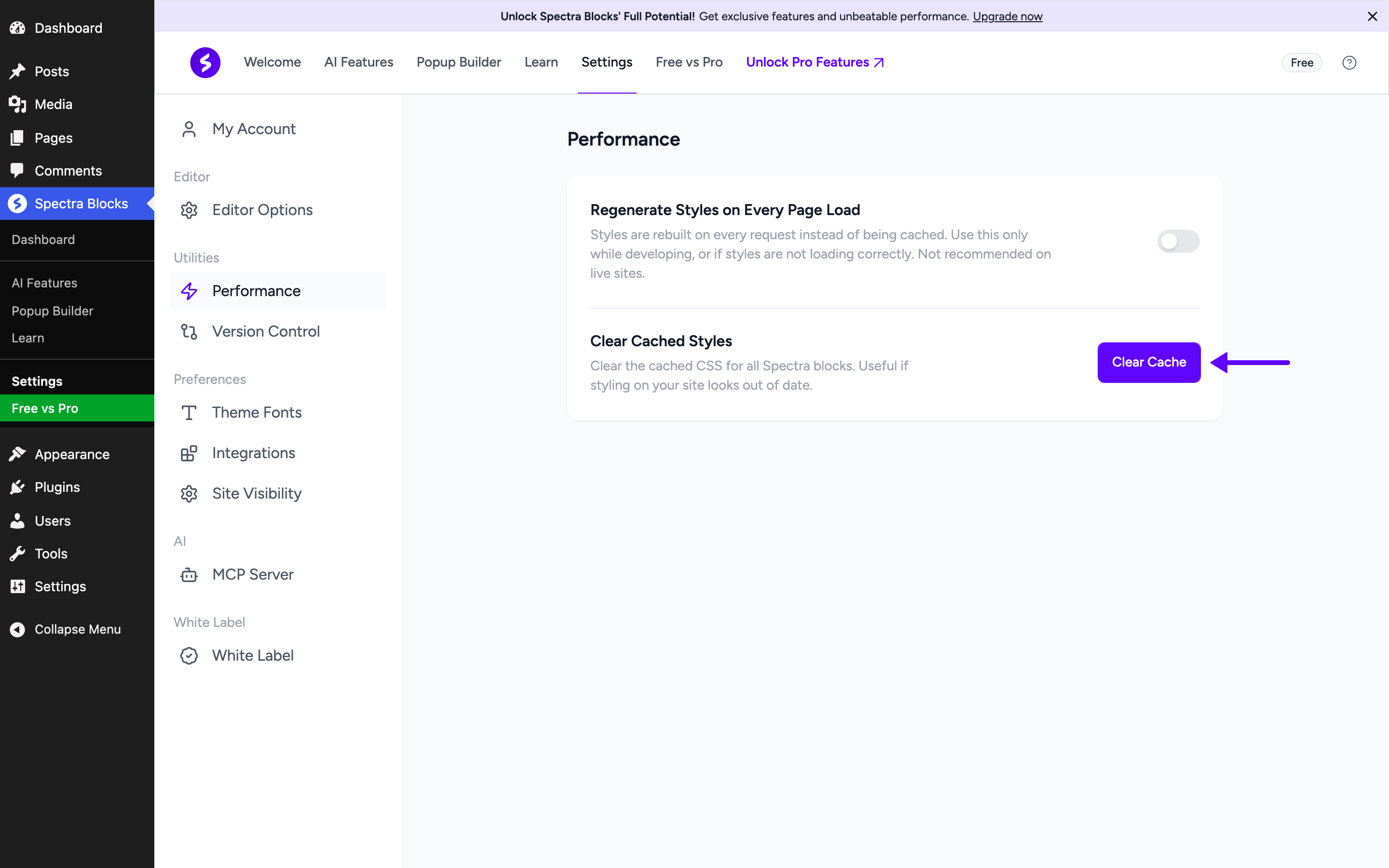
Clear Cached Styles also clears the WordPress object cache, if your site uses one. It doesn’t clear your caching plugin, your host’s server cache or a CDN such as Cloudflare. Those keep serving their own saved copy of your pages until you clear them as well.
When to Use Regenerate Styles on Every Page Load
When Regenerate Styles on Every Page Load is on, Spectra Blocks stops saving CSS and builds it fresh on every page load. Your changes show up straight away, but every visit takes a little more work, so pages load more slowly.
It is a good fit in two cases:
- While you build a site. If you are testing many style changes on a staging site, it saves you from clearing the cache each time.
- While you troubleshoot. If styles aren’t loading correctly, turning it on shows whether the Spectra cache is involved.
To turn it on, go to Spectra Blocks > Settings > Performance and click the toggle next to Regenerate Styles on Every Page Load. The change saves straight away and you will see a “Successfully saved!” message.
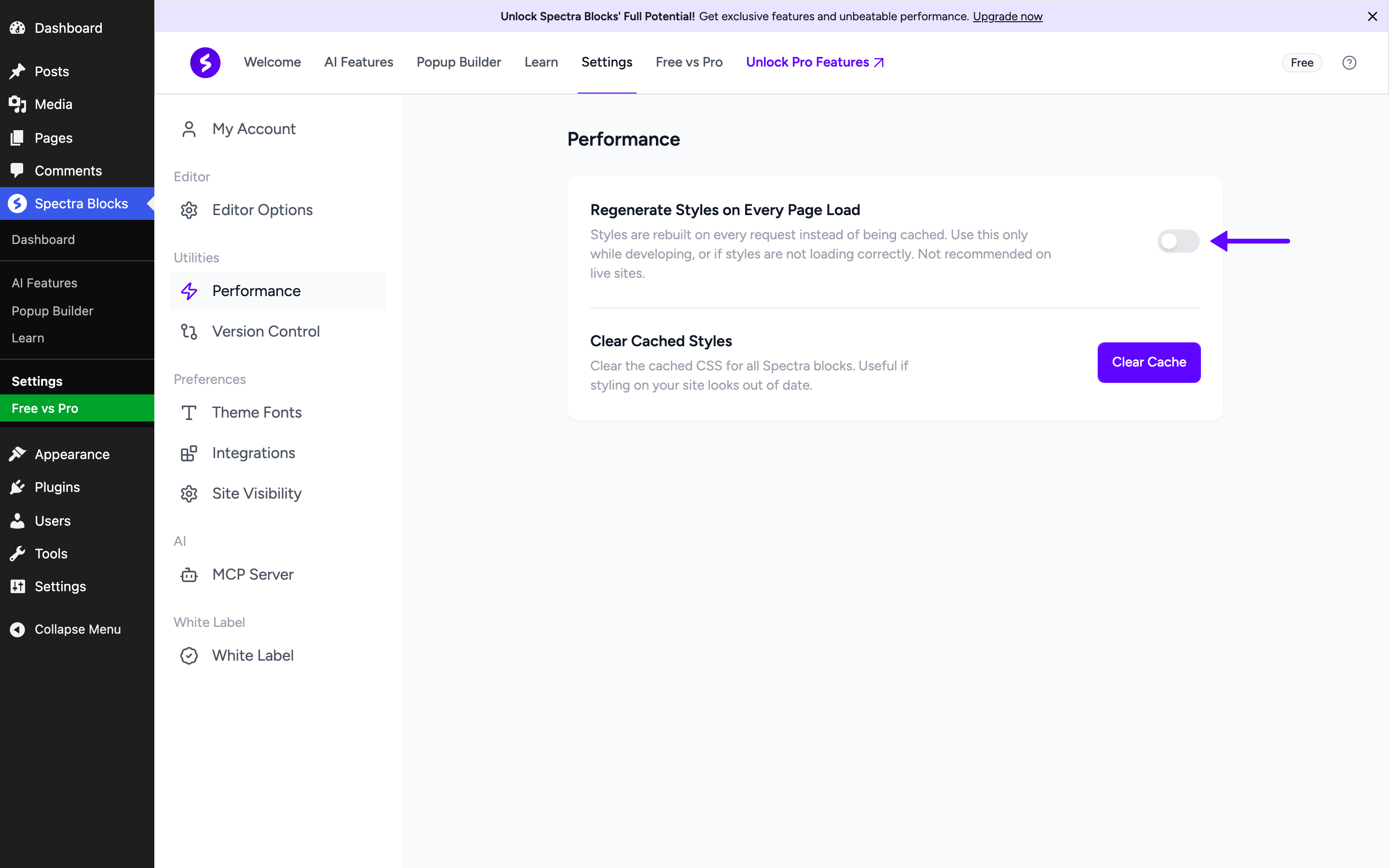
While this setting is on, the Clear Cached Styles option is hidden, because there is no saved CSS to clear. We recommend turning the setting off again before your site goes live, or once you have finished troubleshooting.
What to Do if Your Styles Look Out of Date
Most of the time, styling that looks old on the live site comes from a page cache or CDN serving a saved copy of the page, not from Spectra Blocks. Clearing every layer in order usually fixes it.
Clear the caches in this order:
- Spectra Blocks. Go to Spectra Blocks > Settings > Performance and click Clear Cache.
- Your caching plugin. Use the clear or purge option in plugins such as WP Rocket, LiteSpeed Cache or W3 Total Cache.
- Your host’s cache. Many hosts have their own server cache with a clear button in the hosting dashboard.
- Your CDN. If you use a CDN such as Cloudflare, purge its cache too.
- Your browser. Do a hard refresh, or open the page in a private window.
If the styles still look wrong, turn on Regenerate Styles on Every Page Load and check the page again. If nothing changes, the cache isn’t the cause. Turn the setting off again and contact our support team with a link to the page, and we will take a look.
Coming From Spectra Legacy
If you have used Spectra Legacy, you may be looking for options such as Regenerate Assets or File Generation. Spectra Blocks doesn’t have them, because it doesn’t create CSS files. The two options on the Performance screen are all you need.
This also means there is nothing to regenerate when you move pages to another site. Spectra Blocks builds the CSS from the block settings saved in the page, so the styles come along with the blocks.
For Developers: Turning Off the Cache in Code
If you would rather control the cache in code, for example on a development copy of a site, you can use the spectra_blocks_enable_css_cache filter. It returns true by default. Return false to build the CSS on every page load, the same as turning on Regenerate Styles on Every Page Load.
add_filter( 'spectra_blocks_enable_css_cache', '__return_false' );You can add this snippet to a small custom plugin or a code snippets plugin. Remove it before the site goes live, so your visitors get the faster, cached CSS.
Frequently Asked Questions
Do I Need to Clear the Cache After Editing a Page?
No. When you update a page, Spectra Blocks builds fresh CSS for any block whose settings changed. You may still need to clear your caching plugin or CDN so visitors get the new version of the page.
Does Spectra Blocks Write CSS Files to My Server?
No. The CSS is printed inside the page, and the saved copies live in your WordPress database or object cache.
Is It Normal to Have Many Spectra Entries in My Database?
Yes. Their names start with _transient_spectra_blocks_responsive_css_, and they are the saved CSS copies, one for each block. Each one expires after a day. If your host offers an object cache such as Redis, turning it on moves them out of the database.
Will Clearing the Cache Make My CSS Smaller?
No. Clearing the cache only removes the saved copies. Spectra Blocks builds the same CSS again from your block settings.
With these two settings and a clear order for your other caches, you can keep your site’s styling fresh without slowing it down. If anything still looks off after these steps, our support team is happy to take a look.
We don't respond to the article feedback, we use it to improve our support content.