
- Filters/Actions For Post
- Spectra Patterns
- Contact Form 7: Checkbox / Radio / Acceptance Control
- Getting Started With Spectra
- WP – Search
- Create Contact Forms
- Import Single Pages, Templates, & Block Patterns
- Assets API For Third-Party Plugins
- Copy & Paste Style
- Load Google Fonts Locally
- Troubleshooting: Missing Icons
- Contact Form 7: Multiple Column Fields
- Unable To Style Contact Form 7
- Tab Index For Multiple Gravity Forms
- Manually Install Spectra Via FTP
- Enable/Disable Design Library Button
- Update Folder File Permissions
- Resolving Container Layout Conflicts
- Database Update Instructions (Below 2.0.0)
- Using Heading Block
- Buttons
- Post Grid
- Content Timeline
- Social Share
- Google Map
- Add Testimonials
- Info Box
- Section
- Team
- Icon List
- Price List
- Post Masonry
- Post Carousel
- Post Timeline
- Call To Action
- Advanced Columns
- Blockquote
- Marketing Button
- Table Of Contents
- How-to Schema
- FAQ’s: Schema/Accordion
- Inline Notice
- Exclude Heading From TOC
- Review Schema
- Lottie
- Taxonomy List
- Tabs Block
- Block Display Conditions
- Star Rating
- Masonry Image Gallery
- Wireframe Blocks
- Copy & Paste Style
- Container Flex Property
- Default Content Width
- Heading Block
- Image Block
- Buttons Block
- Container Block
- Responsive Conditions
- Taxonomy Styling Options
- Block Presets
- Image Gallery
- Counter Block
- Modal Block
- Registration Form Block
- Dynamic Content Extension
- Slider Block
- Pagel Level Custom CSS
- Countdown Pro
- Slider Custom Navigation
- Loop Builder
- Animations
- Login Form Block
- Global Block Style Extension
- Create Popups
- Grid Builder
- Using Dynamic Content in FSE Templates
- Pixabay Image Search Feature
- Getting Started with Instagram
- Advanced Loop Builder
- Transparent / Sticky Header
- Change Site Logo
- Change Global Styles
- Disable Title on Posts & Pages
- Transparent / Sticky Header For Single Page / Post
- Change Header & Footer Patterns
- Custom / Google Fonts
- Reset Global Default Styling
- Manually Install Spectra One Via FTP
- Enable / Disable Header & Footer On Specific Pages / Posts
Spectra – Block Presets
With Spectra block presets, you can add professional-looking sections to your website. This innovative feature offers pre-designed building blocks for various website sections, allowing you to create stunning and functional pages in no time.
This article will teach you about individual block presets, CTA button preset, Box shadow, and Inner container preset.
What are Spectra Block Presets?
Spectra has revamped its feature into a new feature called Presets. This new update introduces the new Preset features to most of the modules in spectra.
This new setting lets you quickly change any module’s design style and settings across your entire website with just a few quick clicks.
This very helpful feature goes beyond what was possible before and will help speed up your website design process.
In this article, let’s discuss the block preset feature for the container and control presets for CTA Button and Box Shadow.
Presets for ‘Container’ Block
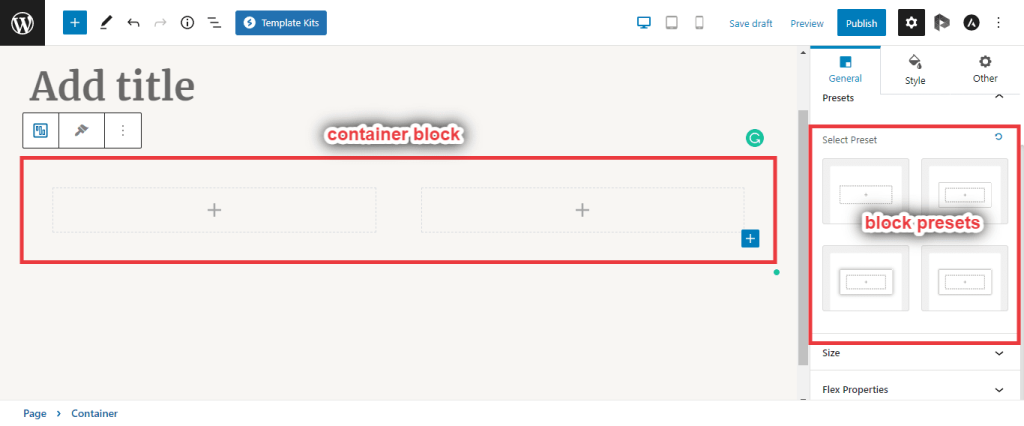
When you drag and drop the container block in the block editor, you can see the block presets under the ‘General’ settings. You can select the block preset from here.
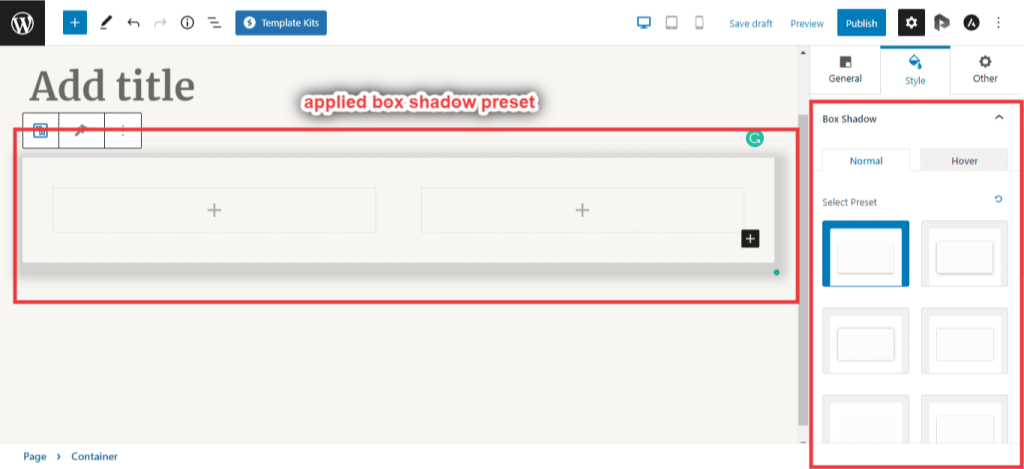
For the container block – Apart from the block preset, you can set the control presets for various modules like box shadow. To do so, navigate to the ‘Style’ settings, box-shadow module. Here, you can see various presets for box shadow.
Presets for ‘Call to Action’ Block
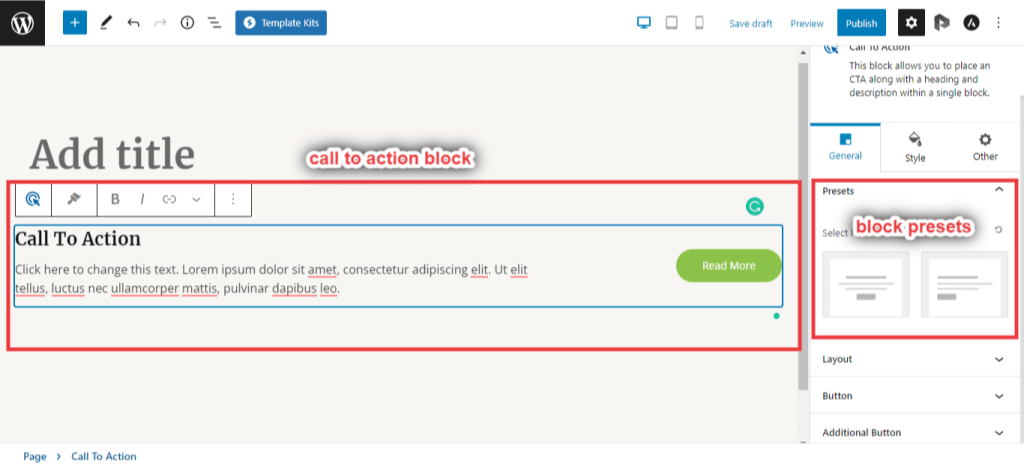
When you drag and drop the call to action block in the block editor, you can see the block presets under the ‘General’ settings. You can select the block preset from here.
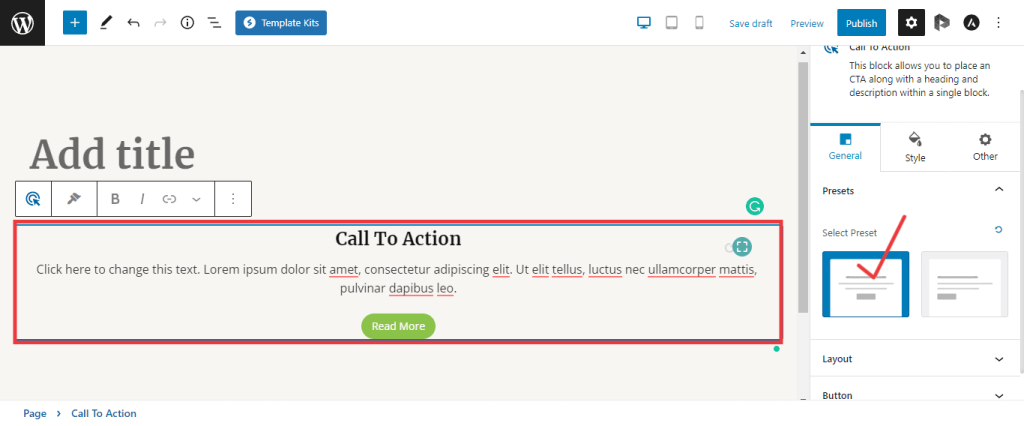
If you select one of these presets, it will change the complete alignment of the block.
Presets for ‘Info Box’ Block
When you drag and drop the info box block in the block editor, you can see the block presets under the ‘General’ settings. You can select the block preset from here.
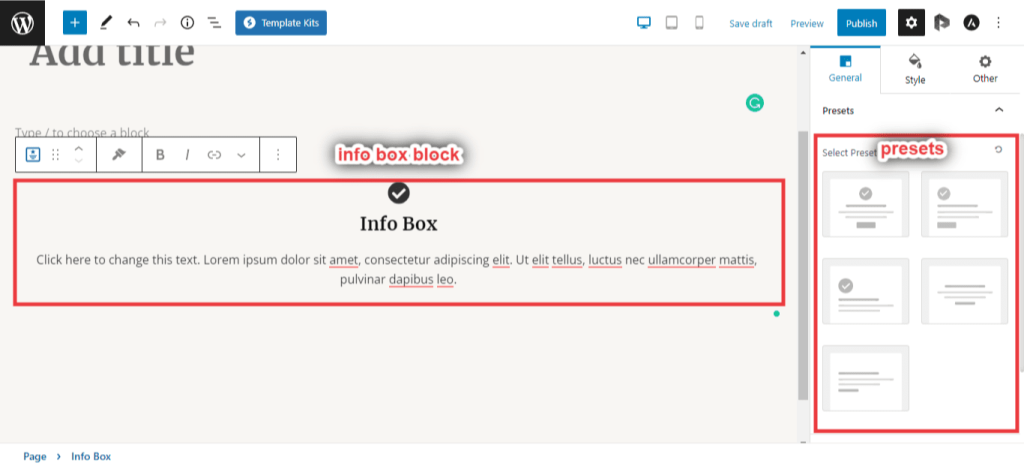
If you select one of these presets, it will change the complete alignment of the block.
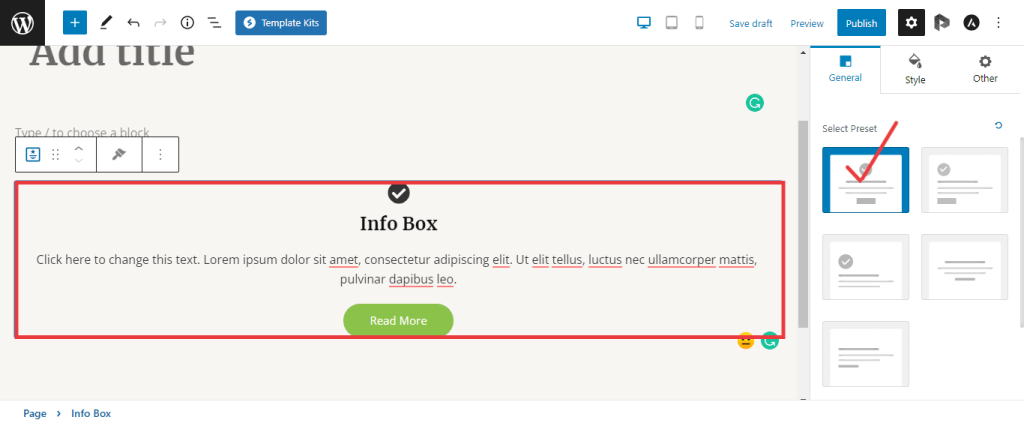
Thus, Spectra’s Block Presets are a game-changer for anyone who wants to create a beautiful and functional website without extensive design experience.
Using these presets, you can save time and effort by providing pre-made building blocks, allowing you to focus on what matters most.
Note:
Likewise, we have in-built presets for various blocks (Tabs, Forms, Social share, post grid, post carousel, and many more) in Spectra.
We hope this document has been helpful in explaining Spectra’s Block Presets. If you have any questions or require further assistance, feel free to leave a comment below.
We don't respond to the article feedback, we use it to improve our support content.