
- Filters/Actions For Post
- Spectra Patterns
- Contact Form 7: Checkbox / Radio / Acceptance Control
- Getting Started With Spectra
- WP – Search
- Create Contact Forms
- Import Single Pages, Templates, & Block Patterns
- Assets API For Third-Party Plugins
- Copy & Paste Style
- Load Google Fonts Locally
- Troubleshooting: Missing Icons
- Contact Form 7: Multiple Column Fields
- Unable To Style Contact Form 7
- Tab Index For Multiple Gravity Forms
- Manually Install Spectra Via FTP
- Enable/Disable Design Library Button
- Update Folder File Permissions
- Resolving Container Layout Conflicts
- Database Update Instructions (Below 2.0.0)
- Using Heading Block
- Buttons
- Post Grid
- Content Timeline
- Social Share
- Google Map
- Add Testimonials
- Info Box
- Section
- Team
- Icon List
- Price List
- Post Masonry
- Post Carousel
- Post Timeline
- Call To Action
- Advanced Columns
- Blockquote
- Marketing Button
- Table Of Contents
- How-to Schema
- FAQ’s: Schema/Accordion
- Inline Notice
- Exclude Heading From TOC
- Review Schema
- Lottie
- Taxonomy List
- Tabs Block
- Block Display Conditions
- Star Rating
- Masonry Image Gallery
- Wireframe Blocks
- Copy & Paste Style
- Container Flex Property
- Default Content Width
- Heading Block
- Image Block
- Buttons Block
- Container Block
- Responsive Conditions
- Taxonomy Styling Options
- Block Presets
- Image Gallery
- Counter Block
- Modal Block
- Registration Form Block
- Dynamic Content Extension
- Slider Block
- Pagel Level Custom CSS
- Countdown Pro
- Slider Custom Navigation
- Loop Builder
- Animations
- Login Form Block
- Global Block Style Extension
- Create Popups
- Grid Builder
- Using Dynamic Content in FSE Templates
- Pixabay Image Search Feature
- Getting Started with Instagram
- Advanced Loop Builder
- Transparent / Sticky Header
- Change Site Logo
- Change Global Styles
- Disable Title on Posts & Pages
- Transparent / Sticky Header For Single Page / Post
- Change Header & Footer Patterns
- Custom / Google Fonts
- Reset Global Default Styling
- Manually Install Spectra One Via FTP
- Enable / Disable Header & Footer On Specific Pages / Posts
Counter Block
We have brought up this article about how you can easily create a counter using Spectra.
Many websites on the internet sell the same product or service as yours. To make your website distinguishable, a counter block adds a cheery as it directly tells your new customer about the satisfactory service experienced by your past customers.
This article lets you know how you can easily create a counter section. But before that, let’s see what a counter is and why we use them.
What Is a Counter on a Website?
A counter is usually at the end of the website page that your new users about the credibility of your business. When a user sees a counter, it helps decide whether to use your product/ service or not.
How to add a Counter Block using Spectra?
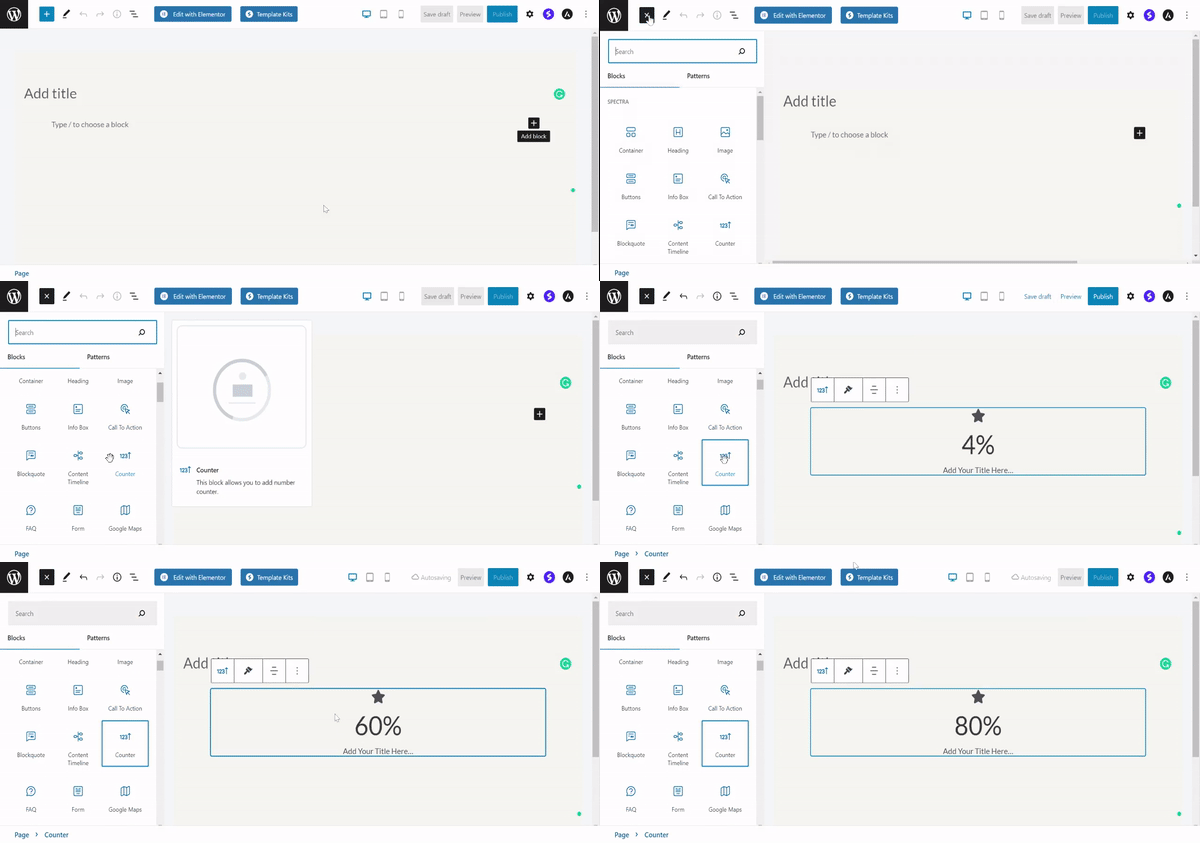
To insert the Counter block, click the Toggle block inserter + icon and search for the Counter block.
General Settings
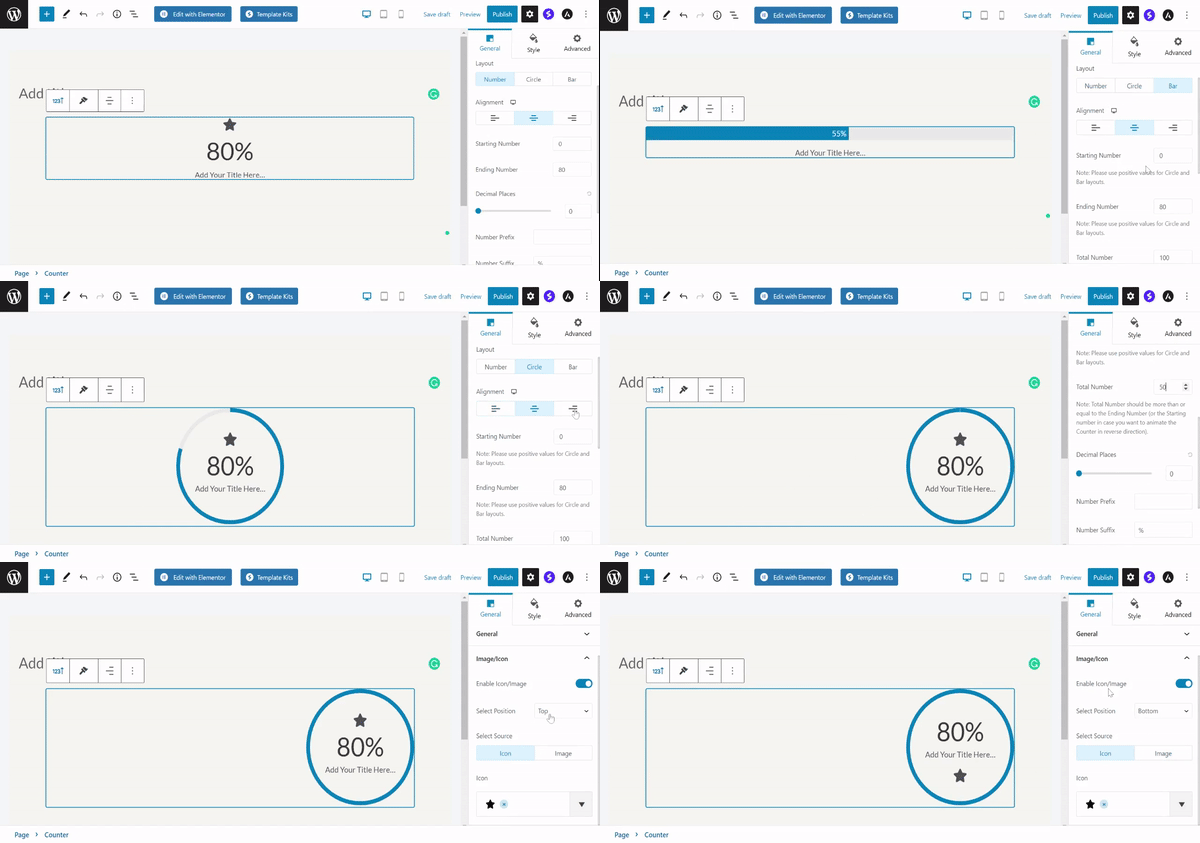
Counter block animates a number up to a particular value and has visual elements like a progress bar. Under the General Settings tab, you can set the:
- Layout to Number/ Circle/ Bar.
- Starting and ending numbers.
- Animation Duration.
- Enable the Image/ Icon
Style Options
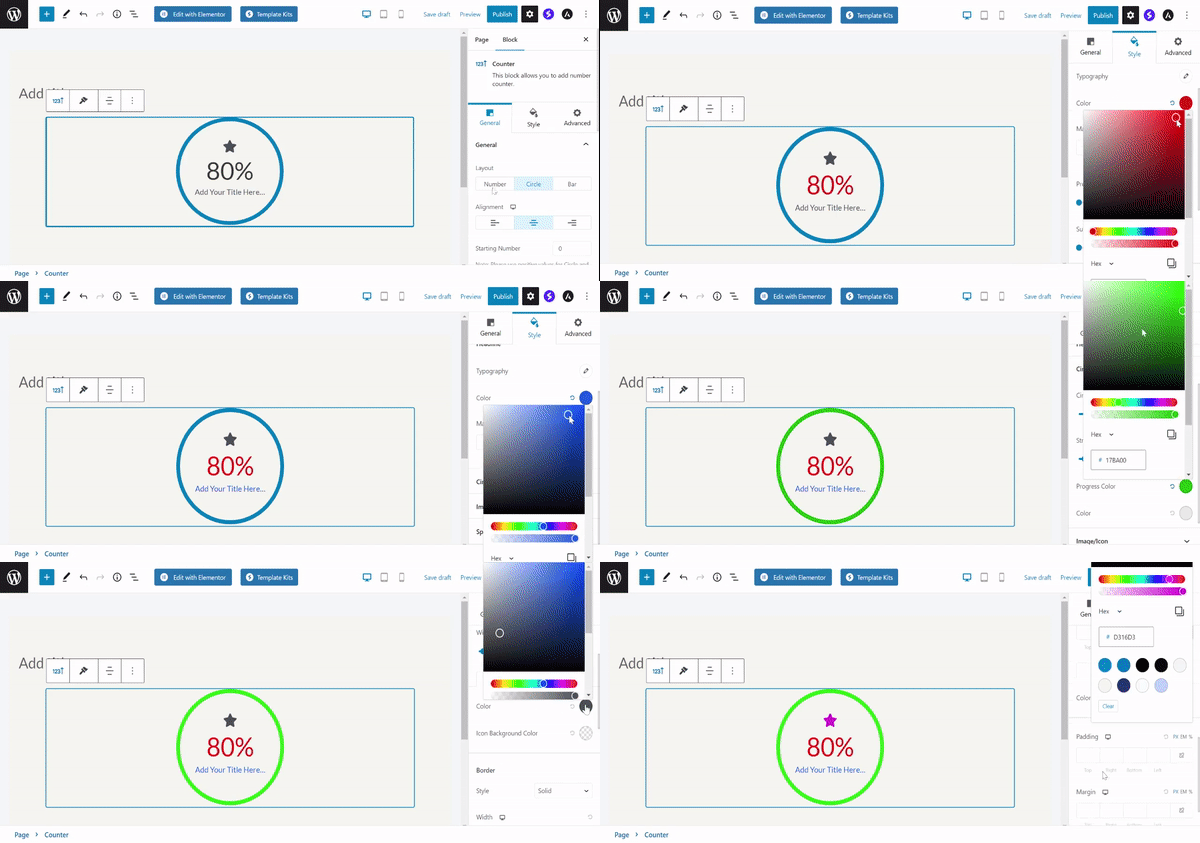
- Under the style tab, you can see the typography, color, and margin options for Numbers and Headline.
- You can set the Circle size, stroke size, and Progress Color.
- You can set the Image/ Icon color when it is normal and hovered.
- Also, you can set the Border around the icon or image.
We don't respond to the article feedback, we use it to improve our support content.