
- Filters/Actions For Post
- Spectra Patterns
- Contact Form 7: Checkbox / Radio / Acceptance Control
- Getting Started With Spectra
- WP – Search
- Create Contact Forms
- Import Single Pages, Templates, & Block Patterns
- Assets API For Third-Party Plugins
- Copy & Paste Style
- Load Google Fonts Locally
- Troubleshooting: Missing Icons
- Contact Form 7: Multiple Column Fields
- Unable To Style Contact Form 7
- Tab Index For Multiple Gravity Forms
- Manually Install Spectra Via FTP
- Enable/Disable Design Library Button
- Update Folder File Permissions
- Resolving Container Layout Conflicts
- Database Update Instructions (Below 2.0.0)
- Using Heading Block
- Buttons
- Post Grid
- Content Timeline
- Social Share
- Google Map
- Add Testimonials
- Info Box
- Section
- Team
- Icon List
- Price List
- Post Masonry
- Post Carousel
- Post Timeline
- Call To Action
- Advanced Columns
- Blockquote
- Marketing Button
- Table Of Contents
- How-to Schema
- FAQ’s: Schema/Accordion
- Inline Notice
- Exclude Heading From TOC
- Review Schema
- Lottie
- Taxonomy List
- Tabs Block
- Block Display Conditions
- Star Rating
- Masonry Image Gallery
- Wireframe Blocks
- Copy & Paste Style
- Container Flex Property
- Default Content Width
- Heading Block
- Image Block
- Buttons Block
- Container Block
- Responsive Conditions
- Taxonomy Styling Options
- Block Presets
- Image Gallery
- Counter Block
- Modal Block
- Registration Form Block
- Dynamic Content Extension
- Slider Block
- Pagel Level Custom CSS
- Countdown Pro
- Slider Custom Navigation
- Loop Builder
- Animations
- Login Form Block
- Global Block Style Extension
- Create Popups
- Grid Builder
- Using Dynamic Content in FSE Templates
- Pixabay Image Search Feature
- Getting Started with Instagram
- Advanced Loop Builder
- Transparent / Sticky Header
- Change Site Logo
- Change Global Styles
- Disable Title on Posts & Pages
- Transparent / Sticky Header For Single Page / Post
- Change Header & Footer Patterns
- Custom / Google Fonts
- Reset Global Default Styling
- Manually Install Spectra One Via FTP
- Enable / Disable Header & Footer On Specific Pages / Posts
Spectra – Default Content Width
Spectra’s latest version has an option that will override the theme’s default content width. This setting will automatically apply to Container Block’s default Content Width. Learn more about how this works for different themes in the following section.
How Spectra works with the Astra theme
If you are using the Astra theme, you can easily tweak the content width of the container block. By default, the Container block will inherit container width from the theme. You can set the container width for theme by visiting the Appearance > Customize > Global > Container > Container Width.
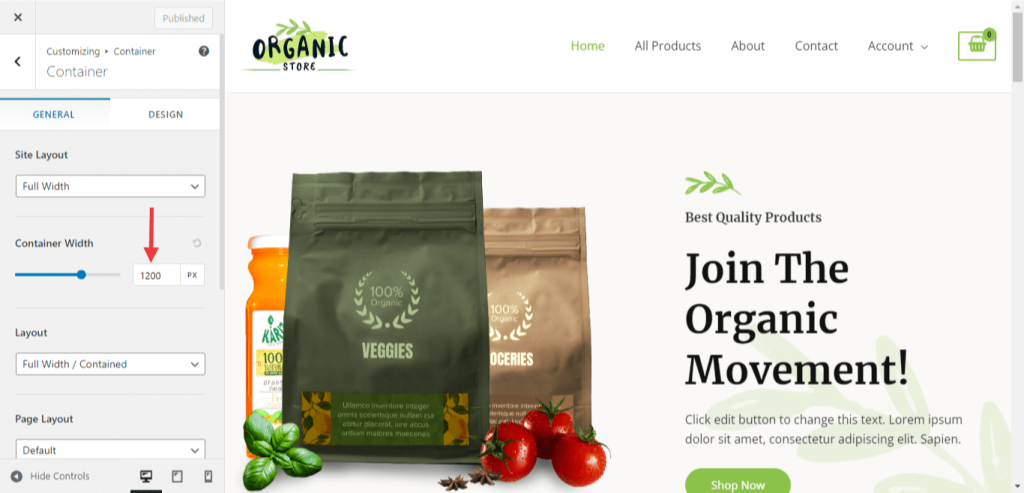
Container width, which you set at Appearance > Customize > Global > Container > Container Width, applies to the content width of the container. When you drag and drop the container block on any page, you will see a 1200px (default) width in the Content box width.
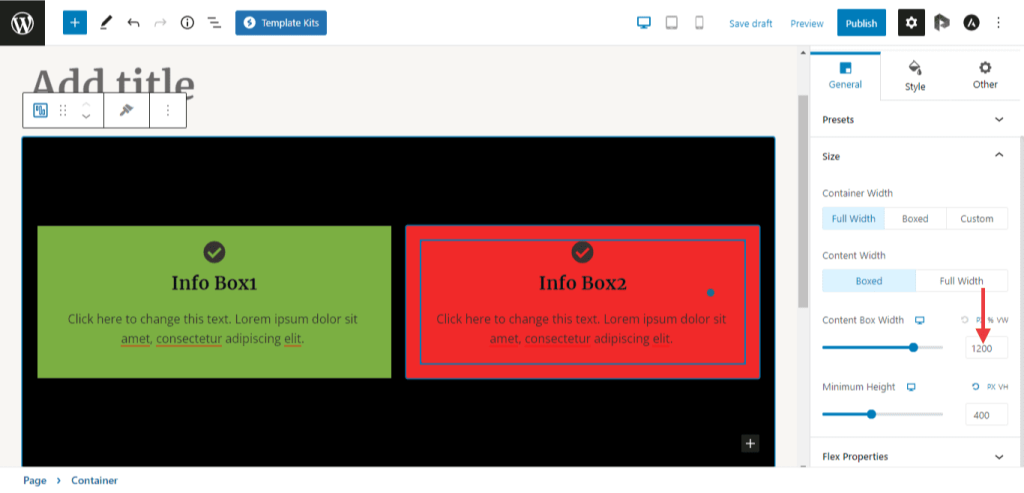
Spectra overrides Theme Default Container Width:
If you are using Spectra, and want to override the theme’s default container width, navigate to Spectra > Dashboard > Settings > Editor Options > Default Content Width. You can set the Content Width of your choice here. This setting will apply to Container Block’s default Content Width.
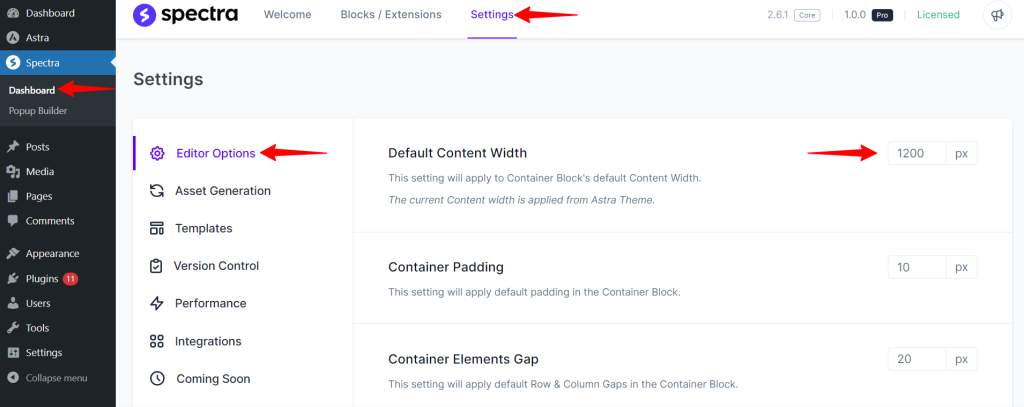
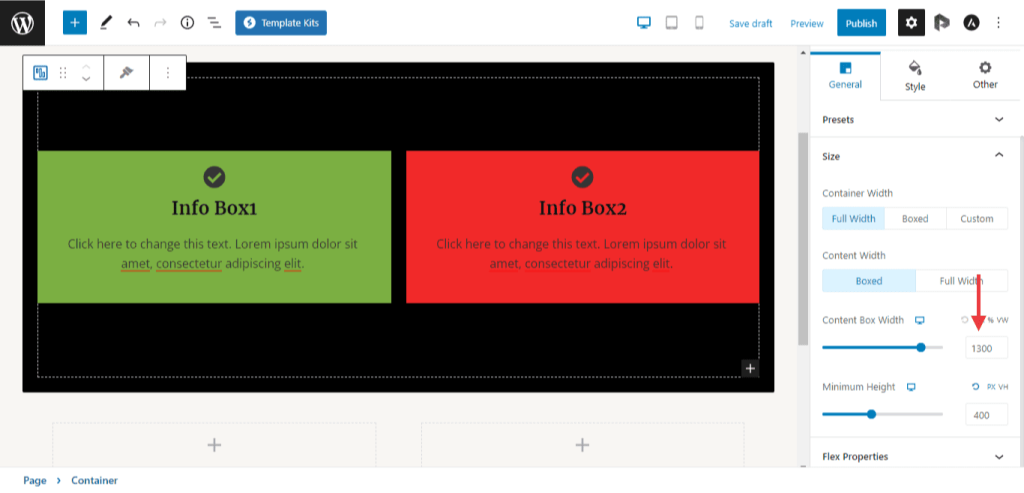
Example: Let us assume you are using the Astra theme, and you set the container width to 1200px. If you want to override the Astra default container width, go to Spectra > Dashboard > Settings > Editor Options > Default Content Width, set the width to 1300px (example).
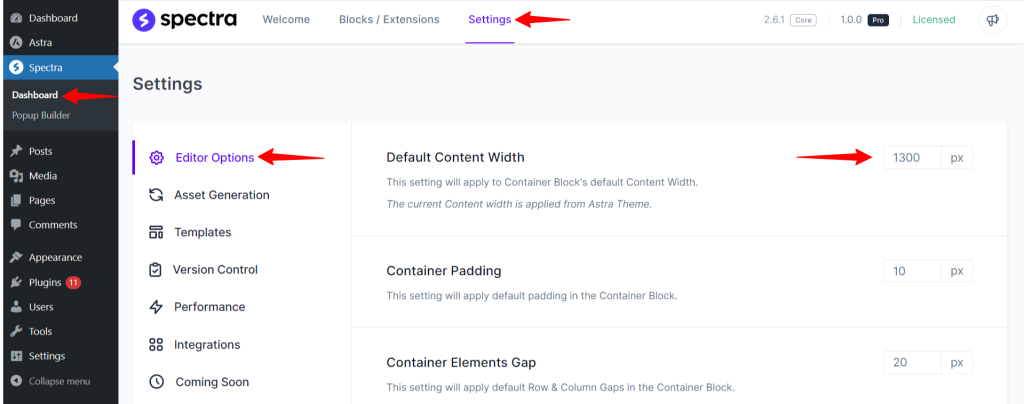
Then this setting will apply to Container Block’s Content Width. Have a glance at the below attached screenshot for reference.
How Spectra works with other themes
Non-Astra theme users must manually add the following filter in the respective themes function.php file. By placing this code, your theme’s default content width is set to 1620px.
add_filter(\’spectra_global_content_width\’, function($width) { return 1620; }); |
If you want to change the default content width, go to Spectra > Dashboard > Settings > Editor Options > Default Content Width. This setting will apply to Container Block’s default Content Width.
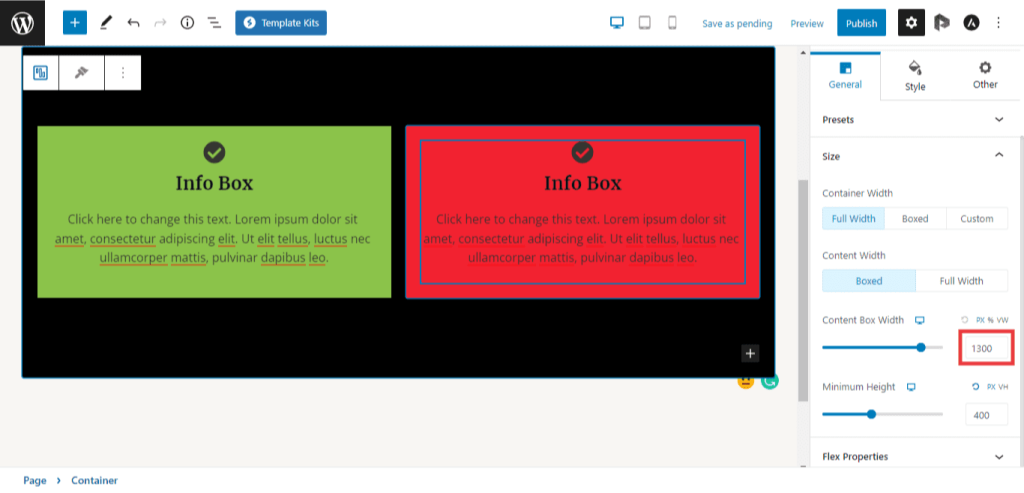
** Note for all theme users: If you want to set different content widths for container modules on different pages, you need to set it manually. Have a glance at the below-attached screenshot for reference.
We don't respond to the article feedback, we use it to improve our support content.