
- Filters/Actions For Post
- Spectra Patterns
- Contact Form 7: Checkbox / Radio / Acceptance Control
- Getting Started With Spectra
- WP – Search
- Create Contact Forms
- Import Single Pages, Templates, & Block Patterns
- Assets API For Third-Party Plugins
- Copy & Paste Style
- Load Google Fonts Locally
- Troubleshooting: Missing Icons
- Contact Form 7: Multiple Column Fields
- Unable To Style Contact Form 7
- Tab Index For Multiple Gravity Forms
- Manually Install Spectra Via FTP
- Enable/Disable Design Library Button
- Update Folder File Permissions
- Resolving Container Layout Conflicts
- Database Update Instructions (Below 2.0.0)
- Using Heading Block
- Buttons
- Post Grid
- Content Timeline
- Social Share
- Google Map
- Add Testimonials
- Info Box
- Section
- Team
- Icon List
- Price List
- Post Masonry
- Post Carousel
- Post Timeline
- Call To Action
- Advanced Columns
- Blockquote
- Marketing Button
- Table Of Contents
- How-to Schema
- FAQ’s: Schema/Accordion
- Inline Notice
- Exclude Heading From TOC
- Review Schema
- Lottie
- Taxonomy List
- Tabs Block
- Block Display Conditions
- Star Rating
- Masonry Image Gallery
- Wireframe Blocks
- Copy & Paste Style
- Container Flex Property
- Default Content Width
- Heading Block
- Image Block
- Buttons Block
- Container Block
- Responsive Conditions
- Taxonomy Styling Options
- Block Presets
- Image Gallery
- Counter Block
- Modal Block
- Registration Form Block
- Dynamic Content Extension
- Slider Block
- Pagel Level Custom CSS
- Countdown Pro
- Slider Custom Navigation
- Loop Builder
- Animations
- Login Form Block
- Global Block Style Extension
- Create Popups
- Grid Builder
- Using Dynamic Content in FSE Templates
- Pixabay Image Search Feature
- Getting Started with Instagram
- Advanced Loop Builder
- Transparent / Sticky Header
- Change Site Logo
- Change Global Styles
- Disable Title on Posts & Pages
- Transparent / Sticky Header For Single Page / Post
- Change Header & Footer Patterns
- Custom / Google Fonts
- Reset Global Default Styling
- Manually Install Spectra One Via FTP
- Enable / Disable Header & Footer On Specific Pages / Posts
How-to Schema
How-to Schema block allows you to design attractive How-to pages or articles where you can describe procedures or steps to achieve certain goals. The best thing is this block will automatically add How-to Schema to your page that can boost ranking in search results.
Key Features –
- Readymade structure to add step-by-step instructions
- Add image and text for introduction
- Readymade fields to add time, cost, tools, materials
- To add each step you get the Spectra Info Box block
- Manage color, typography, and spacing for the main heading, subheadings, and description
When you first add the How-to Schema block here is the readymade structure you can see –
- Main Heading
- Description and Image
- Total Time Needed
- Total Cost
- Required Tools
- Things Needed
- Steps to configure the How-to Schema
General
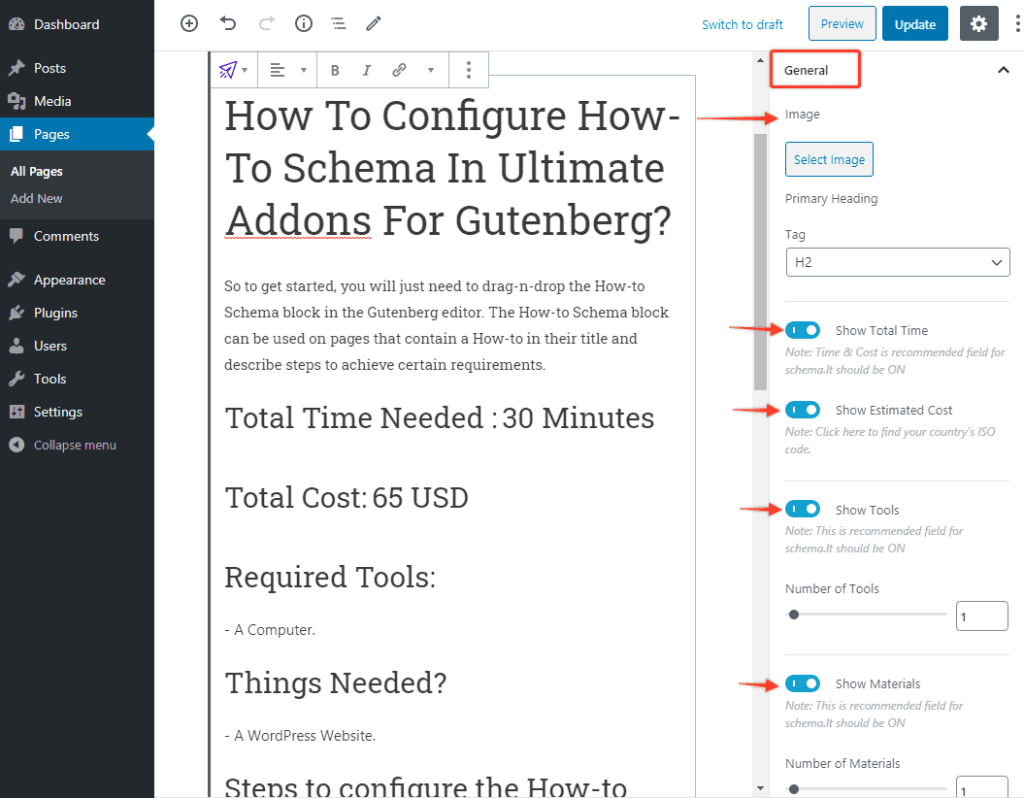
Here you can edit the introductory part of the how-to steps.
- Image – This image will be displayed below the description. You can put the end result/final goal here.
- Primary Heading – Tag – Heding can be directly added to the editor but you can select heading tag (H1-H6) here.
- Show Total Time – Total required time to reach end result.
- Show Estimated Cost – Average cost for the procedure.
- Show Tools and Number of Tools – Mention the tools required
- Show Materials and Number of Materials – Add require materials for the procedure.
Style
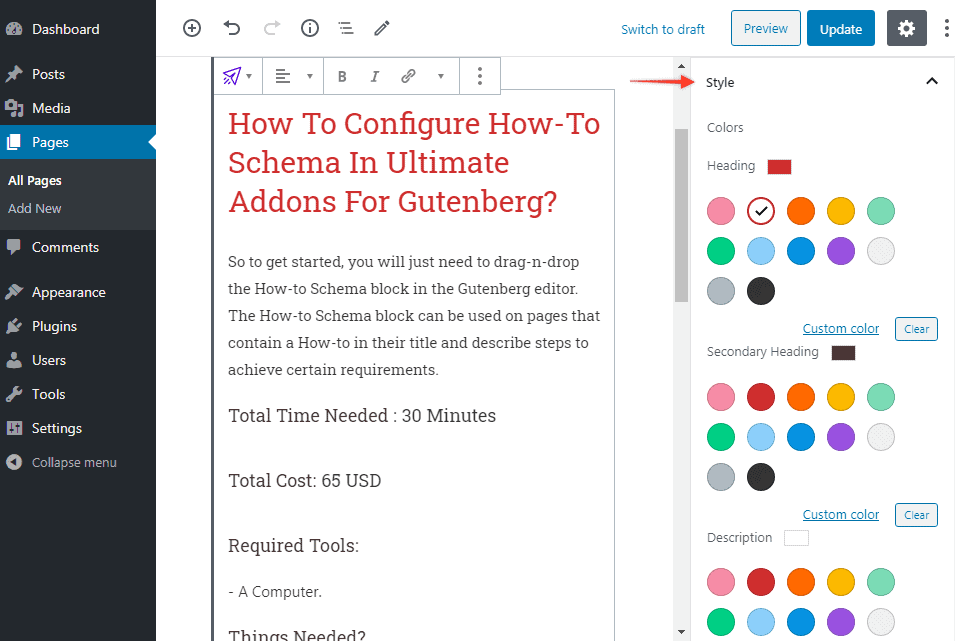
- Colors – Heading, Secondary Heading, Description – Set colors for text in the introductory part
- Typography – Heading, Secondary Heading, Description
- Spacing – Manage spacing between the content
Adding Steps
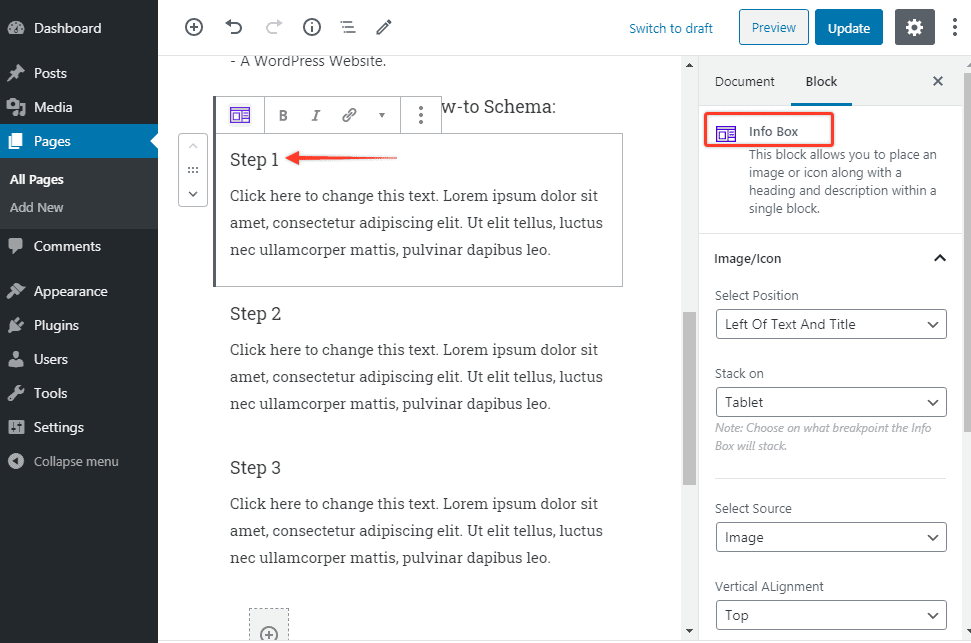
You can add as many steps as required. The Info Box block is available for each step. So you get many options to add various information for each step.
Top on that you can configure each Info Box separately. This give you more control on designing of the steps.
Here are fields available with Info Box block –
- Title
- Prefix
- Description
- Image / Icon (Selector and Positions)
- Call To Action
Read more about Info box module here.
We don't respond to the article feedback, we use it to improve our support content.