
- Container
- Buttons
- List
- Modal
- Slider
- Animations
- Icons
- Tabs
- Text Block
- Countdown
- Loop Builder
- Image Mask
- Dynamic Content
- Accordion
- Responsive Control
- Google Maps
- Separator
- Popup Builder
- Counter Block
- Login Block
- Register Block
- SVG Animator
- Block Positioning
- Post Block
- Spectra Header
- Motion Effects
- Responsive Conditions
- Display Conditions
- Spectra Global Styles
- Filters/Actions For Post
- Spectra Patterns
- Contact Form 7: Checkbox / Radio / Acceptance Control
- Getting Started With Spectra
- WP – Search
- Create Contact Forms
- Import Single Pages, Templates, & Block Patterns
- Assets API For Third-Party Plugins
- Copy & Paste Style
- Load Google Fonts Locally
- Troubleshooting: Missing Icons
- Contact Form 7: Multiple Column Fields
- Unable To Style Contact Form 7
- Tab Index For Multiple Gravity Forms
- Manually Install Spectra Via FTP
- Enable/Disable Design Library Button
- Update Folder File Permissions
- Resolving Container Layout Conflicts
- Database Update Instructions (Below 2.0.0)
- Transparent / Sticky Header
- Change Site Logo
- Change Global Styles
- Disable Title on Posts & Pages
- Transparent / Sticky Header For Single Page / Post
- Change Header & Footer Patterns
- Custom / Google Fonts
- Reset Global Default Styling
- Manually Install Spectra One Via FTP
- Enable / Disable Header & Footer On Specific Pages / Posts
Post Block
Introduction
The Post block pulls in your posts and displays them in a Grid, Masonry, or Carousel layout. You choose what content to show, how it’s ordered, and what each post item looks like, then style everything to match your site. It’s built for blog feeds, related post sections, product roundups, and anywhere you want to display content dynamically.
How to Add the Block
- Click the “+” button in the editor and search for Post.
- Click the block to add it to your page.
- Pick a Layout for your posts: Grid, Masonry, or Carousel.
- Choose a template style for each post item: Portrait, Landscape, or Create from scratch.
- The post item is a fully editable template, so you can design it however you like and every post will follow it.
Settings
This panel controls what content the block shows and how it’s arranged.
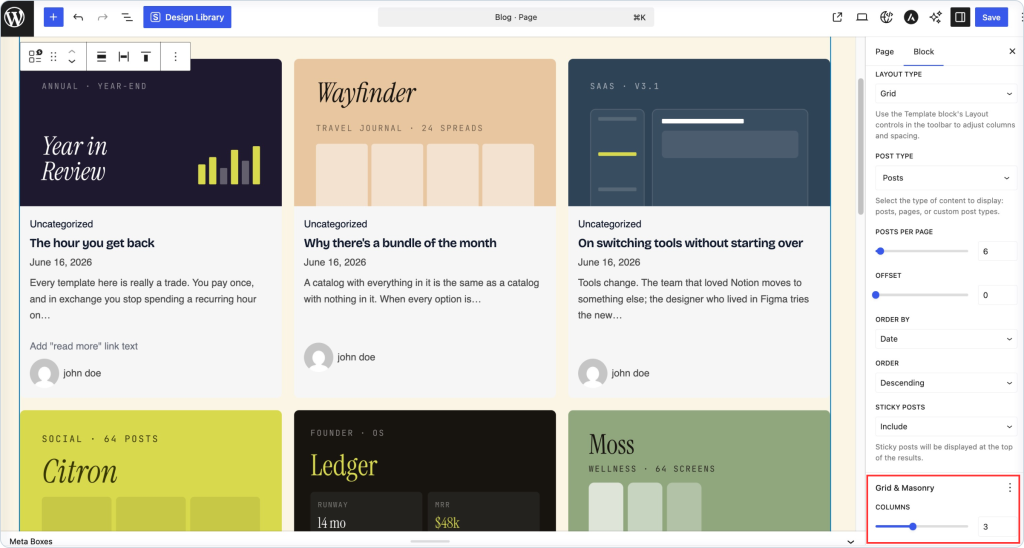
- Layout Type: How the posts are laid out.
- Grid: Lines posts up in even rows and columns.
- Masonry: Packs posts of different heights together, like a Pinterest board.
- Carousel: Shows posts in a sliding row you can scroll through.
- Post Type: The kind of content to display: Posts, Pages, SureCart Products, or Forms.
- Posts Per Page: How many items to show at once. Default is 6.
- Offset: How many posts to skip from the start. Set it to 2, for example, and the block begins from the third post. Useful when you want to feature the latest posts elsewhere and list the rest here.
- Order By: What to sort the posts by.
- Date: Shows newest or oldest first.
- Title: Sorts alphabetically.
- Random: Shuffles the order each time the page loads.
- Menu Order: Uses the manual order you’ve set on the posts.
- Order: The direction of the sort: Ascending or Descending.
- Sticky Posts: How to handle posts you’ve marked as sticky.
- Include: Shows them at the top of the results.
- Exclude: Leaves them out.
- Only Sticky: Shows nothing but sticky posts.
- Ignore: Treats them like normal posts, with no pinning.
Grid & Masonry
- Columns: How many columns of posts to show. You can set this separately for desktop, tablet, and mobile using the device icons at the top of the panel.
Carousel
These settings appear when the Layout Type is set to Carousel.
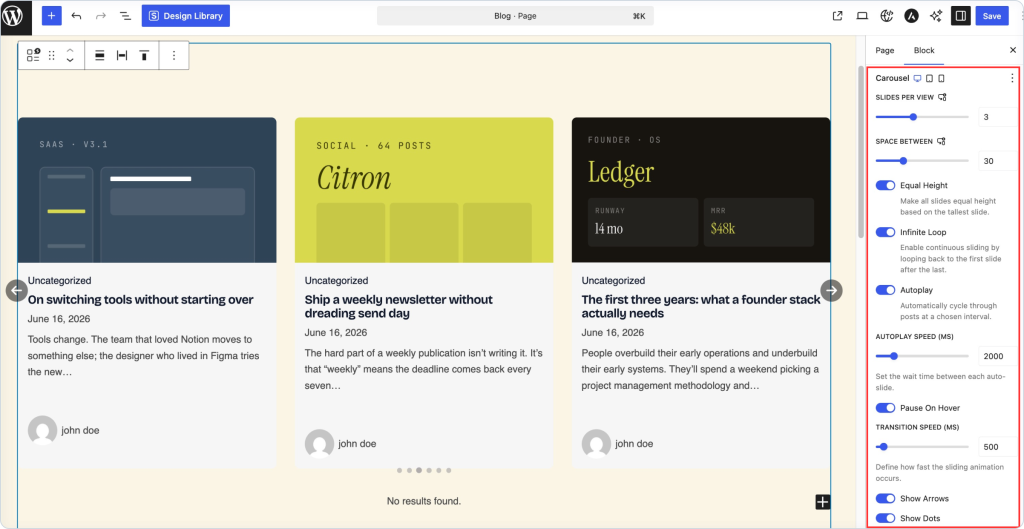
- Slides Per View: How many posts are visible at once.
- Space Between: The gap between slides, in pixels.
- Equal Height: Makes every slide match the height of the tallest one, so the row stays even.
- Infinite Loop: Keeps the carousel sliding continuously by looping back to the first slide after the last.
- Autoplay: Cycles through posts on its own at a set interval.
- Autoplay Speed: The wait time between each auto slide, in milliseconds.
- Pause On Hover: Stops autoplay while someone’s hovering over the carousel, so they can read without it moving on.
- Transition Speed: How fast each slide animates into view, in milliseconds. Higher is slower and smoother; lower is quicker.
- Show Arrows: Shows the previous and next arrows.
- Show Dots: Shows the dot indicators below the carousel.
Filters
Use filters to narrow down which posts the block pulls in.
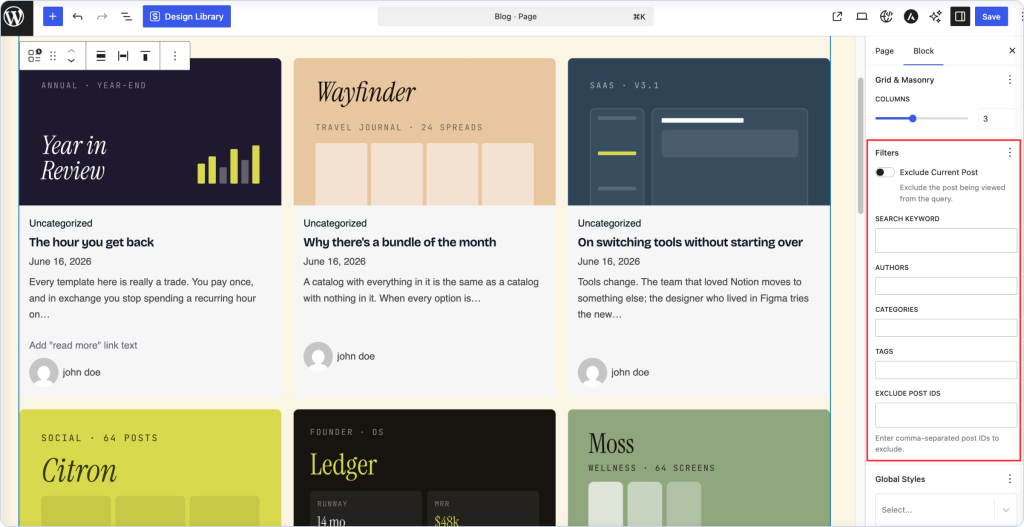
- Exclude Current Post: Leaves out the post that’s currently being viewed. Handy for a “related posts” section so the current article doesn’t list itself.
- Search Keyword: Only shows posts that match a keyword.
- Authors: Limits results to specific authors.
- Categories: Limits results to specific categories.
- Tags: Limits results to specific tags.
- Exclude Post IDs: Leaves out specific posts. Enter their IDs separated by commas.
Pagination
- Pagination Type: Decides how visitors move through more posts than fit on one screen. Set it to None for a simple fixed list, or pick a pagination style to let people load or page through additional posts.
A Few Tips
- Match the layout to the content. Grid suits uniform cards, Masonry suits mixed image sizes, and Carousel saves space when you have a lot to show.
- Design the post template once. Since every item follows it, a clean template keeps the whole feed consistent.
- Use Offset with another Post block to feature your latest posts up top and list the rest below.
- Check column counts on mobile so cards don’t get too cramped.
Troubleshooting
No posts are showing. Check your filters. A search keyword, category, or author with no matching posts will return an empty result. Also confirm the chosen Post Type actually has content.
The carousel settings are missing. They only appear when Layout Type is set to Carousel.
Sticky posts aren’t behaving as expected. Review the Sticky Posts setting. Include pins them to the top, Ignore treats them as normal, and Only Sticky hides everything else.
Columns look wrong on mobile. Set the column count separately for each device using the icons at the top of the Grid & Masonry panel.
FAQ
Q: What can I display besides blog posts?
A: Use the Post Type setting to show Posts, Pages, SureCart Products, or Forms.
Q: Can I change how each post looks?
A: Yes. Each post item is a template you can fully design, and every post follows it.
Q: How do I show posts in a random order?
A: Set Order By to Random. The posts will shuffle each time the page loads.
Q: How do I leave out specific posts?
A: Add their IDs to Exclude Post IDs, separated by commas, or turn on Exclude Current Post to skip the one being viewed.
We don't respond to the article feedback, we use it to improve our support content.