
- Coming Soon Mode
- Font Management
- Spectra Design Library Guide
- How to Preview Your Design on Desktop, Tablet and Mobile in Spectra Blocks
- How to Copy and Paste Styles Between Blocks in Spectra
- How to Change the Responsive Breakpoints in Spectra Blocks
- How to Use Spectra Blocks With AI Through the MCP Server
- How to Connect and Disconnect ZIP AI in Spectra Blocks
- Caching in Spectra Blocks
- Filters/Actions For Post
- Spectra Patterns
- Contact Form 7: Checkbox / Radio / Acceptance Control
- Getting Started With Spectra
- WP – Search
- Create Contact Forms
- Import Single Pages, Templates, & Block Patterns
- Assets API For Third-Party Plugins
- Copy & Paste Style
- Load Google Fonts Locally
- Troubleshooting: Missing Icons
- Contact Form 7: Multiple Column Fields
- Unable To Style Contact Form 7
- Tab Index For Multiple Gravity Forms
- Manually Install Spectra Via FTP
- Enable/Disable Design Library Button
- Update Folder File Permissions
- Resolving Container Layout Conflicts
- Database Update Instructions (Below 2.0.0)
- Transparent / Sticky Header
- Change Site Logo
- Change Global Styles
- Disable Title on Posts & Pages
- Transparent / Sticky Header For Single Page / Post
- Change Header & Footer Patterns
- Custom / Google Fonts
- Reset Global Default Styling
- Manually Install Spectra One Via FTP
- Enable / Disable Header & Footer On Specific Pages / Posts
Install and Activate Spectra Blocks Pro
Spectra Blocks Pro adds Pro blocks and extensions to Spectra Blocks. It’s a separate plugin that works on top of the free Spectra Blocks plugin, so you keep both installed.
This guide shows you how to download Spectra Blocks Pro from your account, install it on your site, and activate your license key so you get automatic updates and support.
Before You Start
Make sure you have these ready:
- Spectra Blocks. The free plugin must be installed and active, version 1.0.15 or newer. If you haven’t set it up yet, follow Getting Started With Spectra Blocks first.
- A Spectra Pro license. Spectra Blocks Pro is included in every plan that includes Spectra Pro, and it uses the same license key.
- Administrator access. You need to be logged in to your WordPress site as an administrator.
Step 1: Download Spectra Blocks Pro
You download Spectra Blocks Pro from your account on our store. It comes as a ZIP file that you upload to your site in the next step.
To download it, follow these steps:
- Log in to your account at store.brainstormforce.com.
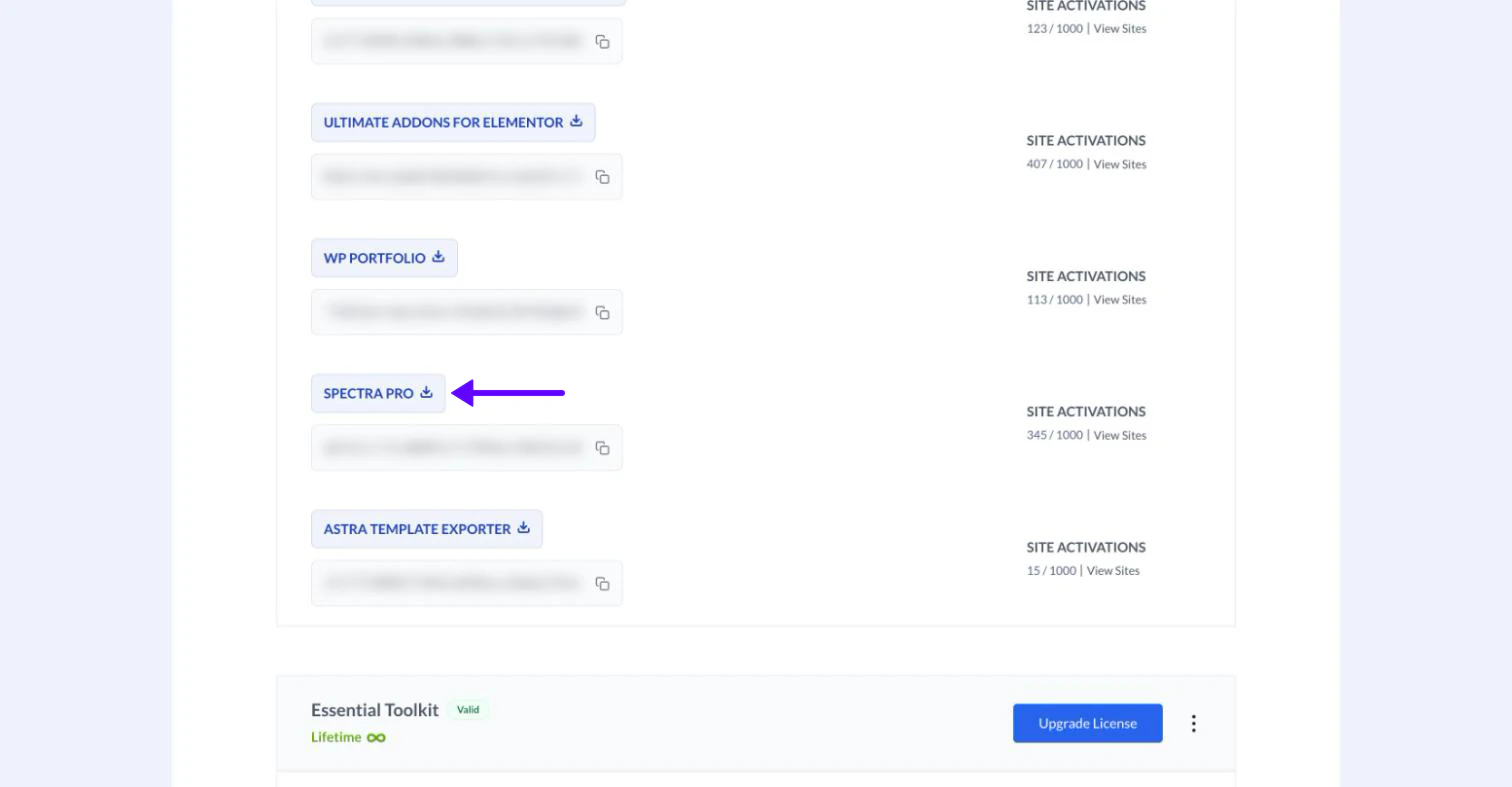
- Go to Account. You’ll see your licenses and the products each one includes.
- Find Spectra Pro in your license and click it.
- In the Downloads window, click Download next to Spectra Blocks Pro.
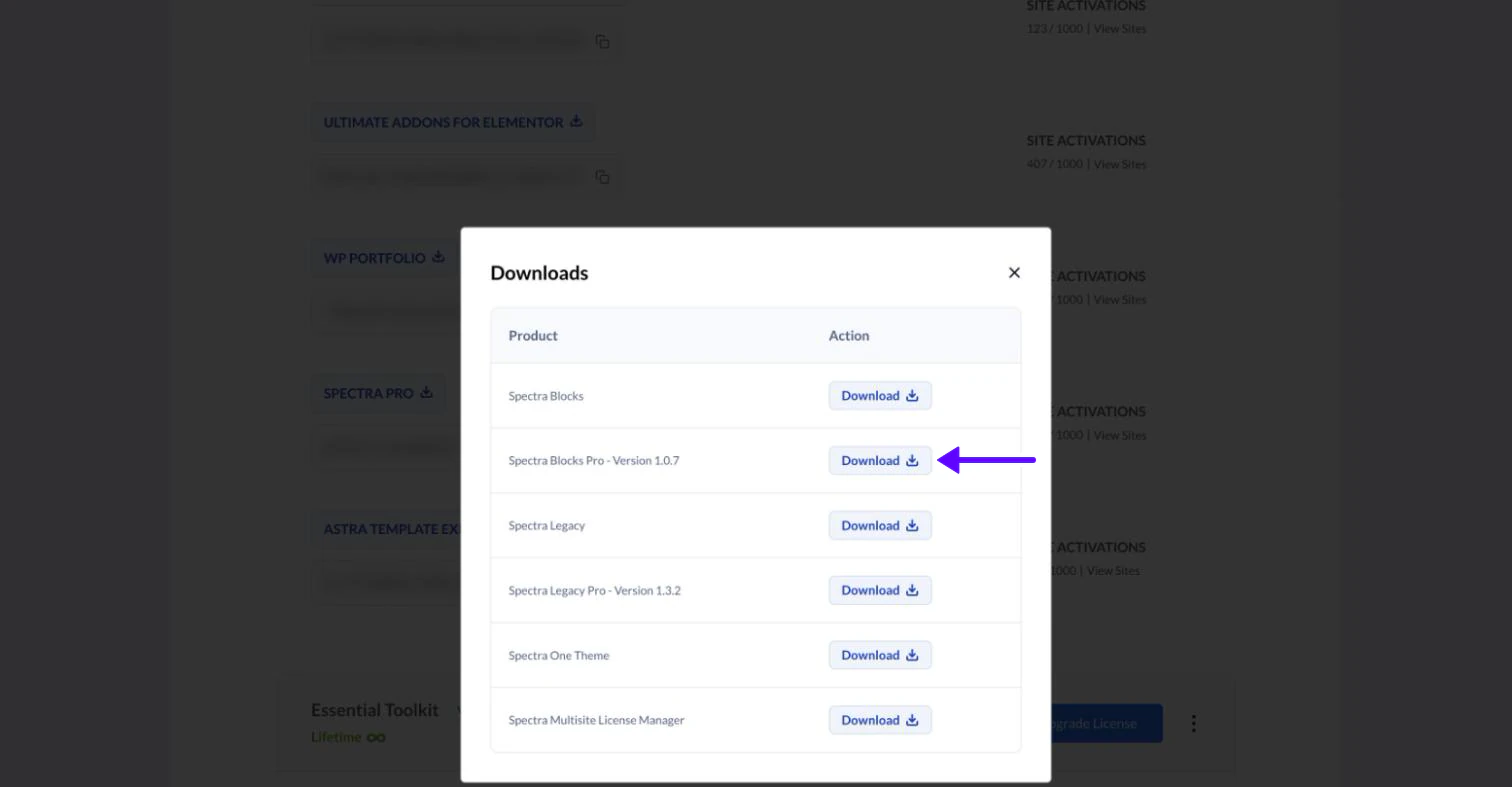
Your browser saves a ZIP file such as spectra-blocks-pro-1.0.7.zip. Keep it as a ZIP file and don’t unzip it.
Step 2: Install Spectra Blocks Pro
Now you can upload the ZIP file to your site, the same way you install any plugin from a file.
To install it, follow these steps:
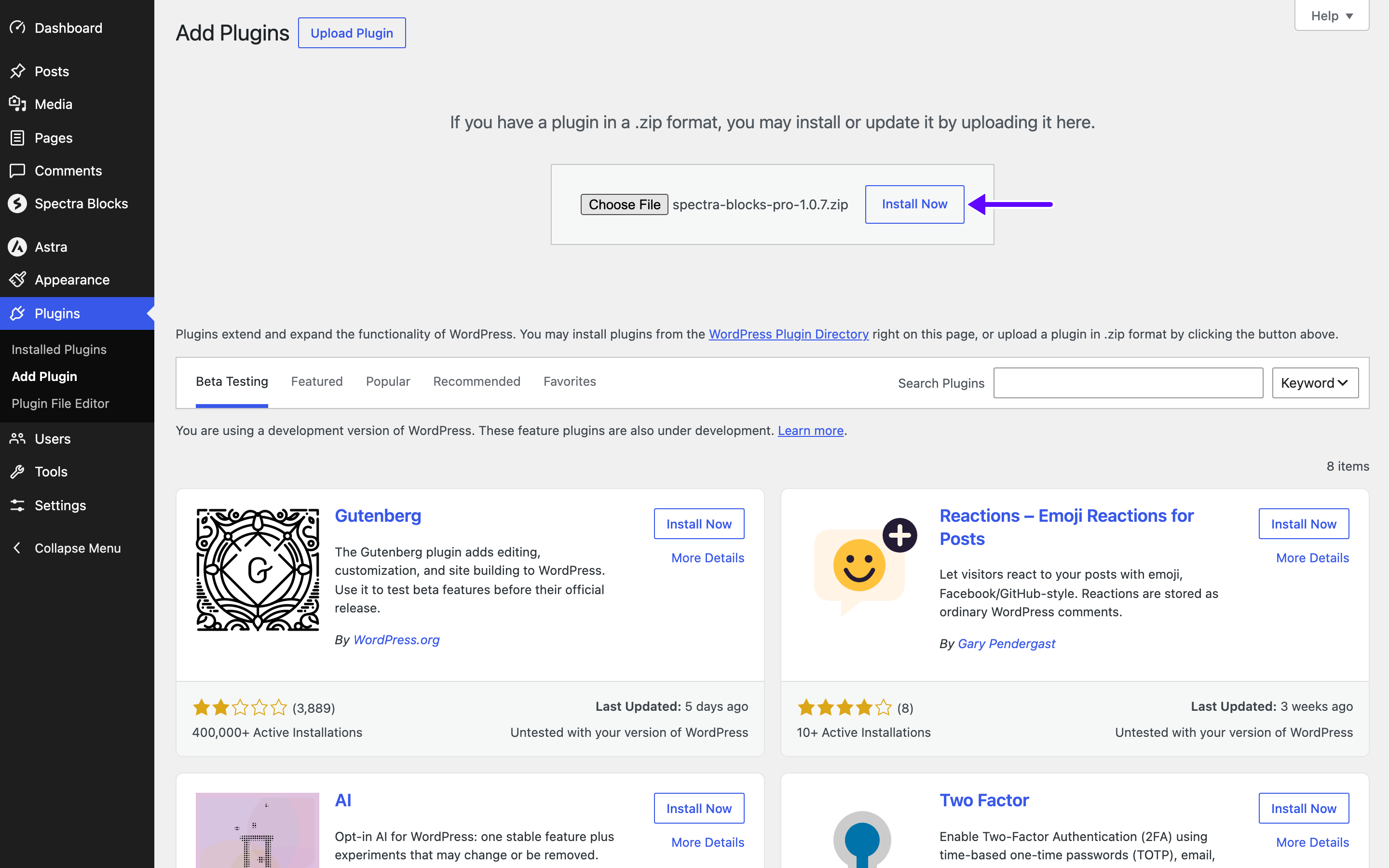
- Go to Plugins > Add Plugin in your WordPress dashboard.
- Click Upload Plugin at the top of the screen.
- Click Choose File and select the ZIP file you downloaded.
- Click Install Now.
- When you see “Plugin installed successfully.”, click Activate Plugin.
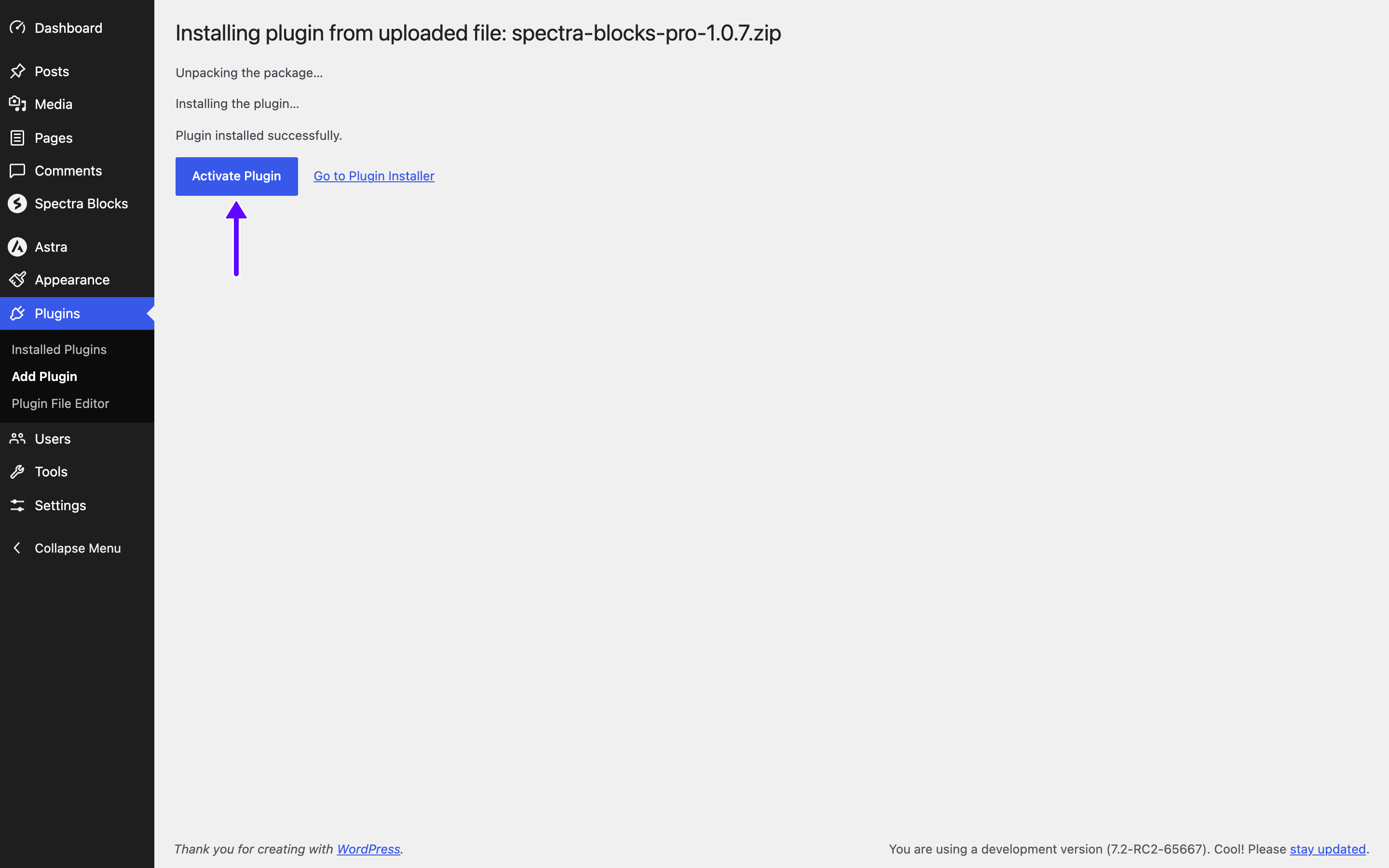
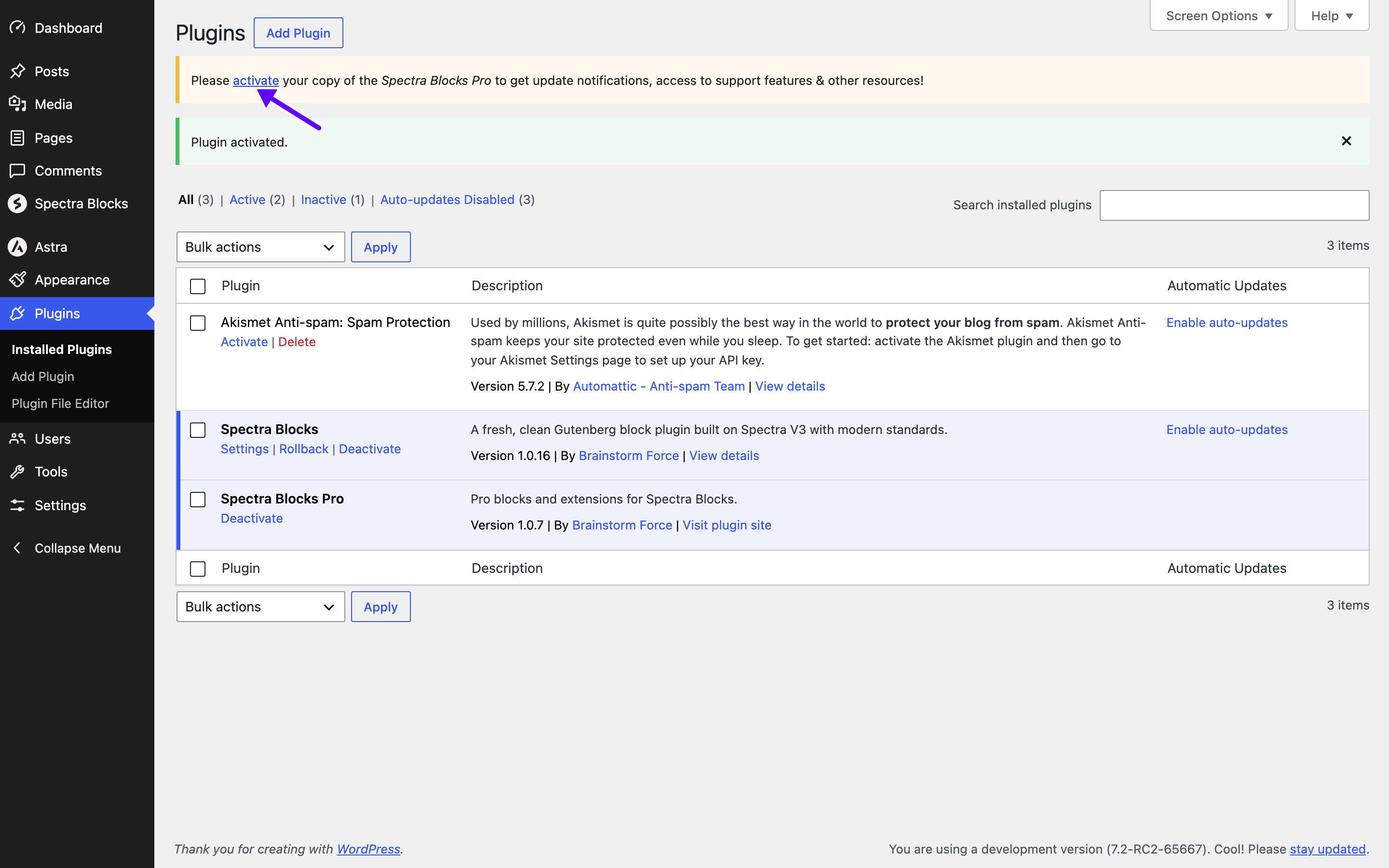
WordPress takes you back to the Plugins screen. Spectra Blocks Pro is now active, and a notice asks you to activate your copy. That’s the license key step below.
What Changes After You Activate Pro
The Pro blocks and extensions work as soon as the plugin is active. Here’s what you’ll notice:
- New blocks. The block inserter has a Spectra Blocks Pro category with Login Form, Loop Builder, Register Form and SVG Animators.
- Spectra Headers. A new Spectra Headers item appears under the Spectra Blocks menu.
- Pro dashboard. The Welcome tab under Spectra Blocks > Dashboard shows PRO VERSION, and the Free vs Pro menu item goes away.
Step 3: Activate Your License Key
Your license key turns on automatic updates and support for Spectra Blocks Pro. You’ll find the key in the same place you downloaded the plugin.
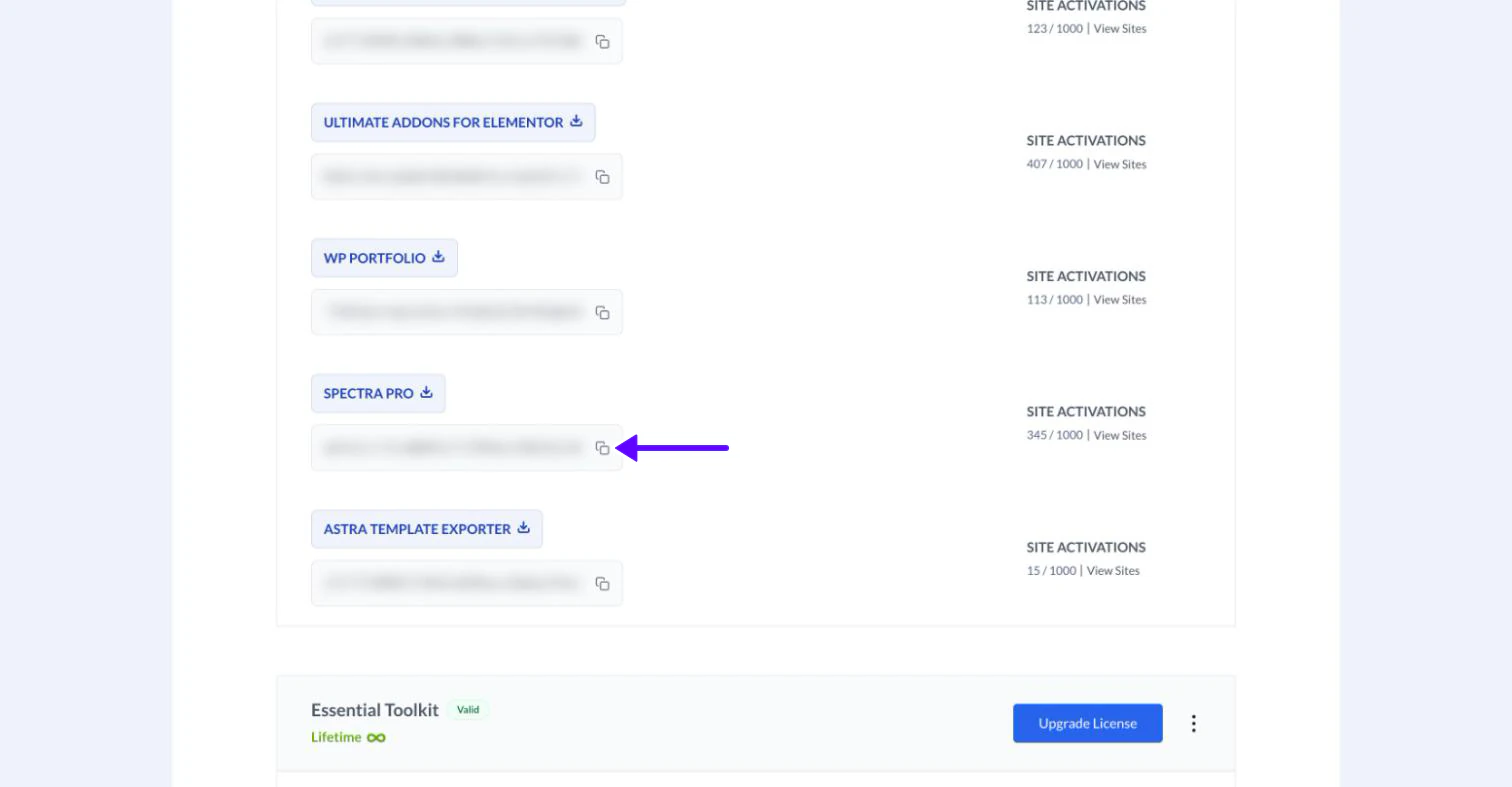
To copy your license key, go to Account on store.brainstormforce.com and click the copy icon next to the key under Spectra Pro.
To activate the key on your site, follow these steps:
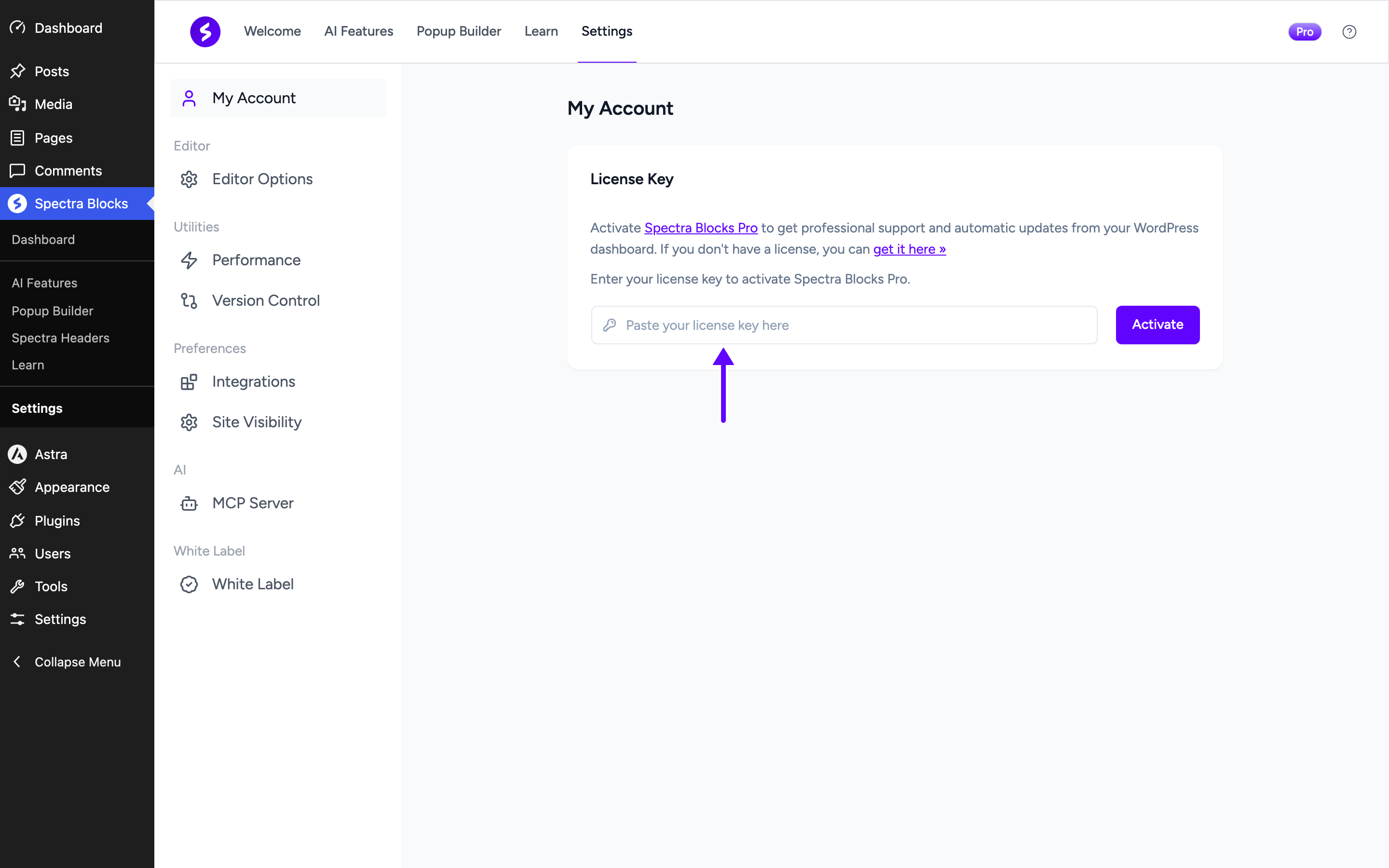
- Go to Spectra Blocks > Settings in your WordPress dashboard. The My Account section opens. You can also click activate in the notice on the Plugins screen.
- Paste your key into the Paste your license key here field.
- Click Activate.
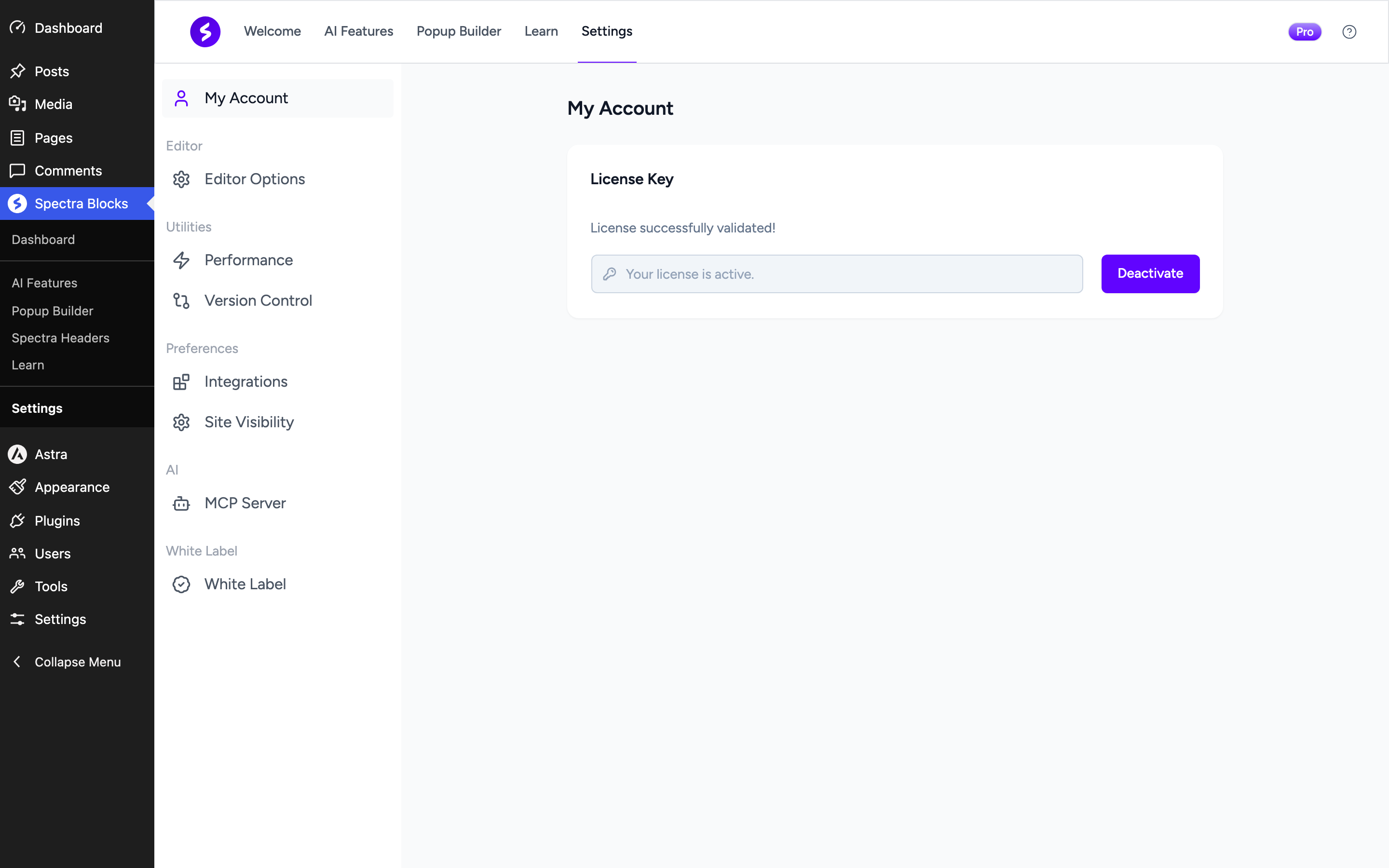
You’ll see “License successfully validated!”, and the field now says Your license is active.
Deactivate Your License Key
If you’re moving Spectra Blocks Pro to another site, you can free up the license on this one first. Go to Spectra Blocks > Settings > My Account and click Deactivate. You’ll see “License successfully deactivated!”, and you can then activate the same key on the new site.
Troubleshooting
“Spectra Blocks Pro requires the Spectra Blocks plugin to be active.”
Spectra Blocks Pro only runs when the free Spectra Blocks plugin is active. Click Activate Spectra Blocks in the notice. If the free plugin isn’t installed, the notice shows Install Spectra Blocks instead.
“Spectra Blocks Pro is not working because you are using an old version of Spectra Blocks.”
Your free Spectra Blocks plugin is older than Pro needs. Click Update Spectra Blocks Now in the notice, or update it from Plugins > Installed Plugins.
“License activation failed. Please check your license key and try again.”
The key wasn’t accepted. Copy it again from your store account using the copy icon, so no spaces or missing characters slip in, and make sure the key belongs to a license that includes Spectra Pro.
“Unable to connect to the license server. Please check your internet connection and try again.”
Your site couldn’t reach our license server. Wait a minute and try again. If it keeps happening, your host may be blocking outgoing connections, so ask them or our support team for help.
Frequently Asked Questions
Do I need a separate license for Spectra Blocks Pro?
No. Spectra Blocks Pro uses your Spectra Pro license key. You’ll find the download and the key under Spectra Pro in your store account.
Do the Pro features work before I add my license key?
Yes. The Pro blocks and extensions work as soon as you activate the plugin. The license key adds automatic updates and support.
How many sites can I use my license key on?
It depends on your plan. Your store account shows how many sites the key is active on under Site Activations, next to the key.
Wrapping Up
With Spectra Blocks Pro installed and your license active, you’re ready to use the Pro blocks and get updates as soon as they’re released. If anything doesn’t work as expected, our support team is happy to help.
We don't respond to the article feedback, we use it to improve our support content.