
- Coming Soon Mode
- Font Management
- Spectra Design Library Guide
- Preview Options (Desktop, Tablet & Mobile)
- How to Copy and Paste Styles Between Blocks in Spectra
- How to Change the Responsive Breakpoints in Spectra Blocks
- How to Use Spectra Blocks With AI Through the MCP Server
- How to Connect and Disconnect ZIP AI in Spectra Blocks
- Caching in Spectra Blocks
- Filters/Actions For Post
- Spectra Patterns
- Contact Form 7: Checkbox / Radio / Acceptance Control
- Getting Started With Spectra
- WP – Search
- Create Contact Forms
- Import Single Pages, Templates, & Block Patterns
- Assets API For Third-Party Plugins
- Copy & Paste Style
- Load Google Fonts Locally
- Troubleshooting: Missing Icons
- Contact Form 7: Multiple Column Fields
- Unable To Style Contact Form 7
- Tab Index For Multiple Gravity Forms
- Manually Install Spectra Via FTP
- Enable/Disable Design Library Button
- Update Folder File Permissions
- Resolving Container Layout Conflicts
- Database Update Instructions (Below 2.0.0)
- Transparent / Sticky Header
- Change Site Logo
- Change Global Styles
- Disable Title on Posts & Pages
- Transparent / Sticky Header For Single Page / Post
- Change Header & Footer Patterns
- Custom / Google Fonts
- Reset Global Default Styling
- Manually Install Spectra One Via FTP
- Enable / Disable Header & Footer On Specific Pages / Posts
How to Copy and Paste Styles Between Blocks in Spectra
Want several blocks to share the same look? With Copy and Paste Styles, you can copy the design of one block and apply it to others in a few clicks.
It’s a quick way to keep your pages consistent without setting the same colors, spacing, and fonts again and again.
What Is Copy and Paste Styles?
Imagine you’ve spent time customizing a block on your page with just the right colors, spacing, and text size. With Copy and Paste Styles, you don’t have to recreate that styling by hand on every other block.
This feature is built into WordPress and works with Spectra blocks.
You can copy the style from one block and paste it onto another block, or onto several blocks at once. It works best between blocks of the same type, such as Container to Container. This keeps your design consistent and saves you from repeating the same settings over and over.
How Does Copy and Paste Styles Work?
Using Copy and Paste Styles is a straightforward process:
Step 1
Style your first block: Design your block with the colors, spacing, text size, and border settings you want.
Step 2
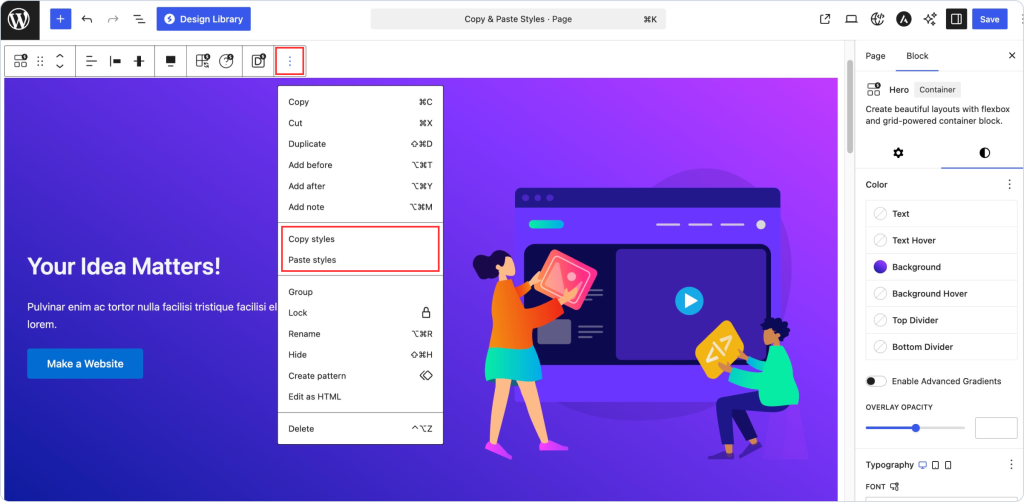
Copy the style: Click the block you want to copy from. In the block toolbar, click the Options icon (three vertical dots), then click Copy styles.
Step 3
Paste the style: Select the block you want to style. To style several blocks at once, hold Shift and click each one. Open the Options menu (three vertical dots) and click Paste styles. You’ll see a confirmation message such as “Pasted styles to Container.
Step 4
Save your changes: Click Save or Update to keep the new styling.
What Gets Copied
Copy and Paste Styles copies the style settings that come from WordPress’s built-in design controls. A style is only pasted if both blocks support that setting.
The styles that copy across are:
- Text and background colors (including gradients), padding, margin and block spacing, typography (font family, font size, line height, letter spacing), border settings, text alignment and block alignment, layout settings, and custom CSS classes.
If a style doesn’t carry over, set it manually on the target block. For the best results, copy between blocks of the same type, like one Button to another Button.
“Unable to paste styles. This feature is only available on secure (https) sites in supporting browsers.”
Your site needs to use HTTPS. Check that your site address starts with https://.
“Unable to paste styles. Please allow browser clipboard permissions before continuing.”
Your browser blocked clipboard access. Click the lock icon next to the address bar, allow Clipboard, and try again.
“Block styles couldn’t be found within the copied content.”
You copied something else after copying styles. Go back and click Copy styles again.
Heads up on inner blocks: When you paste onto a block with blocks inside it (like a Container), the inner blocks also receive matching styles, in order. Undo with Ctrl+Z (Cmd+Z on Mac) if the result isn’t what you wanted.
We don't respond to the article feedback, we use it to improve our support content.