
- Filters/Actions For Post
- Spectra Patterns
- Contact Form 7: Checkbox / Radio / Acceptance Control
- Getting Started With Spectra
- WP – Search
- Create Contact Forms
- Import Single Pages, Templates, & Block Patterns
- Assets API For Third-Party Plugins
- Copy & Paste Style
- Load Google Fonts Locally
- Troubleshooting: Missing Icons
- Contact Form 7: Multiple Column Fields
- Unable To Style Contact Form 7
- Tab Index For Multiple Gravity Forms
- Manually Install Spectra Via FTP
- Enable/Disable Design Library Button
- Update Folder File Permissions
- Resolving Container Layout Conflicts
- Database Update Instructions (Below 2.0.0)
- Transparent / Sticky Header
- Change Site Logo
- Change Global Styles
- Disable Title on Posts & Pages
- Transparent / Sticky Header For Single Page / Post
- Change Header & Footer Patterns
- Custom / Google Fonts
- Reset Global Default Styling
- Manually Install Spectra One Via FTP
- Enable / Disable Header & Footer On Specific Pages / Posts
How to Use Spectra Blocks With AI Through the MCP Server
Spectra Blocks can now work with AI assistants such as Claude, Cursor, VS Code and ChatGPT. Once you connect one, you can ask it to build a section, add an FAQ, change your color palette or find every page that uses a slider, and it does the work inside your WordPress site using real Spectra blocks.
This works through MCP (Model Context Protocol), an open standard that lets AI tools talk to other software. Spectra Blocks gives your AI assistant a set of actions it can take on your site, and the MCP Server settings decide what the AI can see and change. In this guide, we will walk you through turning it on, connecting your AI client, and what you can ask it to do.
What You Need Before You Start
The MCP Server connects several pieces together, so it helps to check them before you begin. You will need:
- WordPress 6.9 or newer. Spectra Blocks registers its AI actions through the WordPress Abilities API, which arrived in WordPress 6.9. On older versions the MCP settings have nothing to work with.
- The latest version of Spectra Blocks. The MCP Server settings live inside the Spectra Blocks dashboard.
- The MCP Adapter plugin. This free plugin from WordPress.org lets outside AI tools connect to your site. It is not part of WordPress core yet, so you install the MCP Adapter plugin like any other plugin. We cover this below.
- An Application Password. This is a separate password WordPress creates for apps. Your AI client uses it to sign in to your site, and you can revoke it at any time without touching your normal login.
- Node.js on your computer. Most AI clients connect through a small connector that runs with Node.js. Version 20 or 22 works best. You can check your version by running
node --versionin your terminal.
Spectra Blocks Pro is optional. If it is active, your AI client gets extra Pro actions on top of the free ones, which we cover later in this guide.
How the Spectra Blocks MCP Server Works
Each thing the AI can do is called an ability. An ability is one clear action with a name, such as “Create Container”, “Get Post Content” or “Set Active Colors”. When you turn the feature on, Spectra Blocks registers these abilities with WordPress, and the MCP Adapter plugin makes them available to your AI client.
You never have to call an ability yourself. You type a request in plain language, your AI client picks the abilities it needs, runs them on your site, and tells you what it changed. WordPress checks the user account behind the connection before every action, so the AI can never do more than that user is allowed to do.
How to Turn On the MCP Server
All MCP settings are in one place in the Spectra Blocks dashboard. Nothing is shared with any AI client until you switch the first toggle on.
To turn it on, follow these steps:
- In your WordPress dashboard, go to Spectra Blocks > Settings.
- In the left menu, under AI, click MCP Server.
- Turn on the Enable Abilities toggle.
- Turn on the Enable MCP Server toggle.
The other two toggles stay greyed out until Enable Abilities is on. Here is what each toggle on this screen controls:
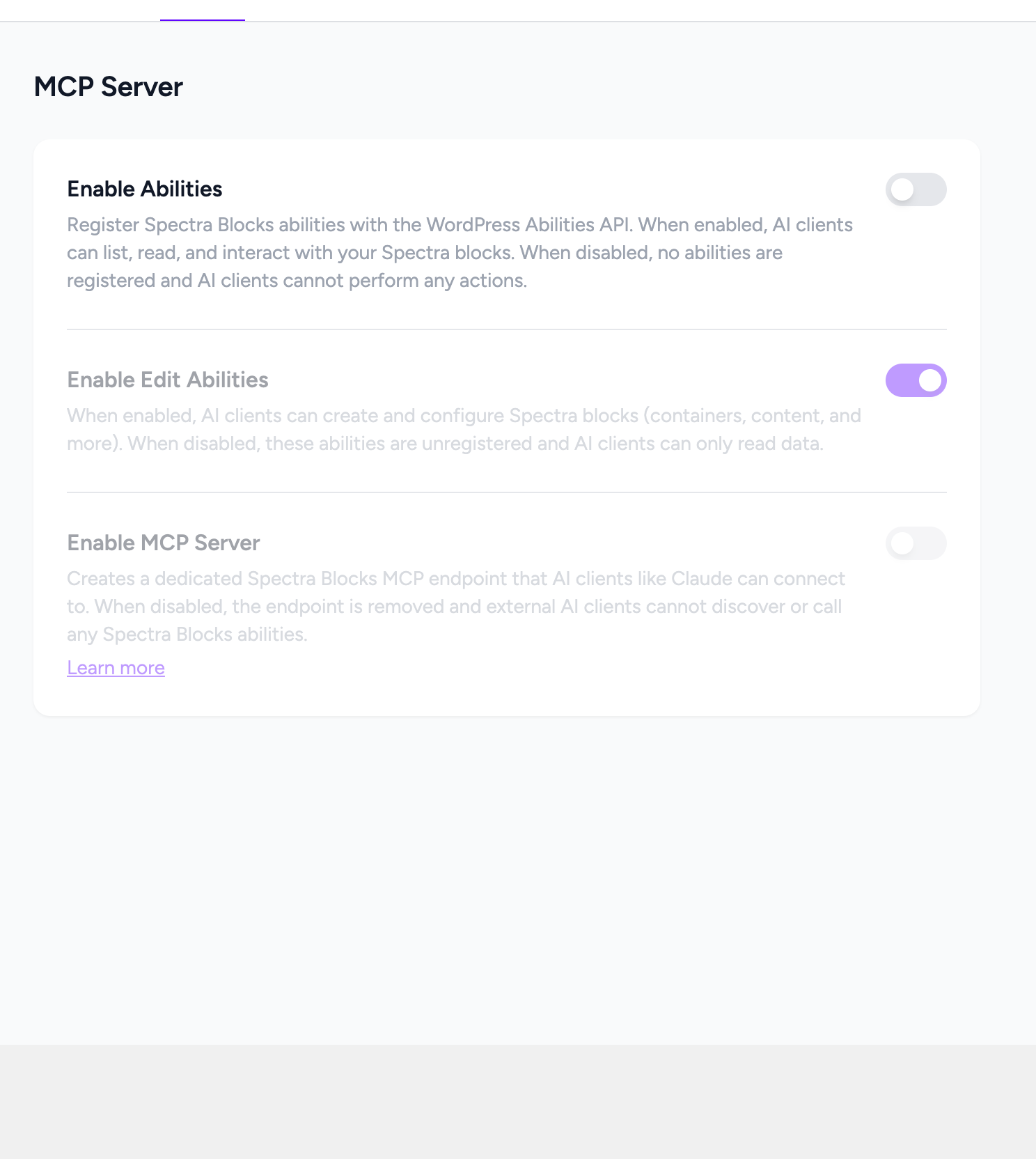
- Enable Abilities. This is the main switch, and it is off by default. When it is on, Spectra Blocks registers its abilities with WordPress so AI clients can list, read and work with your Spectra blocks. When it is off, no Spectra abilities exist on your site and no AI client can do anything with them.
- Enable Edit Abilities. This is on by default. When it is off, the AI can only read your site. Every ability that creates, changes or deletes something is switched off, so the AI can look at your pages and settings but cannot edit them. On Spectra Blocks 1.0.11 and older, this toggle only covers Create Container and Create Content, so turn off Enable Abilities there if you want to stop all changes.
- Enable MCP Server. This is off by default. It creates a dedicated Spectra Blocks connection address that AI clients can use. When it is off, that address is removed.
Installing the MCP Adapter Plugin
If the MCP Adapter plugin is not active when you turn on Enable MCP Server, you will see a yellow notice that says MCP Adapter plugin not detected. AI clients cannot connect until the adapter is installed.
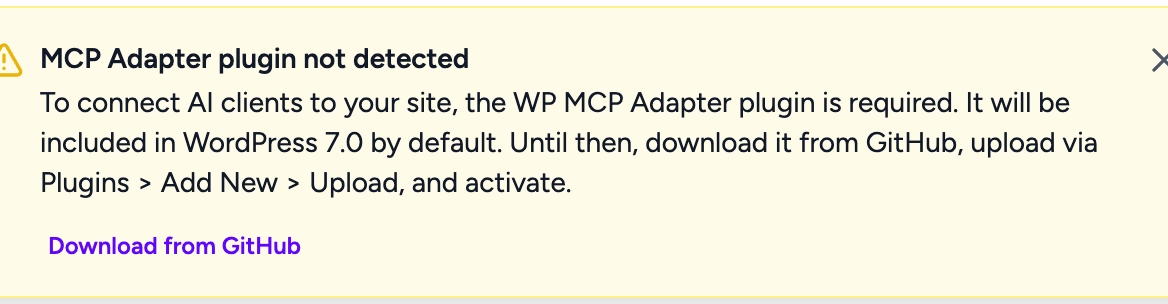
The plugin is available on WordPress.org, so you can install it straight from your dashboard:
- In your WordPress dashboard, go to Plugins > Add Plugin.
- Search for MCP Adapter.
- Find MCP Adapter by WordPress.org, click Install Now, then click Activate.
- Go back to Spectra Blocks > Settings > MCP Server. The notice is gone and the connection details are ready.
How to Connect Your AI Client
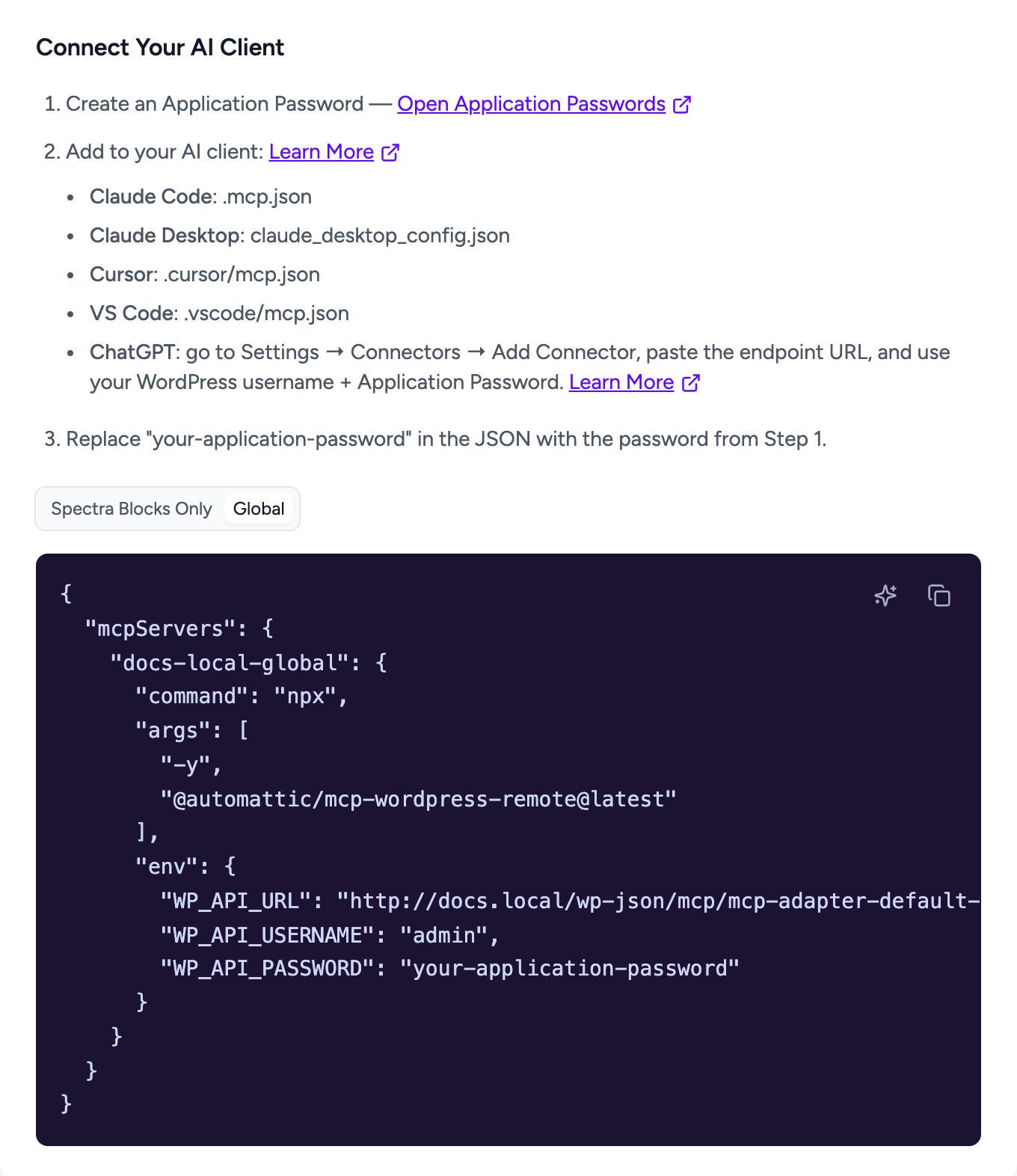
Once both Enable Abilities and Enable MCP Server are on, a Connect Your AI Client section appears below the toggles. It gives you a ready made configuration with your site address and your username already filled in, so you only need to add your password.
Step 1: Create an Application Password
Your AI client signs in with an Application Password rather than your normal login password. We recommend creating a separate one for each AI client, so you can turn off one client without affecting the others.
To create one, follow these steps:
- In the Connect Your AI Client section, click Open Application Passwords. This takes you to your profile page.
- Scroll down to Application Passwords.
- Type a name you will recognize, such as “Claude Desktop”, in the New Application Password Name field.
- Click Add Application Password.
- Copy the password WordPress shows you and keep it somewhere safe. WordPress shows it only once.
If you do not see the Application Passwords section, your site is probably not using HTTPS. WordPress only offers Application Passwords on secure sites, apart from local development sites.
Step 2: Choose Spectra Blocks Only or Global
Above the configuration box, you will see two options. Each one points your AI client at a different connection address, and they give the AI a different set of tools.
The two options work like this:
- Spectra Blocks Only. Connects to your-site.com/wp-json/spectra-blocks/v1/mcp. The AI sees every Spectra Blocks ability and nothing from other plugins. On Spectra Blocks 1.0.11 and older, this connection offers only Create Container and Create Content.
- Global. Connects to your-site.com/wp-json/mcp/mcp-adapter-default-server, the main MCP Adapter address. Through this connection, the AI can discover and run every ability on your site, including Spectra Blocks Pro abilities and any other plugin that offers abilities.
Choose Spectra Blocks Only if you want the AI to work with Spectra Blocks and nothing else. Choose Global if you also use Spectra Blocks Pro or want the AI to reach other plugins on your site.
Step 3: Add the Configuration to Your AI Client
The configuration box shows the exact settings your AI client needs. Use the copy button in the top right corner of the box to copy it. With Global selected, it looks like this:
{
  "mcpServers": {
    "your-site-spectra": {
      "command": "npx",
      "args": ["-y", "@automattic/mcp-wordpress-remote@latest"],
      "env": {
        "WP_API_URL": "https://your-site.com/wp-json/mcp/mcp-adapter-default-server",
        "WP_API_USERNAME": "your-username",
        "WP_API_PASSWORD": "your-application-password"
      }
    }
  }
}
Paste it into your AI client’s MCP configuration file, then replace your-application-password with the password you created in Step 1. If the file already has content, do not paste the configuration at the end of it. A second block of settings below the first one breaks the whole file, and your AI client will not load any of its connections. Instead, add the Spectra entry inside the existing mcpServers section, next to any servers already listed there. If that feels unfamiliar, the setup prompt described below does this for you.
Each AI client keeps its configuration in a different place:
- Claude Code. The .mcp.json file in your project folder.
- Claude Desktop. The claude_desktop_config.json file.
- Cursor. The .cursor/mcp.json file.
- VS Code. The .vscode/mcp.json file. VS Code uses the word servers instead of mcpServers at the top of the configuration, so rename that one key after pasting.
- ChatGPT. ChatGPT does not use a file. Go to Settings > Connectors > Add Connector in ChatGPT, paste the connection address shown in the configuration box, and sign in with your WordPress username and Application Password. OpenAI explains this in its guide to connecting ChatGPT.
After saving the file, close and reopen your AI client so it loads the new connection.
Let Your AI Client Set Itself Up
If editing configuration files feels unfamiliar, there is a shortcut. The configuration box has a small sparkle icon next to the copy button called Copy setup prompt for AI client. Click it, then paste the copied text into a chat with your AI client.
The prompt asks your AI client to find the right configuration file for your app and operating system, check your Node.js setup, ask you for your Application Password, and add the Spectra connection without removing any other servers you already use. Clients that can run commands, such as Claude Code or Cursor, do most of this on their own. Others, such as Claude Desktop, will ask you to run one command and paste the result back.
What You Can Ask Your AI Client to Do
Once connected, you talk to your AI client the way you would brief a colleague. It looks at your site first, then makes the changes. The free Spectra Blocks abilities are grouped into a few areas:
- Finding and reading content. The AI can read every block on a page with its settings, search your posts for a word or phrase, find which posts and drafts use a given Spectra block, list the blocks available on your site, and summarize how your blocks and extensions are used.
- Building new blocks and pages. The AI can create Containers, Text, Buttons, Lists, Icons, Separators, Accordions, Tabs, Counters, Countdowns, Google Maps, Modals, Sliders and Post grids, or build a full page layout with nested blocks in one go.
- Editing and arranging blocks. The AI can change the settings of an existing block, move a block to a new position, duplicate it or remove it.
- Applying extensions. The AI can add or clear Display Conditions, Responsive Conditions, Sticky settings, Z Index and Image Masks on blocks.
- Managing popups. The AI can list, create, update, enable, disable and delete popups made with the Popup Builder.
- Colors, styles and fonts. The AI can read and update your Style Guide color palette and Global Styles, browse Google Fonts, and add or remove fonts from your selected font list.
- Plugin settings. The AI can read and change Spectra Blocks settings, and switch individual blocks on or off.
Here are a few requests to get you started:
- “List the Spectra blocks on my About page and tell me what is inside the hero container.”
- “Add a three column section with a heading and a short paragraph in each column to the Services page.”
- “Set my primary color to #4F46E5 and show me the full palette.”
- “Which of my pages use the Spectra Slider block?”
- “Create a popup called Spring Sale and keep it disabled for now.”
Tip: When the AI builds a Container, ask it to also set the Container’s variationSelected setting to true. Without it, the Container can show the Select a container layout picker in the editor instead of its content. Your live page looks the same either way, and the AI can apply this to existing Containers too.
What Spectra Blocks Pro Adds
When Spectra Blocks Pro is active, your AI client gets extra Pro abilities through the Global connection. No separate setting is needed, as they follow the same Enable Abilities switch.
The Pro abilities cover:
- Finding content. Search posts and pages by category, author, date or keyword, list categories and tags, and browse the Media Library.
- Creating and updating content. Create new posts and pages, which are saved as drafts, and add content to or remove blocks from an existing post.
Keeping Control of What the AI Can Change
An AI client connected to your site acts as the WordPress user whose Application Password it uses. Every action is checked against that user’s role before it runs, so the account you connect with matters.
A few things help you stay in control:
- Everything is off until you turn it on. No Spectra ability exists on your site until Enable Abilities is switched on.
- Roles still apply. Reading page content needs a role that can edit posts, such as Contributor or Author. Creating, editing or removing blocks needs an Editor or Administrator. Popups, fonts, colors, Global Styles and plugin settings need an Administrator.
- Each client has its own password. You can revoke one AI client’s access from Users > Profile > Application Passwords without changing your own login or disconnecting other clients.
- Bad requests are rejected. Every ability checks the information it receives before it runs. If something is missing or invalid, the AI gets an error message that explains what went wrong.
Because the AI makes real changes to real pages, we recommend trying it on a staging site first. When you are working on a live site, ask the AI to describe what it plans to change before it does it.
Troubleshooting
Most connection problems come from one missing piece. Here are the most common problems and how to fix them.
My AI Client Does Not Show Any Spectra Tools
First, open your configuration file and make sure it holds only one set of settings. If you pasted the Spectra configuration below existing content, the file is broken and the client skips every connection in it. Then check that Enable Abilities and Enable MCP Server are both on, that the MCP Adapter plugin is active, and that your site runs WordPress 6.9 or newer. Then close and reopen your AI client so it reads the configuration again.
If you are on Spectra Blocks 1.0.11 or older and connected through Spectra Blocks Only, you will see only Create Container and Create Content. Update Spectra Blocks, or switch the configuration to Global. Pro features always need the Global connection.
The Connection Fails With a 401 Error
A 401 error means WordPress did not accept the sign in. Make sure the configuration uses your WordPress username, not your email address, and an Application Password, not your normal login password. Also check that you replaced your-application-password with the real password and did not leave any extra spaces around it.
The Connection Fails With an MCP Protocol Version Error
MCP Adapter 0.7.0 and newer needs a recent version of the connector your AI client uses. If you see an error that says “MCP-Protocol-Version must be 2025-11-25 for this session”, your AI client is still running an older copy of the connector. Quit your AI client completely, then open it again so it downloads the latest version.
The Global Address Stopped Working After Installing Zip AI
When the Zip AI plugin’s Enable AI abilities setting is on, it renames the MCP Adapter’s main connection address to your-site.com/wp-json/mcp/zip-ai. Update the WP_API_URL value in your AI client’s configuration to that address, or turn the Zip AI setting off to bring back the original address. The Spectra Blocks Only address is not affected.
The Connector Will Not Start or npx Cannot Be Found
The connector runs through Node.js on your computer. Run node --version in your terminal to check it is installed and on version 20 or 22. If your AI client still cannot find it, use the Copy setup prompt for AI client button, which helps your AI client point to the exact Node.js location on your computer.
Frequently Asked Questions
Does Using the MCP Server Cost Anything?
The Spectra Blocks MCP Server is free and does not use any credits from us. Your AI client may have its own subscription or usage costs, depending on the provider and plan you use.
Can I Turn It Off Again?
Yes. Turn off Enable Abilities in Spectra Blocks > Settings > MCP Server and every Spectra ability is removed straight away. You can also delete the Application Password to disconnect a single AI client.
That covers everything you need to start building with Spectra Blocks and your favorite AI assistant. If you get stuck along the way, our support team is always happy to help.
We don't respond to the article feedback, we use it to improve our support content.