
- Filters/Actions For Post
- Spectra Patterns
- Contact Form 7: Checkbox / Radio / Acceptance Control
- Getting Started With Spectra
- WP – Search
- Create Contact Forms
- Import Single Pages, Templates, & Block Patterns
- Assets API For Third-Party Plugins
- Copy & Paste Style
- Load Google Fonts Locally
- Troubleshooting: Missing Icons
- Contact Form 7: Multiple Column Fields
- Unable To Style Contact Form 7
- Tab Index For Multiple Gravity Forms
- Manually Install Spectra Via FTP
- Enable/Disable Design Library Button
- Update Folder File Permissions
- Resolving Container Layout Conflicts
- Database Update Instructions (Below 2.0.0)
- Transparent / Sticky Header
- Change Site Logo
- Change Global Styles
- Disable Title on Posts & Pages
- Transparent / Sticky Header For Single Page / Post
- Change Header & Footer Patterns
- Custom / Google Fonts
- Reset Global Default Styling
- Manually Install Spectra One Via FTP
- Enable / Disable Header & Footer On Specific Pages / Posts
How to Download Your Purchase Invoice?
When you purchase Spectra Pro or any other product from the Brainstorm Force store, an invoice is automatically generated for your order. You can download it at any time from your account dashboard, and you can also update it with billing details like your company name, address, or VAT number before saving the final copy.
This guide walks you through finding and downloading the invoice for your Spectra Pro purchase.
Before You Start
Make sure you have access to the email address you used during the purchase. Your invoice will be available in the Brainstorm Force account linked to that email.
If you no longer have access to that email, you will need to contact our support team to retrieve your order details.
How to Log In to Your Brainstorm Force Account
To get started, log in to your Brainstorm Force account:
- Open the Brainstorm Force account page: https://store.brainstormforce.com/login/
- Enter the email address you used during your purchase.
- Enter your password and click the Login button.
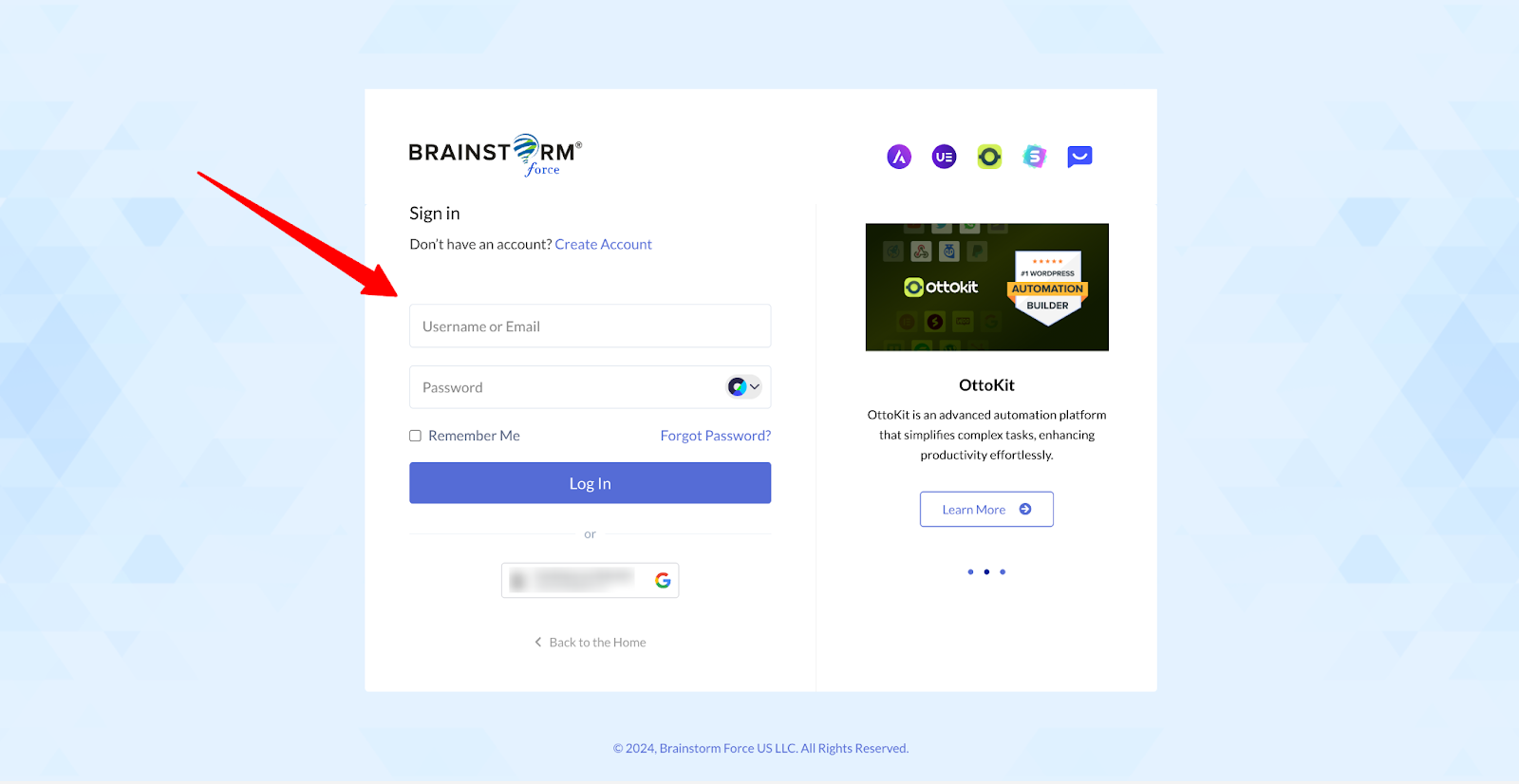
If you have forgotten your password, click the Forget Password? link on the login page and reset it using your email.
How to Find Your Orders
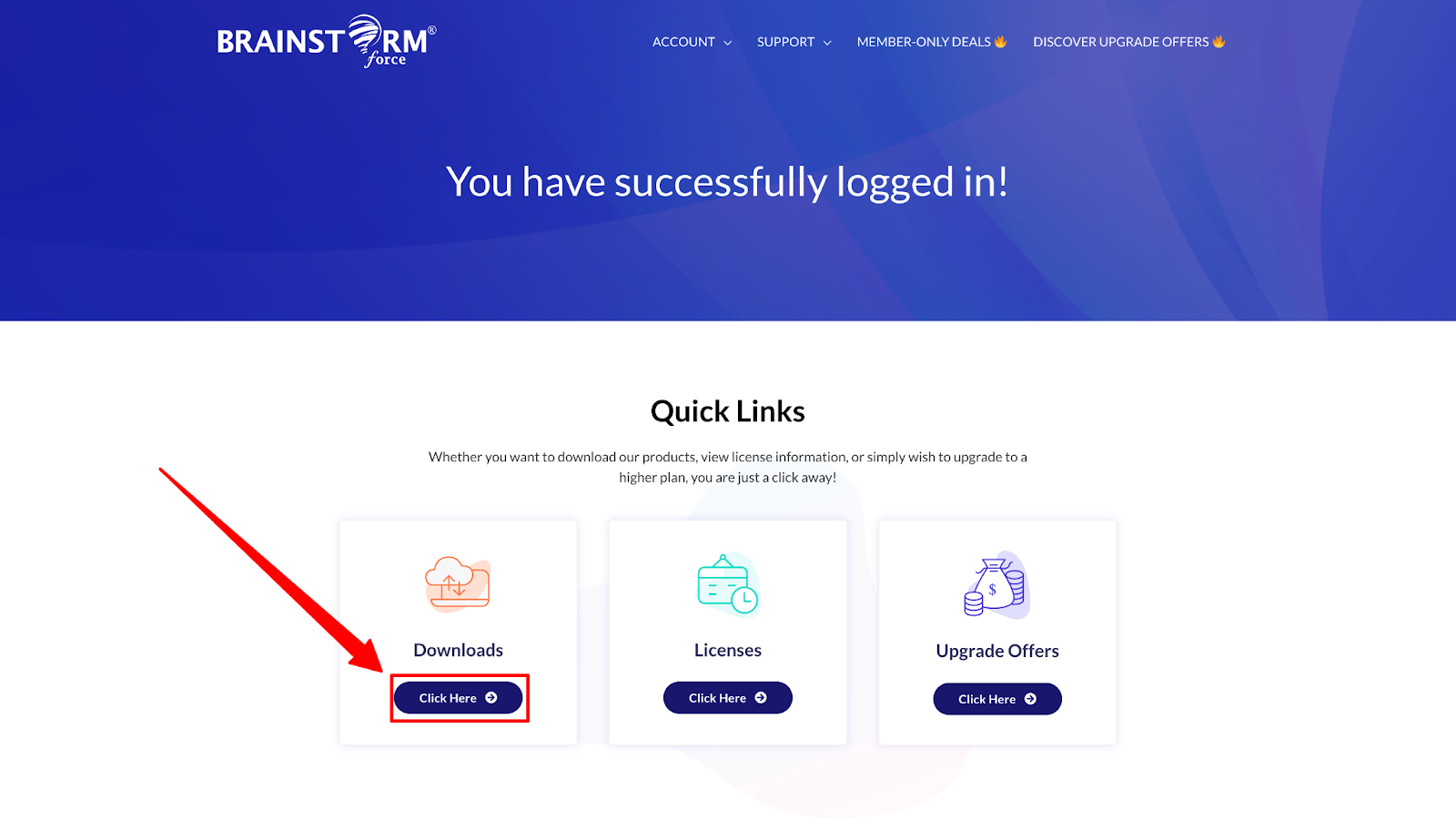
Once you are logged in, you will be redirected to the Getting Started page at https://store.brainstormforce.com/getting-started/
In the Quick Links section, click the “Click Here” button under the Downloads box. This will show you a list of all the products you have purchased from Brainstorm Force.
How to Download Your Invoice
Now that you can see your purchases, here is how to get the invoice:
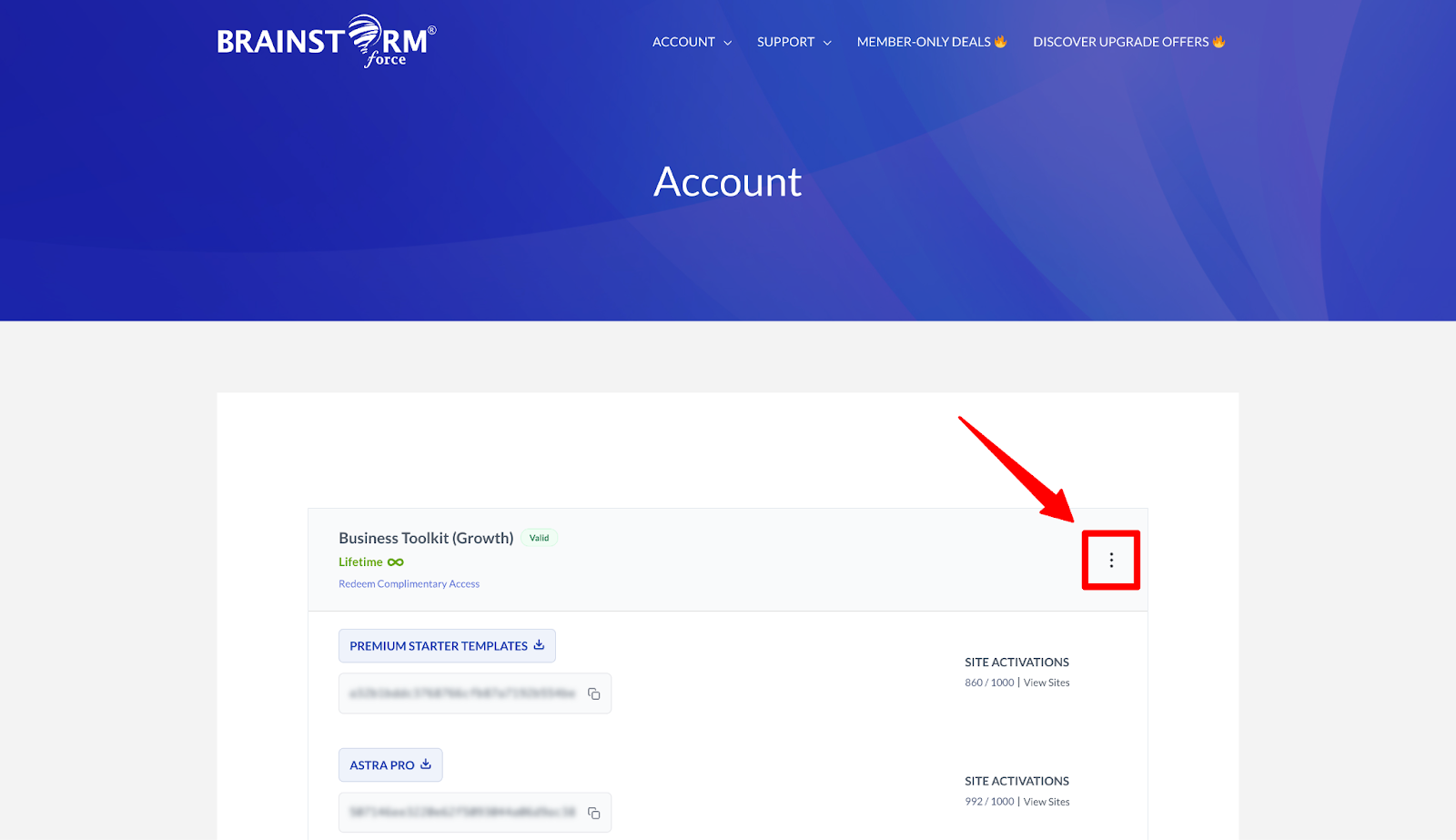
- Open your account page: https://store.brainstormforce.com/account/
- Find the Spectra Pro purchase you want the invoice for.
- Click the three dots next to that purchase.
- Click “Purchase History” from the options that appear.
- Click the “View Invoice” button next to the relevant order.
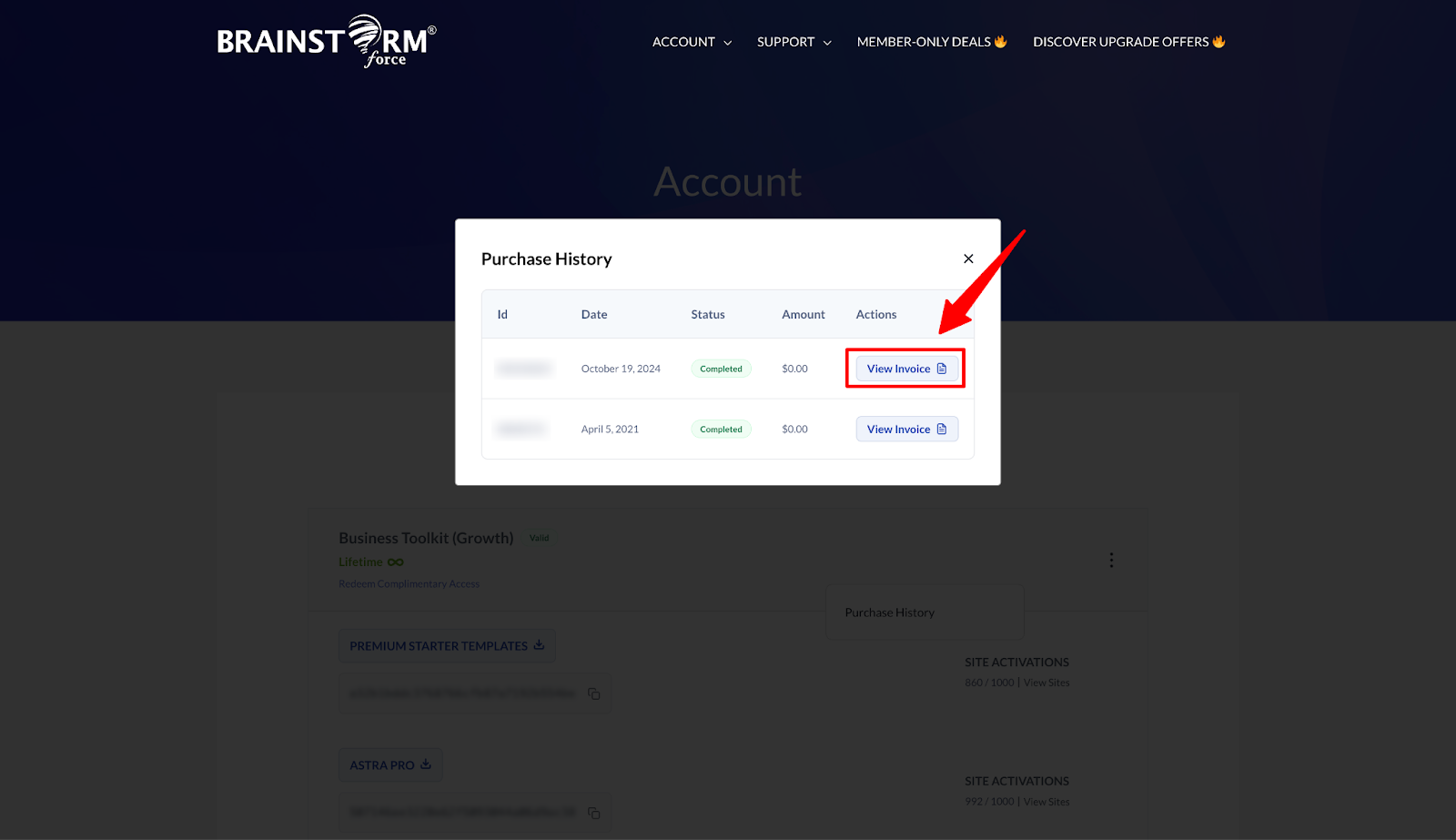
The invoice will open in a new tab.
How to Update Your Billing Details
Before downloading, you may want to add or update your billing information on the invoice. Inside the Invoice To section, click the “Update” button. You can fill in or edit the following fields:
- Custom Notes
- Company
- Billing Name
- Billing Address
- Line 2
- City
- Zip / Postal Code
- Country
- County / State
- Tax / VAT Number
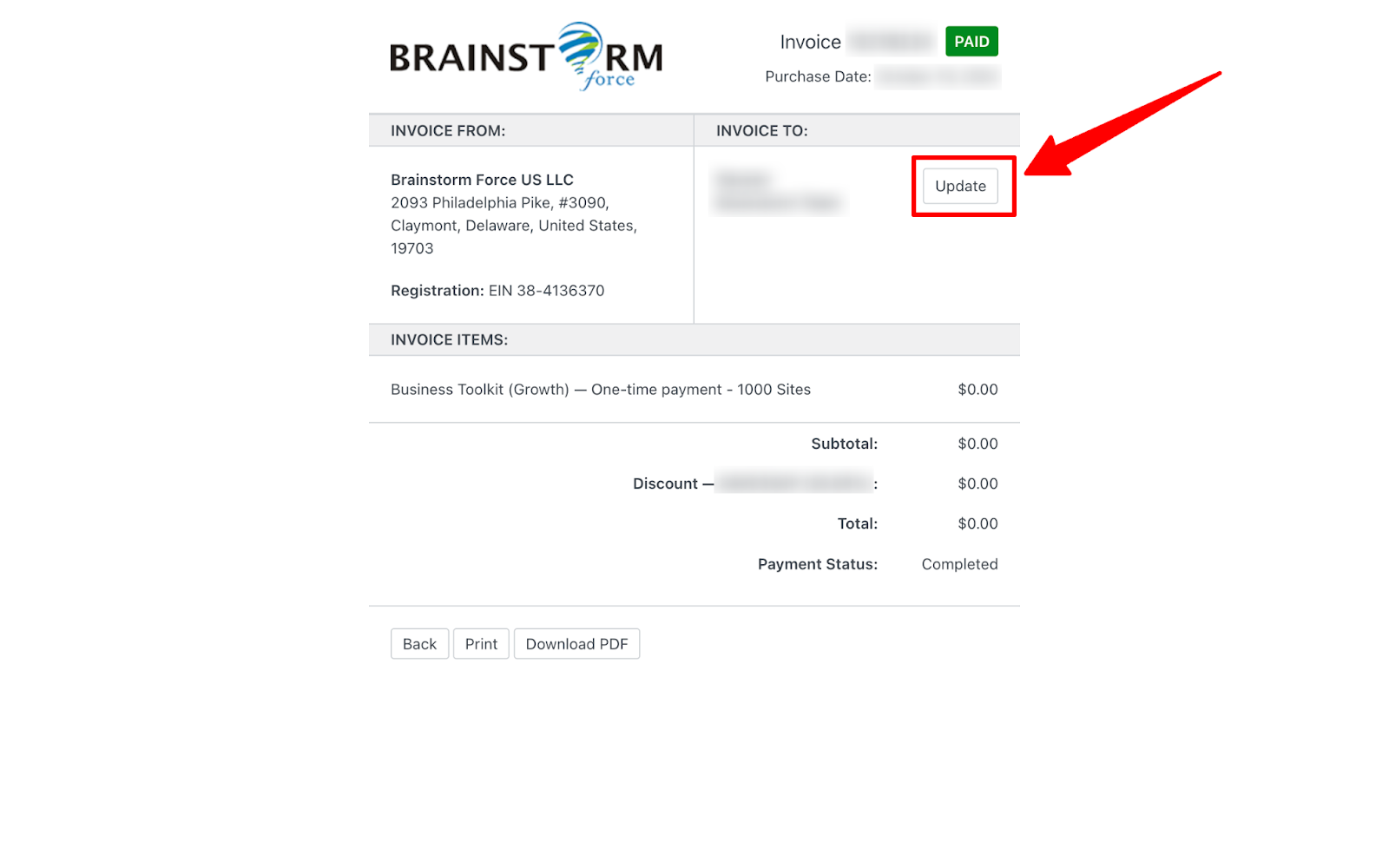
Once you have entered the details you need, click “Save Billing Details and Generate Invoice”. The invoice will refresh in a new tab with your updated information.
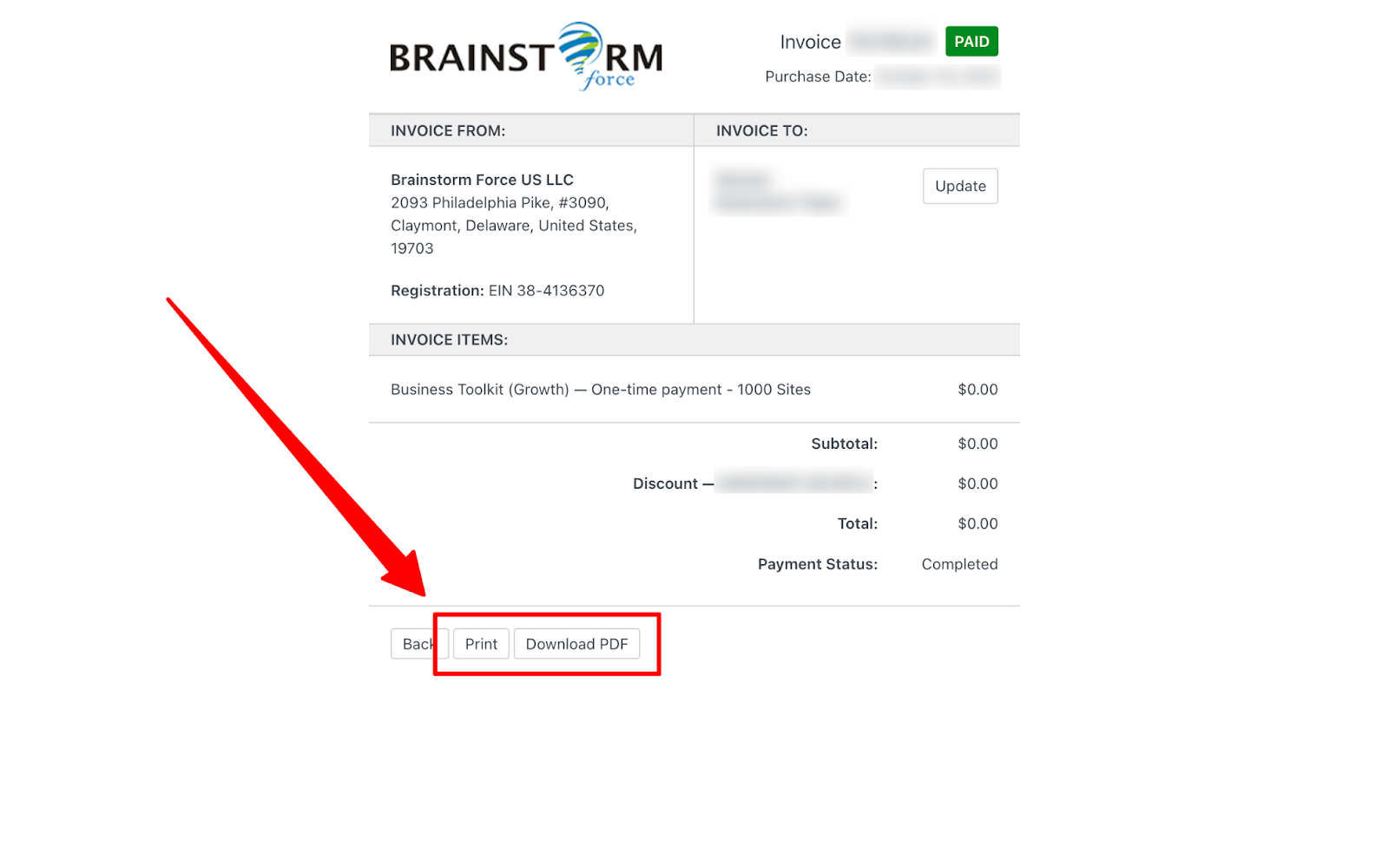
From there, click “Print” to print a copy or “Download PDF” to save it to your device.
What to Do If You Cannot Find Your Invoice
If your invoice does not appear, check the following before reaching out to support:
- Make sure you logged in using the same email address used during the purchase.
- Check that the order appears on your Account page.
- Search your email inbox for the original purchase confirmation email, which also contains your order details.
Getting Help From Our Support Team
If you have gone through the steps above and still cannot access your invoice, our support team is here to help. Please reach out at https://store.brainstormforce.com/support and include the following details so we can locate your order quickly:
- The email address used during the purchase
- The product name (for example, Spectra Pro)
- The approximate purchase date
- Your transaction ID, if you have it
We hope this guide made it easy to find and download your Spectra Pro invoice. If you run into any other questions about your purchase, feel free to reach out and we will be happy to help.
We don't respond to the article feedback, we use it to improve our support content.