
- Filters/Actions For Post
- Spectra Patterns
- Contact Form 7: Checkbox / Radio / Acceptance Control
- Getting Started With Spectra
- WP – Search
- Create Contact Forms
- Import Single Pages, Templates, & Block Patterns
- Assets API For Third-Party Plugins
- Copy & Paste Style
- Load Google Fonts Locally
- Troubleshooting: Missing Icons
- Contact Form 7: Multiple Column Fields
- Unable To Style Contact Form 7
- Tab Index For Multiple Gravity Forms
- Manually Install Spectra Via FTP
- Enable/Disable Design Library Button
- Update Folder File Permissions
- Resolving Container Layout Conflicts
- Database Update Instructions (Below 2.0.0)
- Transparent / Sticky Header
- Change Site Logo
- Change Global Styles
- Disable Title on Posts & Pages
- Transparent / Sticky Header For Single Page / Post
- Change Header & Footer Patterns
- Custom / Google Fonts
- Reset Global Default Styling
- Manually Install Spectra One Via FTP
- Enable / Disable Header & Footer On Specific Pages / Posts
How to Create an Admin Account in WordPress & Share Credentials Securely
This guide walks you through how to create a new Administrator account in WordPress and how to securely share the login credentials using One Time Secret — a tool that lets passwords be viewed only once.
Part 1: Creating a WordPress Admin Account
Step 1: Log in to the WordPress Dashboard
Go to your WordPress site URL followed by /wp-admin (e.g., https://yoursite.com/wp-admin). Enter your username and password, then click Log In to access the WordPress Dashboard.
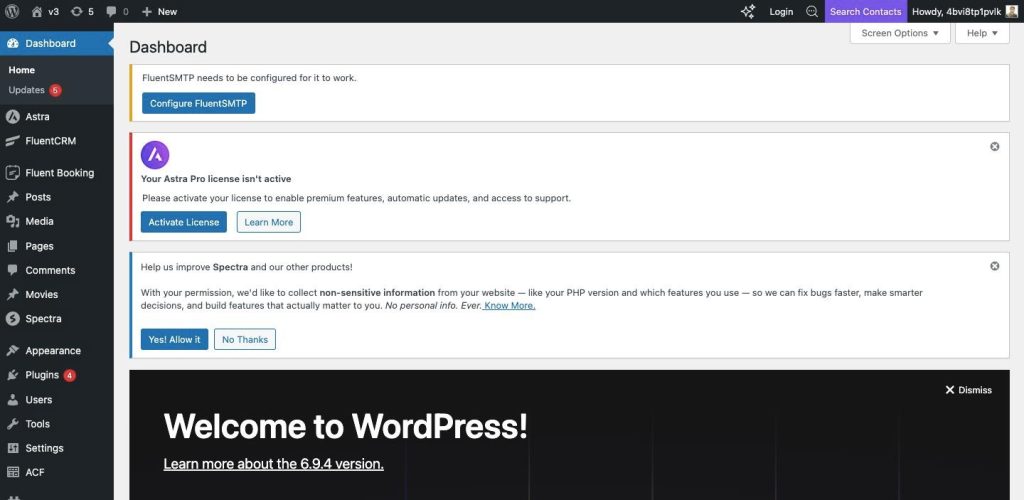
Step 2: Go to Users > Add User
In the left sidebar of the WordPress Dashboard, click on Users. A sub-menu will appear showing All Users, Add User, and Profile. Click on Add User.
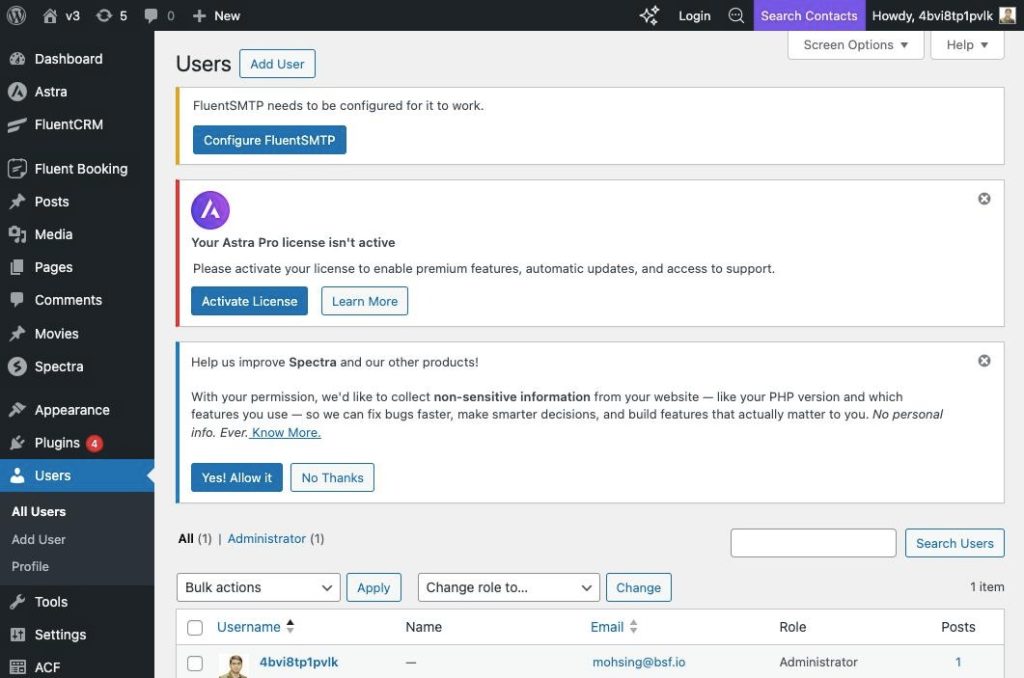
Step 3: Fill in the Add User Form
On the Add User page, fill in the required fields:
- Username (required): Enter a unique username for the new admin
- – Email (required): Enter the admin’s email address
- – First Name / Last Name: Optional but recommended
- – Password (required): Enter a strong password or use the auto-generated one
- – Role: Select Administrator from the dropdown menu
Step 4: Set the Role to Administrator
Scroll down to the Role field in the form. By default it is set to “Subscriber”. Click the dropdown and select Administrator. This grants the new user full access to the WordPress site.
Important: Only assign the Administrator role to trusted users, as it gives complete control over the site.
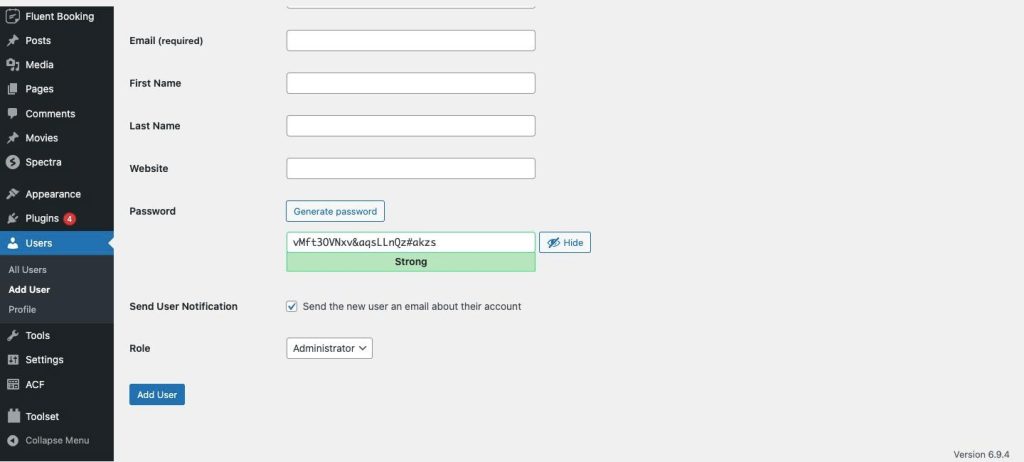
Step 5: Click “Add User”
Once all required fields are filled and the role is set to Administrator, click the Add User button at the bottom of the form. WordPress will create the account and send an email notification to the new user with their login details.
Part 2: Sharing the Password Securely Using One Time Secret
One Time Secret (onetimesecret.com) allows you to share sensitive information like passwords via a link that can only be viewed once. After it is viewed, the link expires automatically, keeping credentials secure.
Step 1: Go to onetimesecret.com
Open your browser and navigate to https://onetimesecret.com. You will see the “Create Secret Link” form on the homepage.
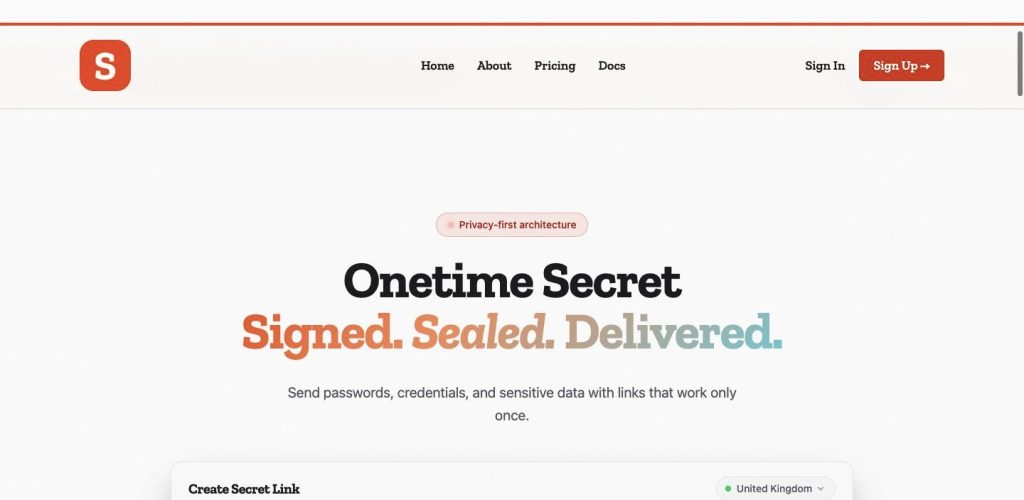
Step 2: Enter the Password in the Secret Field
In the “Type your secret message here” text box, type or paste the new admin’s password. You can also include the username for reference, for example:
Username: newadmin
Password: YourSecurePassword123!
Step 3: Set Expiry and Click “Create Secret Link”
Optionally, you can set how long the secret stays active (e.g., 1 day, 1 week). When ready, click the Create a Secret Link button. One Time Secret will generate a unique one-time URL.
Summary
You have now learned how to:
- Create a new Administrator account in WordPress via Users > Add User
- 2. Fill in the required fields and assign the Administrator role
- 3. Share the new password securely using One Time Secret — ensuring the credential can only be viewed once
Following these steps ensures your WordPress site stays secure and admin credentials are never exposed through insecure channels.
We don't respond to the article feedback, we use it to improve our support content.